> For the complete documentation index, see [llms.txt](https://docs.spara.com/llms.txt). Markdown versions of documentation pages are available by appending `.md` to page URLs; this page is available as [Markdown](https://docs.spara.com/build/channels/chat/spara-navigator.md).
# Spara Navigator
An introduction to Spara's website chatbot.
Spara Navigator is a chatbot for marketing websites. It is built specifically to power MQL to SQL conversion by answering questions and proactively asking qualifying questions. Spara Navigator "floats" on the page so that it is viewable and accessible at all times.
Onboarding & installation instructions can be found here: [Guide: Installing Spara Navigator](https://docs.spara.com/guides/onboarding-guides/chat-agent-onboarding/installing-spara-navigator).
Spara Navigator's initial behavior can be customized based on a multitude of factors:
* What URL Spara is loaded on
* Any [Developer: Query Parameters](https://docs.spara.com/developers/spara-api/query-parameters) in the URL, including `utm` marketing parameters
* Any "wait" time before Spara should load
Once a buyer is engaging with Spara Navigator, how Spara Navigator moves the lead through your sales funnel is fully configurable in [AI Instructions](/build/channels/configuring/ai-instructions.md).
Spara Navigator's UI and color scheme are highly configurable. Below is an explanation of UI Modes; Navigator may have different UI Modes for desktop versus mobile users.
## Previews
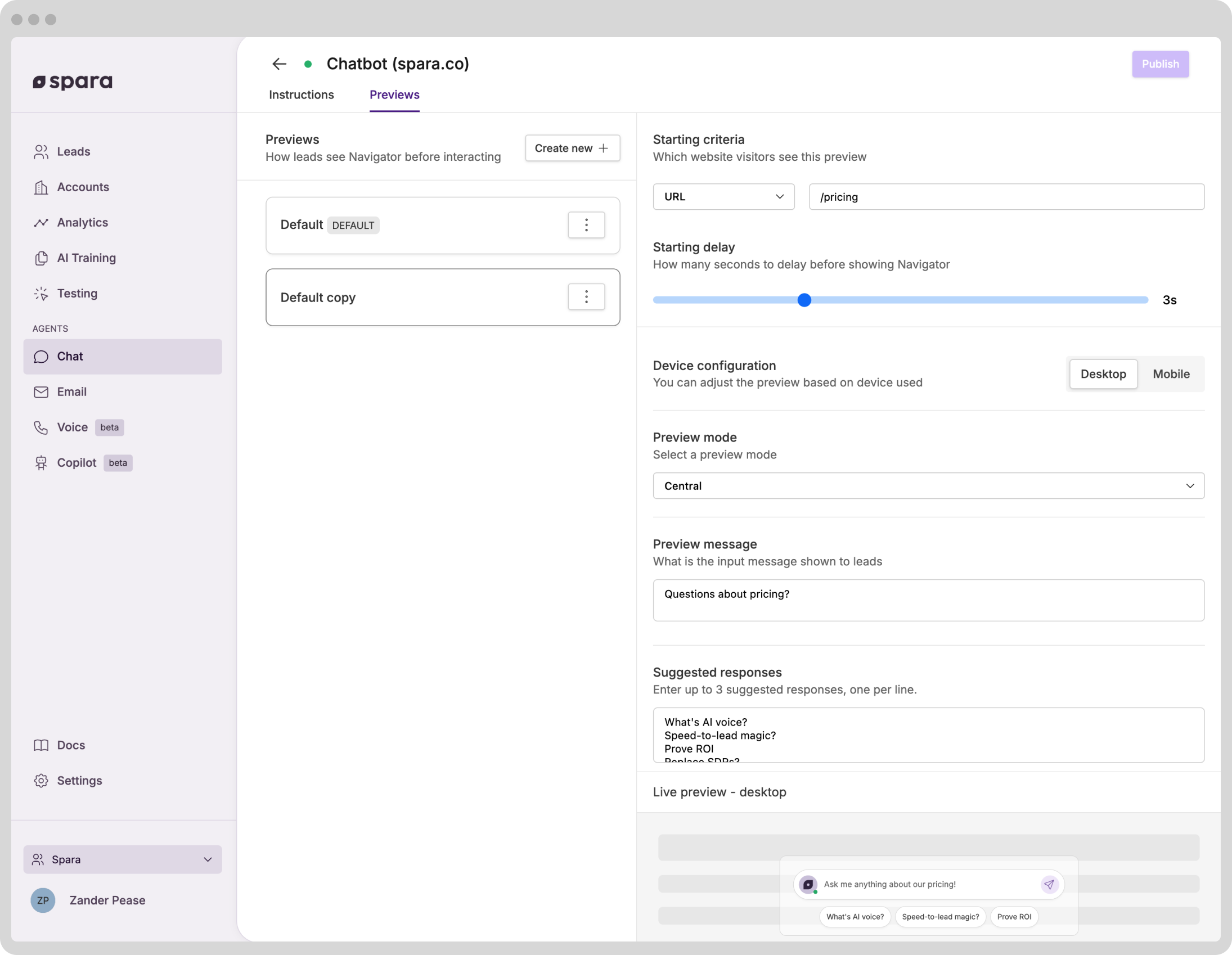
In addition to all the features outlined in [AI Instructions](/build/channels/configuring/ai-instructions.md), Previews lets you define how Spara Navigator looks to website visitors *before* they engage with it. Here's how it works:
* Each chat channel has its own set of one or more Previews.
* This makes [A/B Testing](/build/channels/configuring/a-b-testing.md) different Previews easy to optimize engagement.
* Each Preview\...
* Has a **Name** identifying it in the list. Spara names a new or duplicated Preview after its loading criteria when you save it, and you can edit the Name yourself at any time — once you do, Spara keeps the name you chose.
* Is entirely configurable for Desktop vs. Mobile visitors.
* Loading criteria determines which website visitors see it. The "default" Preview is a catch-all for any website visitors that don't fit the loading criteria of other Previews.
* Loading delay sets how many seconds to delay before showing Navigator website visitors.
* Preview mode is what Navigator looks like. Different Preview modes require different inputs.
* A **Call to action** section lists the buttons you can offer the visitors who see this Preview. Select **Start product demo** on the Previews where you want a demo offered — for example, only on your pricing page. The two surfaces are separate options, so you can offer a demo in one and not the other: **before Navigator is opened** puts the button on the Navigator itself, and **within Navigator chat** puts it above the message box once a visitor has opened the chat. Both options appear only if product demos are enabled for your account.
* Each Preview is rendered for you to "preview" in the bottom right of the screen so you can see exactly how each input works.
{% hint style="info" %}
When the starting criteria is **URL**, enter the **path** of the page (e.g., `/pricing`, `/solutions/sales`), not a full URL with `https://` and a domain. Spara matches the visitor's current path against what you enter, including any sub-paths underneath it (so `/pricing` also matches `/pricing/enterprise`).
When the starting criteria is **Country**, you can select more than one country, and the Preview shows to visitors from any of them. One Preview can therefore cover a whole region or language — for example, a French-language Preview for visitors from France, Belgium, and Switzerland.
{% endhint %}
### Preview Mode: Central
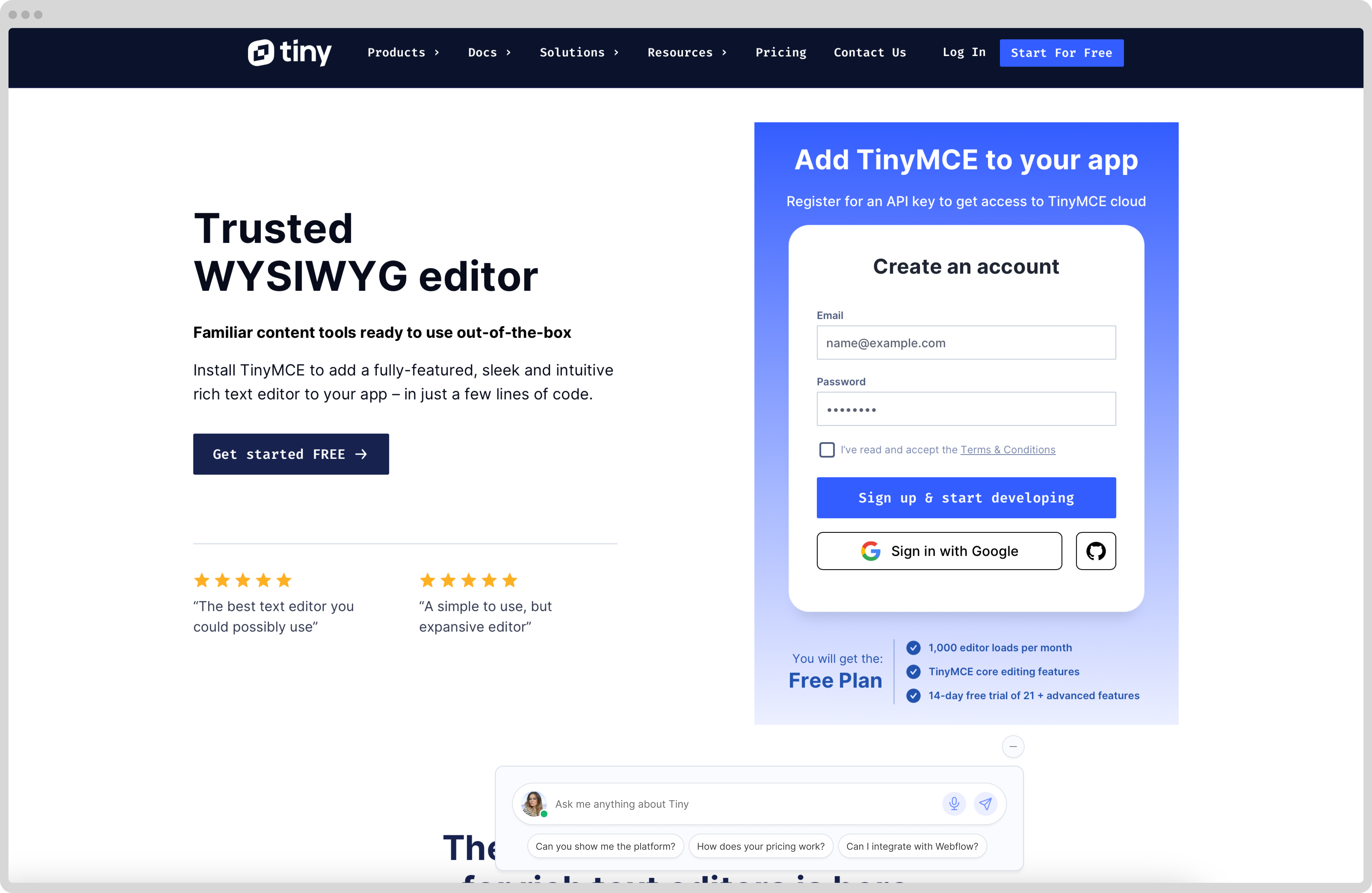
The "Central" preview mode is a contemporary design that drives higher engagement that a traditional bottom right chatbot - you'll notice leading AI companies like [OpenAI](https://openai.com) using this design on their own marketing websites. We recommend using this mode.
Note that this mode may not be compatible with large cookie policy banners and is only supported on desktop - you must choose a different mode for mobile devices.
Spara Navigator's modern, centrally-placed UI.
### Preview Mode: Traditional
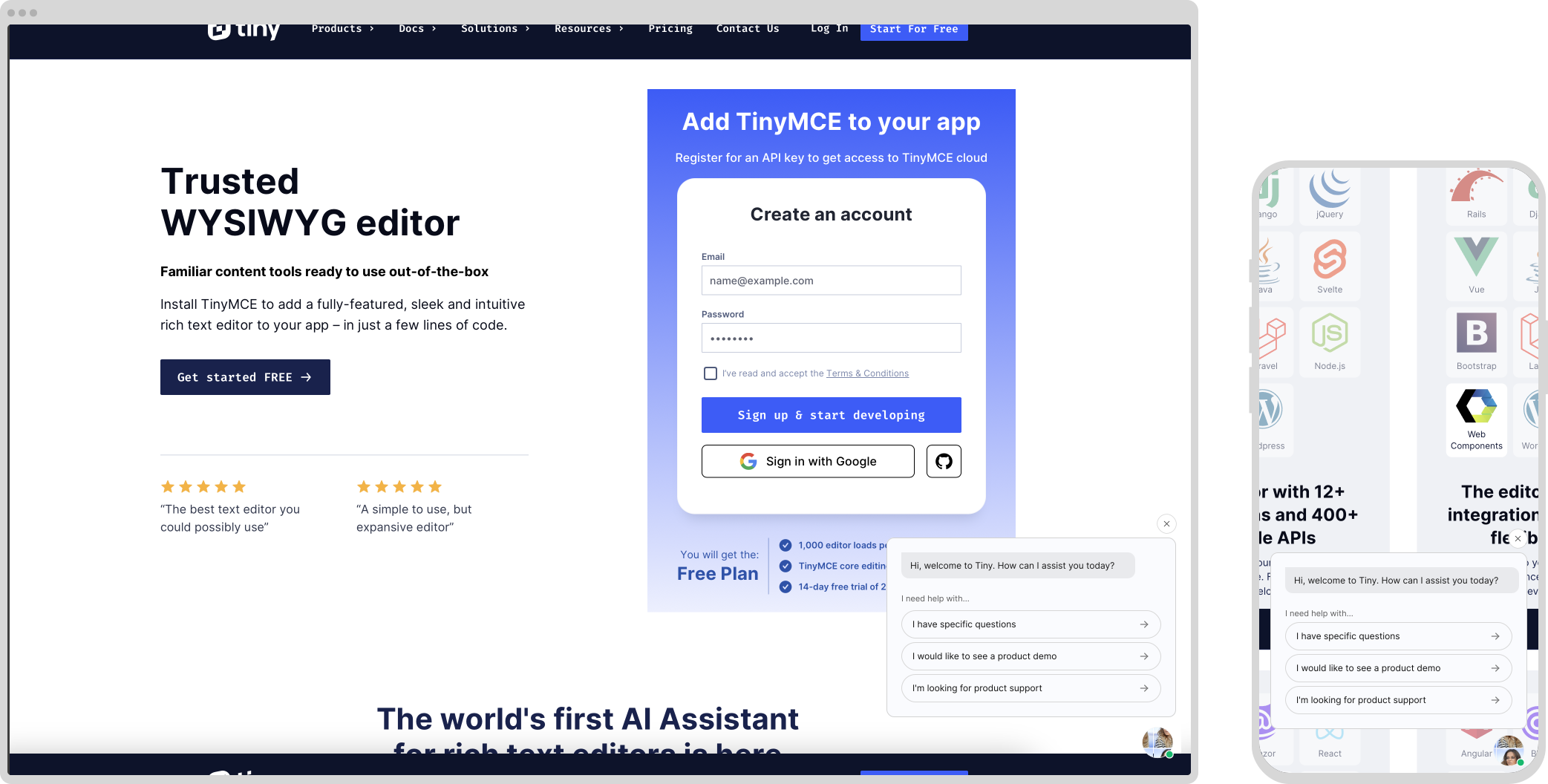
Traditional Mode places the chatbot in the bottom right corner of screens - where chatbots are traditional seen. There are three options within this mode:
* Traditional: Message - shows a message and/or suggested responses
* Traditional: Input - shows an input bar
* Traditional: Closed - shows just the bottom-right avatar
With **Start product demo — before Navigator is opened** selected, the demo button sits above the message or the input bar. Traditional: Closed shows only the avatar, so it can't offer a button — visitors get the demo once they open the chat instead.
Traditional: Message mode can show with a preview message and/or suggested responses.
Traditional: Closed mode only shows the bottom-right avatar.
### Preview Mode: Opened
This mode loads Spara Navigator in its "opened" state.
### Preview Mode: Hidden
Does not show Spara Navigator at all. Useful for A/B testing having a chatbot on your webpages.
### Preview Mode: Avatar
The Avatar preview mode replaces the standard message bubble with a narrow portrait card. Desktop visitors see a looping avatar video, a greeting, a **Start product demo** button, and an input for typing their own question. Two additional buttons — book a meeting and request support — can be enabled per preview. The demo button follows the Preview's **Start product demo — before Navigator is opened** setting; without it the card opens chat instead.
#### Keeping the avatar in the opened chat
By default the avatar shrinks to the small portrait in the chat header once a visitor opens the chat. Turn on **Show avatar in chat**, under **After Spara Chat is Opened**, to keep it playing as a banner at the top of the conversation instead. Clicking the banner — or its **Start product demo** button — opens the product demo, so it replaces the demo button that otherwise sits above the message input.
Give the banner its own **Banner video** — a landscape clip. The avatar card's clip is portrait, so shown in the banner it has to be cropped to about a third of its height, which lands on the face alone; a landscape clip fills the banner as it was framed. Without one the banner falls back to the card's clip.
**Avatar placement** chooses how the banner sits:
* Immersive — the banner takes the chat header's place and carries the rep's name and title itself.
* In thread — the standard header stays and the banner enters as the conversation's first card, scrolling away as the chat grows.
This setting needs product demos enabled on your account, and appears only on previews using Avatar mode.
This mode is configured by Spara. Reach out to your account manager or to enable it for your account.
---
# Agent Instructions
This documentation is published with GitBook. GitBook is the documentation platform designed so that both humans and AI agents can read, navigate, and reason over technical content effectively. Learn more at gitbook.com.
## Querying This Documentation
If you need additional information that is not directly available in this page, you can query the documentation dynamically by asking a question.
Perform an HTTP GET request on the current page URL with the `ask` query parameter, and the optional `goal` query parameter:
```
GET https://docs.spara.com/build/channels/chat/spara-navigator.md?ask=&goal=
```
`ask` is the immediate question: it should be specific, self-contained, and written in natural language.
`goal` is optional and describes the broader end goal you are ultimately trying to accomplish on behalf of the user. GitBook uses it to tailor the answer towards what is most useful for that goal.
The response will contain a direct answer to the question and relevant excerpts and sources from the documentation.
Use this mechanism when the answer is not explicitly present in the current page, you need clarification or additional context, or you want to retrieve related documentation sections.
.svg?alt=media)