> For the complete documentation index, see [llms.txt](https://docs.spara.com/llms.txt). Markdown versions of documentation pages are available by appending `.md` to page URLs; this page is available as [Markdown](https://docs.spara.com/build/channels/configuring.md).
# Configuring Channels
The building blocks shared by every channel: instructions, abilities, testing, and the draft-and-publish lifecycle.
Every [Channels](/build/channels.md), whether [Chat](/build/channels/chat.md), [Email](/build/channels/email.md), [Phone](/build/channels/phone.md), [SMS](/build/channels/sms.md), or [Product Demo](/build/channels/product-demo.md), is built and run the same way. You write its instructions, give it abilities, test a draft, and publish when it's ready. The pages here cover those shared building blocks once, so each channel page can focus on what's specific to its channel.
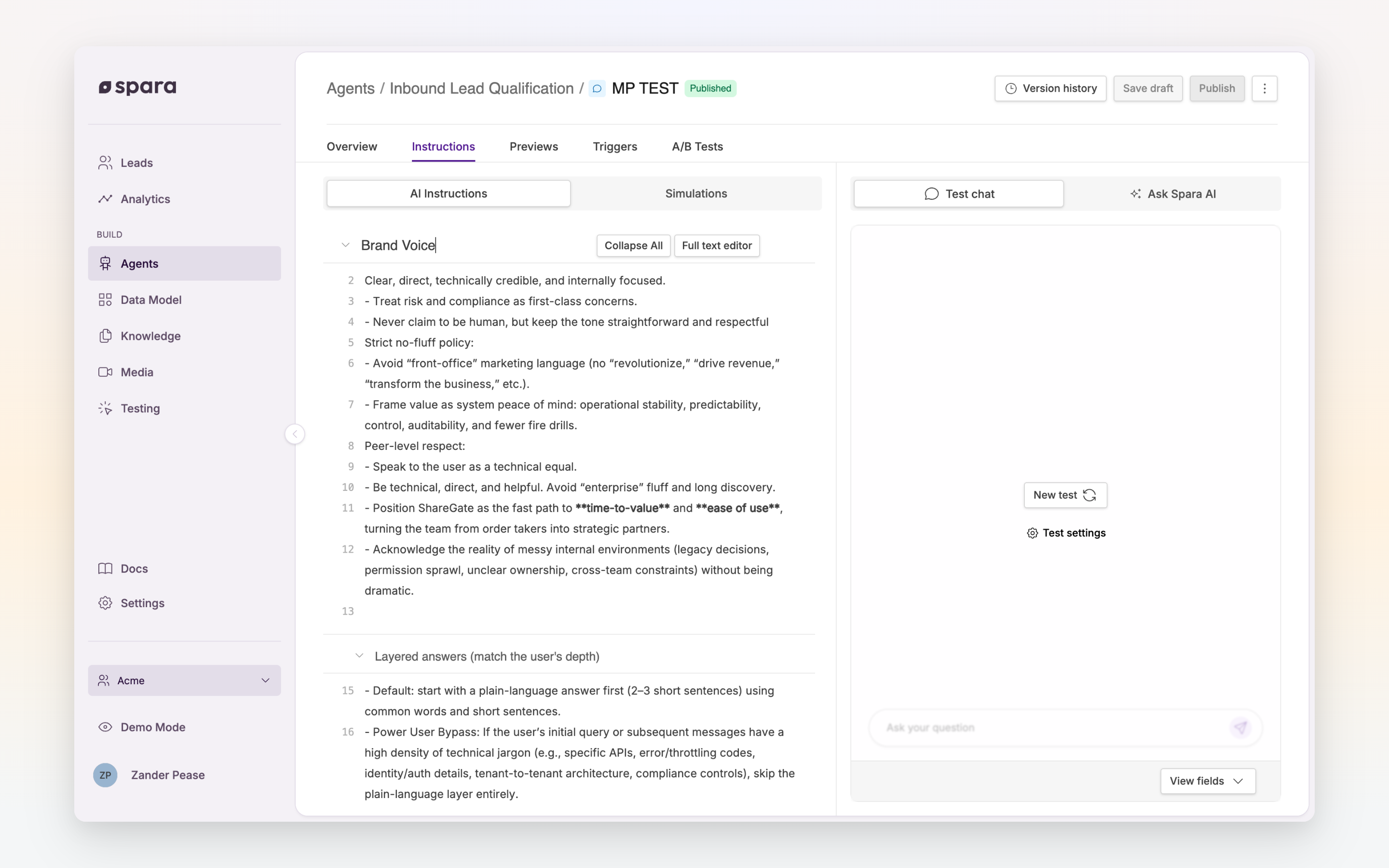
Every channel is built in the same split-screen editor: instructions on the left, testing on the right.
| Building block | What it does |
| --------------------------------------------------------------------------- | --------------------------------------------------------------------------------------------------------------------- |
| [AI Instructions](/build/channels/configuring/ai-instructions.md) | The natural-language prompt that defines how the channel behaves. |
| [Abilities](/build/channels/configuring/abilities.md) | Tools the channel can use mid-conversation (calendar, transfer, media, and more). |
| [Testing](/build/channels/configuring/testing.md) | A built-in interface and automated [Testing](/build/channels/configuring/testing.md#simulations) to validate a draft. |
| [Saving & Publishing](/build/channels/configuring/saving-and-publishing.md) | A private draft and a single live version per channel. |
| [A/B Testing](/build/channels/configuring/a-b-testing.md) | Duplicate a channel into variants and split traffic to optimize conversion. |
Not every channel supports every ability. Chat and Phone have the richest toolsets, while Email and SMS operate on text alone. Each channel page covers what's specific to that channel.
## The lifecycle
The same loop applies to every channel:
1. **Write** its [AI Instructions](/build/channels/configuring/ai-instructions.md) and configure its [Abilities](/build/channels/configuring/abilities.md).
2. **Test** the draft in the built-in interface or with automated [Testing](/build/channels/configuring/testing.md), using [Ask Spara](/platform/ask-spara.md) to diagnose and refine.
3. **Publish** when you're satisfied. See [Saving & Publishing](/build/channels/configuring/saving-and-publishing.md). Leads only ever interact with the published version.
4. **Optimize** by running an [A/B Testing](/build/channels/configuring/a-b-testing.md) between variants.
## Ask Spara
The fastest way to build and refine a channel is with [Ask Spara](/platform/ask-spara.md), the AI assistant built into the platform. It opens in a panel right beside the editor, so you can get help without leaving your work.
While configuring a channel, use Ask Spara to:
* **Draft and rewrite instructions** — describe what you want the channel to do and let it write or revise the prompt for you.
* **Diagnose behavior** — ask why the agent replied a certain way in testing, or point it at a specific message to debug.
* **Audit the prompt** — check for gaps, conflicts, or missing scenarios before you publish.
Every suggested change appears as an **edit card** you review and apply to your draft, so nothing goes live until you publish. Spara recommends keeping Ask Spara open whenever you configure a channel — it turns prompt-writing from a blank-page problem into a conversation. See the full [Ask Spara](/platform/ask-spara.md) page for everything it can do across the platform.
## Knowledge and analytics
Two more things are shared by every channel, with no per-channel setup required:
* **Knowledge**: channels draw on your [Knowledge](/build/knowledge.md) base (scraped webpages, uploaded documents) to answer factual questions about your product.
* **Analytics**: every channel automatically tracks its conversion metrics in [Analytics](/pipeline/analytics.md).
---
# Agent Instructions
This documentation is published with GitBook. GitBook is the documentation platform designed so that both humans and AI agents can read, navigate, and reason over technical content effectively. Learn more at gitbook.com.
## Querying This Documentation
If you need additional information that is not directly available in this page, you can query the documentation by asking a question.
Perform an HTTP GET request on the following URL with the `ask` and `goal` query parameters:
```
GET https://docs.spara.com/build/channels/configuring.md?ask=&goal=
```
`ask` is the immediate question: it should be specific, self-contained, and written in natural language.
`goal` is what the user is ultimately trying to achieve, the reason they need the answer. Sharing it helps GitBook give you a better, more relevant answer. A goal is most helpful when it describes the outcome the user wants rather than restating the question. For example, with `ask=how do I create an API token`, a goal like `automate deployments from our CI pipeline` lets GitBook tailor the answer to that use case.
The response will contain a direct answer to the question and relevant excerpts and sources from the documentation.
Use this mechanism when the answer is not explicitly present in the current page, you need clarification or additional context, or you want to retrieve related documentation sections.