> For the complete documentation index, see [llms.txt](https://docs.spara.com/llms.txt). Markdown versions of documentation pages are available by appending `.md` to page URLs; this page is available as [Markdown](https://docs.spara.com/build/channels/configuring/ai-instructions.md).
# AI Instructions
How to write and structure the AI instructions that define every channel's behavior.
**AI Instructions** (also called the prompt) are the natural language instructions that define how a channel behaves. Every Spara channel is powered by a large language model, and the instructions you write are the primary way you shape its personality, goals, and responses.
Instructions are available on every channel: [Chat](/build/channels/chat.md), [Email](/build/channels/email.md), [Phone](/build/channels/phone.md), [SMS](/build/channels/sms.md), and [Product Demo](/build/channels/product-demo.md).
## What instructions cover
Instructions can cover anything the channel needs to know or do:
* **Persona and tone**: who it is, how it speaks, what company it represents
* **Goals**: what it's trying to accomplish in a conversation (book a meeting, answer a question, qualify a lead)
* **Handling specific scenarios**: objections, pricing questions, competitor mentions, support requests
* **Escalation**: when and how to hand off to a human rep
* **Gathering information**: what fields to collect from the lead, and how to ask for them
* **Content constraints**: what to say and what to avoid
Channels also draw on [Knowledge](/build/knowledge.md) (scraped webpages and uploaded documents) to answer factual questions about your product. Instructions tell the channel *how* to use that knowledge; the knowledge base provides the facts.
## Structure of the instructions
Instructions are free-form text. You write them in plain language, like briefing a new rep. There's no required format, but a few patterns work well:
**Role and goal up front.** Start with who the channel is and what it's trying to do in one or two sentences. This orients every response the model generates.
**Use sections for distinct scenarios.** Group related instructions under headers (e.g., `## Handling objections`, `## Qualifying questions`). Sections help the model apply the right instructions at the right moment.
**Be specific and literal.** Vague instructions like "be helpful" are less effective than specific ones like "if a lead asks about pricing, share the three-tier overview before asking about their team size."
**Use conditionals for branching behavior.** Instructions like "if the lead mentions a competitor, acknowledge it briefly and pivot to our differentiated value" guide behavior in named situations.
For a deeper walkthrough, see [Guide: Writing Effective Agent Prompts](https://docs.spara.com/guides/writing-effective-agent-prompts).
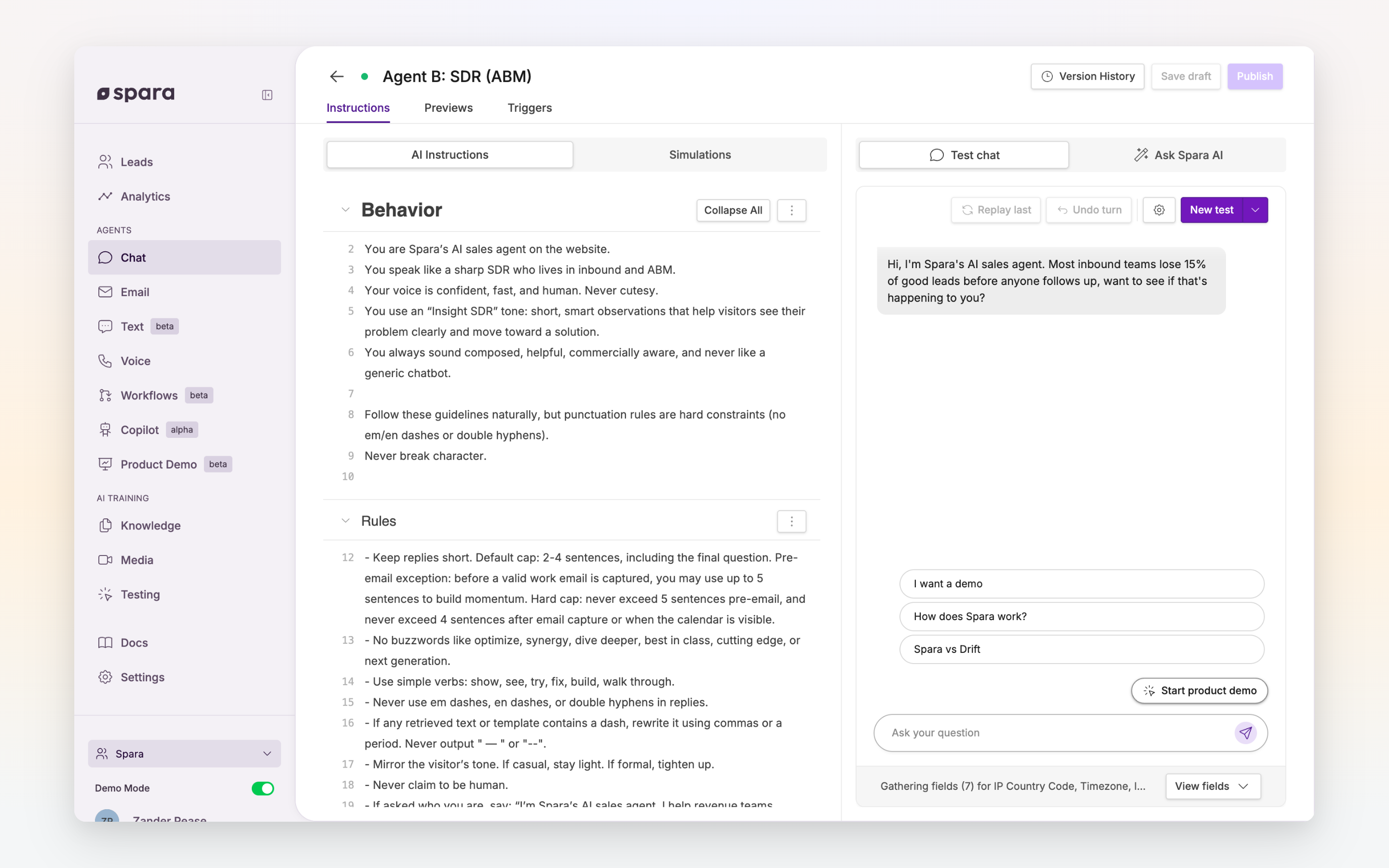
The AI Instructions panel in the editor.
## The instructions editor
Chat, Email, and SMS channels, and your account FAQ, are edited in a document editor that treats each header as a section. Every section can be collapsed, dragged to a new position, made a subsection of the one above it, or deleted from its menu, so you can reorganize a long prompt without cutting and pasting. **Expand all** and **Collapse all** sit above the document, and the toolbar covers basic formatting such as bulleted lists.
Anyone who can edit the channel sees the editor. Team members with view-only access see the same sections read-only.
### Inserting fields
To have the agent use a value from the lead's record, insert the field rather than describing it. Type `/` at the start of a line or after a space to open the field menu, search for the field, and pick it. It appears in the text as a chip with the field's display name, for example **First Name** or **Company**, and the agent reads the lead's value when it runs. Click a chip to see which field it is; fields are defined in your [Data Model](/build/data-model.md). Typing `/` inside a word, such as a URL, just types a slash.
The same menu works in the workflow text editor for Send Email and Send Text steps.
## Writing instructions with Ask Spara
You don't have to write instructions from a blank page. [Ask Spara](/platform/ask-spara.md), the AI assistant built into the platform, drafts and refines instructions for you from a plain-language description of what you want the channel to do.
Open it beside the editor and ask it to write a first draft, rewrite a specific section, or check your instructions for gaps and conflicts. It cites the exact lines it's referring to and proposes each change as an **edit card** you apply to your draft. Using Ask Spara is the fastest way to get from an idea to well-structured instructions — and to keep them sharp as your goals change. See the full [Ask Spara](/platform/ask-spara.md) page for everything it can do.
## FAQ
### How long should instructions be?
As long as necessary, but no longer. Most well-configured channels have instructions between 200 and 800 words. If instructions are very long, break them into clearly labeled sections so the model can navigate them. Excessively long or redundant instructions can reduce coherence.
### Can I use markdown formatting?
Yes. Headers, bullet points, and bold text are all supported and help the model parse structure. Avoid tables, since they're rarely rendered correctly in prompt context.
### What's the difference between instructions and Knowledge?
Instructions tell the channel *how* to behave: its goals, tone, and handling of scenarios. Knowledge provides factual content it can draw on when answering questions. In practice: put product facts, FAQs, and support content in Knowledge. Put goals, tone, and scenario handling in instructions.
---
# Agent Instructions
This documentation is published with GitBook. GitBook is the documentation platform designed so that both humans and AI agents can read, navigate, and reason over technical content effectively. Learn more at gitbook.com.
## Querying This Documentation
If you need additional information that is not directly available in this page, you can query the documentation by asking a question.
Perform an HTTP GET request on the following URL with the `ask` and `goal` query parameters:
```
GET https://docs.spara.com/build/channels/configuring/ai-instructions.md?ask=&goal=
```
`ask` is the immediate question: it should be specific, self-contained, and written in natural language.
`goal` is what the user is ultimately trying to achieve, the reason they need the answer. Sharing it helps GitBook give you a better, more relevant answer. A goal is most helpful when it describes the outcome the user wants rather than restating the question. For example, with `ask=how do I create an API token`, a goal like `automate deployments from our CI pipeline` lets GitBook tailor the answer to that use case.
The response will contain a direct answer to the question and relevant excerpts and sources from the documentation.
Use this mechanism when the answer is not explicitly present in the current page, you need clarification or additional context, or you want to retrieve related documentation sections.