> For the complete documentation index, see [llms.txt](https://docs.spara.com/llms.txt). Markdown versions of documentation pages are available by appending `.md` to page URLs; this page is available as [Markdown](https://docs.spara.com/build/channels/configuring/testing.md).
# Testing
How to test channels using the built-in testing interface and automated Simulations.
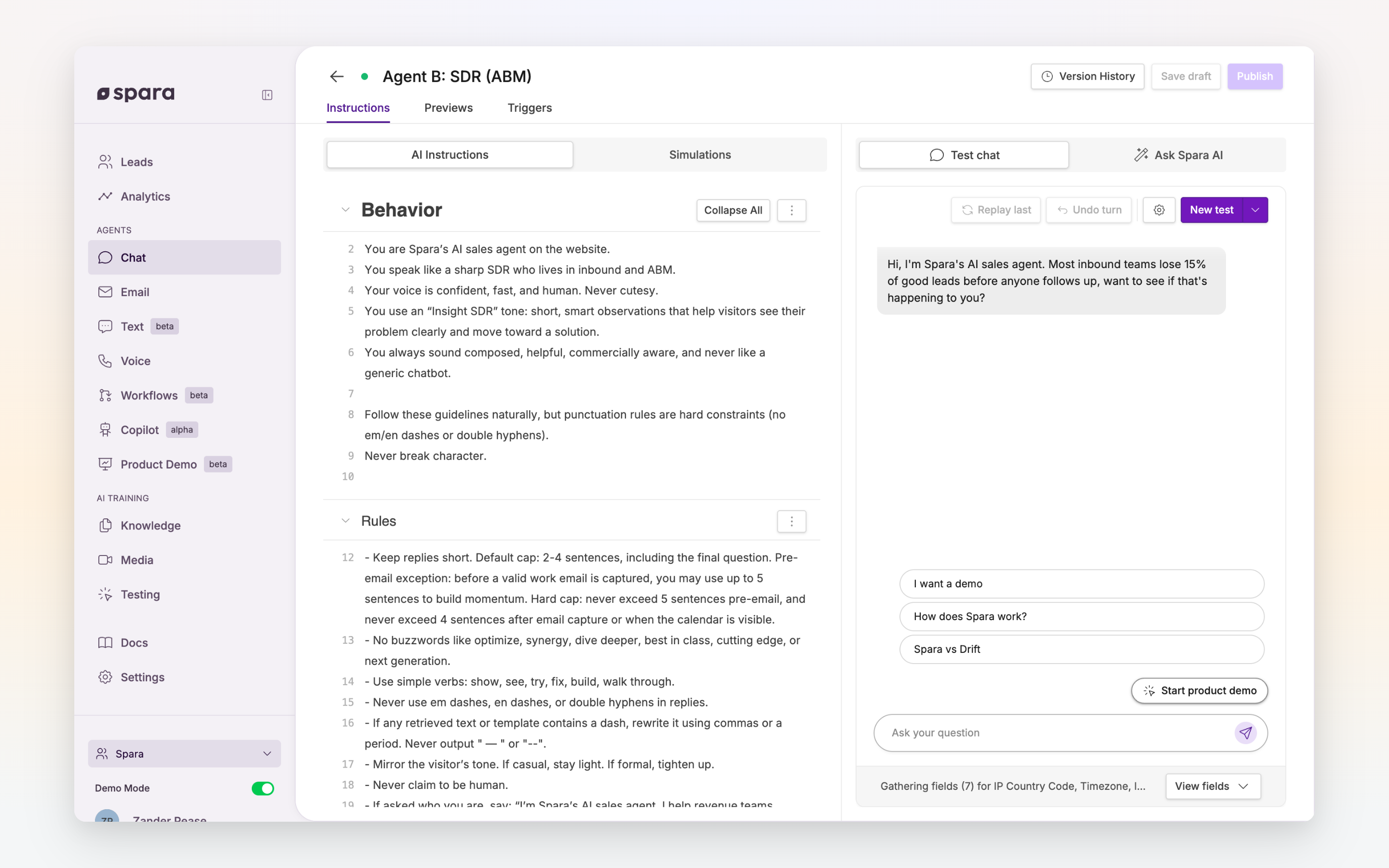
Every Spara channel has a built-in testing interface that lets you interact with a draft before it goes live. Testing always runs against your **current draft** (not the published version), so you can iterate freely without affecting real leads.
The testing interface is accessible in two places:
* **In the editor**: the test panel, opened from the editor toolbar
* **On the** [Testing](/build/testing.md) **page**: a standalone view for side-by-side comparison of multiple channels
The Testing panel in the editor showing a simulated chat conversation.
***
## Test interface by channel
| Channel | Test interface |
| ------- | ------------------------------------------------------- |
| Chat | Simulated chat conversation in Navigator or Smartbar |
| Phone | Simulated phone call (browser-based) |
| Email | Send a simulated incoming email, review the draft reply |
| SMS | Simulated SMS exchange |
***
## Using the test interface
### Running a test
Open the right-hand panel in any editor and start interacting. For Chat, type messages as if you're a lead. For Phone, click to start a test call. The channel responds using your current draft instructions.
**Test conversations are isolated.** Messages sent during testing do not appear in lead history, trigger workflows, or generate analytics events.
**View fields panel.** During a chat test, open the View fields panel to see what data the agent has about the lead. This includes IP-based location fields — `ip_country`, `ip_region`, and `ip_city` — so you can verify what geographic context the agent will have in a real conversation.
### Reviewing a response
Each response can be inspected inline:
* **Lightbulb icon**: Explains why it responded the way it did, citing specific instructions it followed.
* **Thumbs down icon**: Flags the response as incorrect or unhelpful, and offers line-by-line suggestions for improving the prompt to prevent the issue.
Use these tools to understand model reasoning, especially when a response doesn't match your expectations.
### Resetting the test
Click the refresh or clear button to start a new test conversation. Each test session begins with a fresh lead context: no prior messages, no previously captured fields.
***
## Simulations
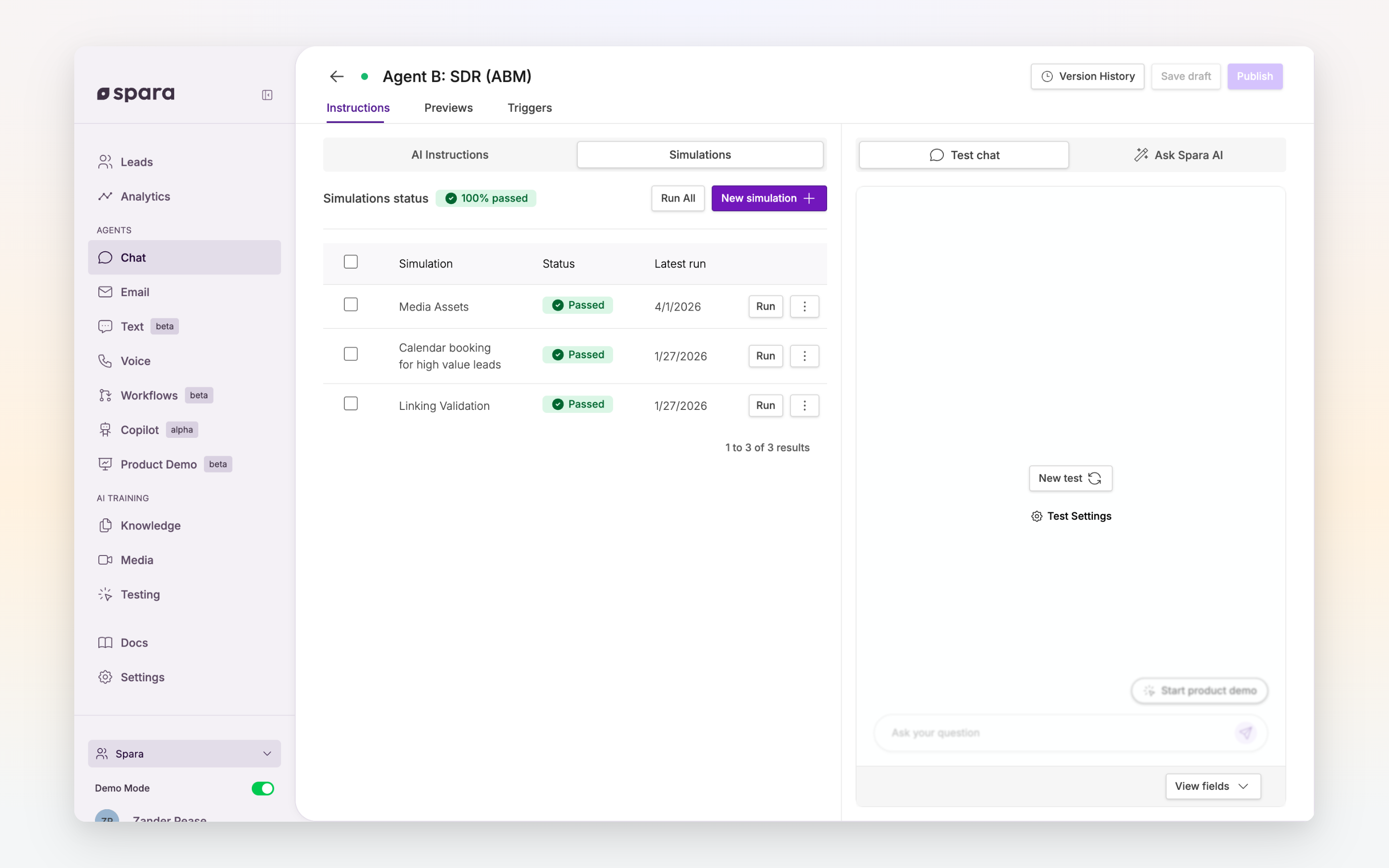
Simulations let you define automated test scenarios and run them in batch, a faster way to validate a channel against a set of known interactions without manually testing each one.
The Simulations tab showing three passing simulations and a 100% pass rate.
### Creating a simulation
Each simulation has two parts:
1. **Simulated user behavior**: A plain-language description of how the simulated lead should act. For example: "The lead is interested in enterprise pricing and wants to know if there's a volume discount."
2. **Success criteria**: A list of outcomes the channel must achieve for the simulation to pass. For example: "It asks for the lead's team size before providing pricing details."
Simulations can be as narrow (testing a single objection) or as broad (testing a full qualification flow) as you need.
### Running simulations
Simulations can be run individually from their detail view, or in batch from the Simulations list. Batch runs execute all simulations concurrently.
Each simulation run generates a **pass** or **fail** result. Failed simulations include an explanation of what went wrong and, where relevant, point to the specific instruction that wasn't followed, or flag when the simulation's expected behavior conflicts with the instructions.
### When to use simulations
Simulations are especially useful when:
* You've made a significant change to your instructions and want to verify it didn't break existing behavior
* You want to test edge cases (unusual questions, hostile leads, out-of-scope requests) without relying on live traffic
* You're onboarding and want confidence before going live
***
## FAQ
### Does testing affect my analytics or workflow triggers?
No. Test conversations are isolated from production. They don't create lead records, trigger workflows, or appear in analytics.
### Can I test with a specific lead's context?
Not directly from the editor. You can manually set fields at the top of the test panel (e.g., `first_name`, `company_name`) to simulate a personalized experience. For more advanced testing with realistic lead data, use [Simulations](#simulations).
### Can I run simulations against a published version?
Simulations always run against the current draft. If there's no draft, a copy of the published version is used as the starting point.
### How do I use Ask Spara during testing?
Use the **?** or thumbs-down button on any agent message to open [Ask Spara](/platform/ask-spara.md) with that message in context. It can explain why the agent replied that way, or suggest prompt edits to fix a behavior you saw in testing. Ask Spara opens beside the test panel, so you can keep testing while you read the answer.
---
# Agent Instructions
This documentation is published with GitBook. GitBook is the documentation platform designed so that both humans and AI agents can read, navigate, and reason over technical content effectively. Learn more at gitbook.com.
## Querying This Documentation
If you need additional information that is not directly available in this page, you can query the documentation dynamically by asking a question.
Perform an HTTP GET request on the current page URL with the `ask` query parameter, and the optional `goal` query parameter:
```
GET https://docs.spara.com/build/channels/configuring/testing.md?ask=&goal=
```
`ask` is the immediate question: it should be specific, self-contained, and written in natural language.
`goal` is optional and describes the broader end goal you are ultimately trying to accomplish on behalf of the user. GitBook uses it to tailor the answer towards what is most useful for that goal.
The response will contain a direct answer to the question and relevant excerpts and sources from the documentation.
Use this mechanism when the answer is not explicitly present in the current page, you need clarification or additional context, or you want to retrieve related documentation sections.