> For the complete documentation index, see [llms.txt](https://docs.spara.com/llms.txt). Markdown versions of documentation pages are available by appending `.md` to page URLs; this page is available as [Markdown](https://docs.spara.com/build/channels/sms.md).
# SMS
How the SMS channel automates sales conversations over text.
The **SMS channel** automates sales interactions over text message, handling incoming texts from leads and sending outgoing texts through [Workflows](/build/workflows.md).
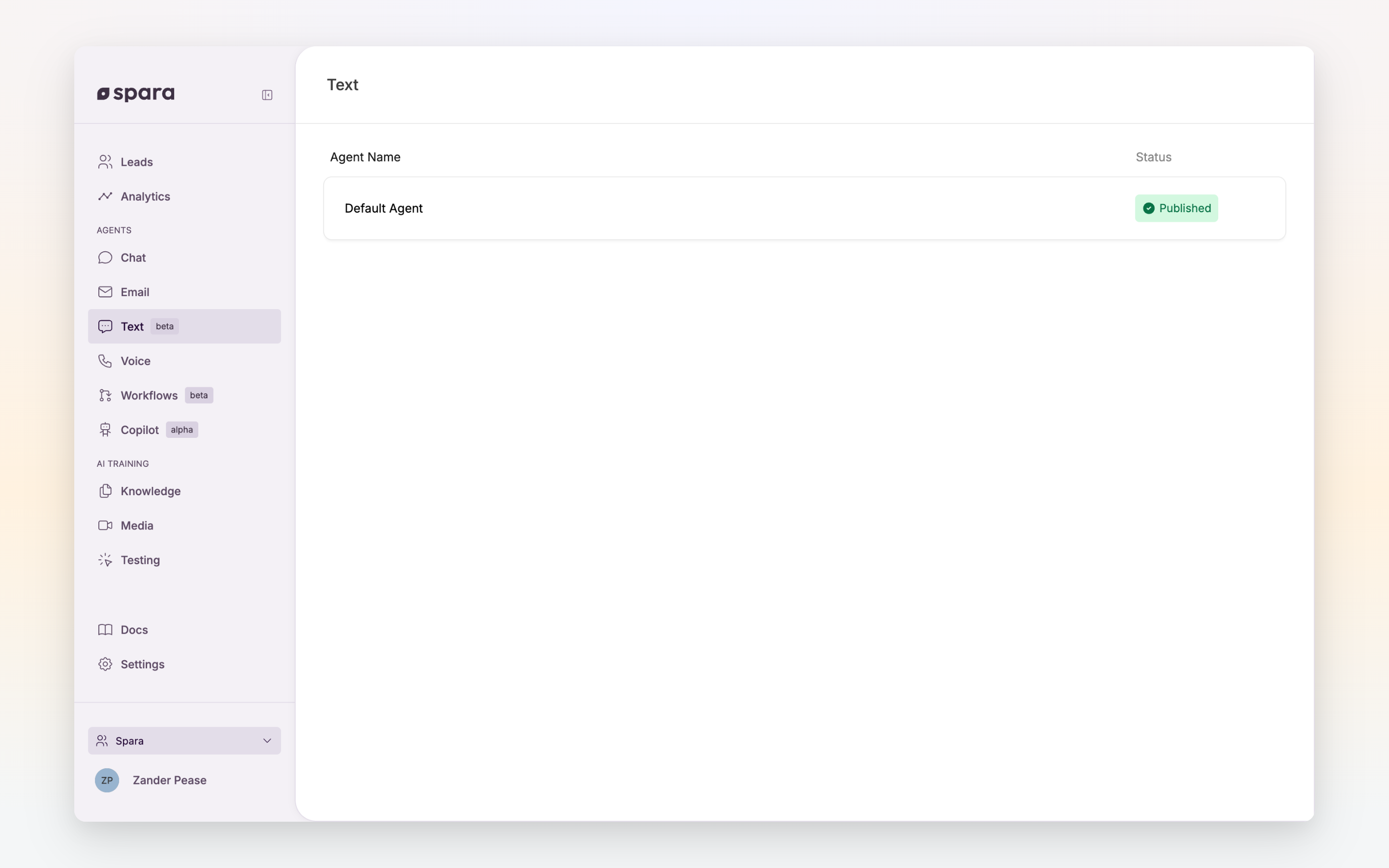
The SMS channel configuration.
* **Incoming replies**: Spara responds to incoming text messages from leads, answering questions and moving them through your sales funnel without rep involvement.
* **Automated outgoing texts**: Spara sends texts to leads as part of a workflow. For example, after a lead submits a form, a workflow can send an immediate text to prompt them to schedule a meeting.
Spara does not send cold or unsolicited outgoing texts outside of your workflows.
## Configuration
### Instructions
The SMS channel is configured through its [AI Instructions](/build/channels/configuring/ai-instructions.md), the same way every channel is built. Use them to define the channel's persona, tone, and how it should handle common scenarios like questions, objections, and handoffs to a rep.
### Phone number setup
Each SMS channel can be assigned an incoming phone number on the **Configuration** tab. This is the number it answers texts on and sends outgoing texts from. Phone numbers are provisioned through Twilio. Contact your Spara account manager to enable texting and provision numbers for your account.
{% hint style="warning" %}
**Twilio registration required.** Before your SMS channel can send or receive messages, your brand and messaging campaign must be registered and approved through Twilio's A2P 10DLC process. This industry-wide requirement verifies your business and ensures your messaging complies with carrier standards. Your Spara CSM handles the registration, but you'll need to provide a campaign description, links to your Terms of Service and Privacy Policy (with SMS opt-in language), and sample messages. See [Guide: Text Agent Onboarding](https://docs.spara.com/guides/onboarding-guides/text-agent-onboarding) for full details.
Until registration is approved, Spara will not send texts from the number. A text the agent or a workflow would have sent appears in the lead's conversation marked **Not sent**, and **Settings → Phone Numbers** shows the number's registration status. A text agent on an unregistered number also can't be published, and neither can a workflow with text steps — publish either once registration is approved.
{% endhint %}
{% hint style="info" %}
A phone number is required to publish — the number is what routes incoming texts to the channel, so an SMS channel can't go live without one. Each phone number can only be assigned to one published SMS channel at a time. If you try to publish one with a number already in use, you'll see a conflict error.
{% endhint %}
## Outgoing texts with workflows
The [Send Text Step](/build/workflows/steps/send-text.md) step in workflows lets you send personalized outgoing texts to leads as part of a broader automated sequence. Pair it with **Wait** and **Condition** steps to build multi-touch SMS follow-up flows.
{% hint style="info" %}
**Per-recipient frequency cap.** Spara enforces a daily ceiling on outgoing texts sent to any single lead. When the cap is reached, further outgoing texts to that lead are skipped for the remainder of the day.
{% endhint %}
## Opt-outs
Spara stops texting a number as soon as its owner asks. A reply of **STOP**, **UNSUBSCRIBE**, **CANCEL**, **END**, or **QUIT** opts the number out, and your carrier confirms it automatically. Spara also reads every other text a lead sends for an opt-out request, whether it is a sentence like "please stop texting me", a note that you have the wrong number, like "this isn't Emma's phone", or a "yes please" to the agent's own offer to stop. If a lead asks the agent to stop in the middle of a conversation, the agent records the opt-out itself and sends one short confirmation, then nothing more. This is built in and always on; you do not need to add anything to your SMS channel's instructions.
When a lead asks to stop, Spara:
* Records the opt-out against the phone number, for your whole workspace.
* Skips every later [Send Text Step](/build/workflows/steps/send-text.md) step to that number, and the workflow continues to the next step.
* Does not answer the text that asked to stop (other than the agent's one confirmation when the lead asked the agent directly).
By default, a text opt-out also stops calls to the number and emails to the lead's address. A reply of **START** opts the lead back in on all three. To have a text opt-out cover texts only, turn off **Cross Channel Opt-Outs** in [Settings](/platform/settings.md).
---
# Agent Instructions
This documentation is published with GitBook. GitBook is the documentation platform designed so that both humans and AI agents can read, navigate, and reason over technical content effectively. Learn more at gitbook.com.
## Querying This Documentation
If you need additional information that is not directly available in this page, you can query the documentation by asking a question.
Perform an HTTP GET request on the following URL with the `ask` and `goal` query parameters:
```
GET https://docs.spara.com/build/channels/sms.md?ask=&goal=
```
`ask` is the immediate question: it should be specific, self-contained, and written in natural language.
`goal` is what the user is ultimately trying to achieve, the reason they need the answer. Sharing it helps GitBook give you a better, more relevant answer. A goal is most helpful when it describes the outcome the user wants rather than restating the question. For example, with `ask=how do I create an API token`, a goal like `automate deployments from our CI pipeline` lets GitBook tailor the answer to that use case.
The response will contain a direct answer to the question and relevant excerpts and sources from the documentation.
Use this mechanism when the answer is not explicitly present in the current page, you need clarification or additional context, or you want to retrieve related documentation sections.