Data Model
How Spara organizes lead data — where fields come from, how conflicting sources are resolved, and how to manage your fields.
Spara automatically captures and organizes data about every lead that interacts with your agents. This data powers personalization, workflow triggers, conditions, and analytics across the platform. The Data Model page is where you see and manage every field on your instance — built-in and custom — in one place.

How It Works
Every piece of lead data is stored as a field. Fields are organized into categories and can come from multiple sources:
Automatically captured — Spara collects data from website visits, chat conversations, email interactions, phone calls, and calendar events without any setup.
Gathered by agents — Your Chat, Email, Phone, and Text agents can be configured to ask leads for specific information (like job title or company size) during conversations.
Synced from your CRM — Fields from Salesforce, HubSpot, or Marketo are automatically synced and available alongside Spara-native data. See CRM Integrations for setup.
Enriched from third parties — Lead Enrichment and Deanonymization fill in contact and company details from data vendors.
Extracted by workflows — API Step and Research Step workflow steps can extract new data from external services or AI responses and save it to the lead profile.
Set by workflows — A Set Field Step step writes a value you specify to a field when a lead reaches that point in a workflow.
Fixed value — Fields stamped with a constant value on every Spara-engaged lead, set by your team. Useful for tagging leads with a source, campaign, or tier without relying on agent conversations or external data.
For the full catalog of built-in fields — including the API names to use in personalization, workflows, and API requests — see Developer: Spara Objects & Fields.
Lead, Account, and Owner Objects
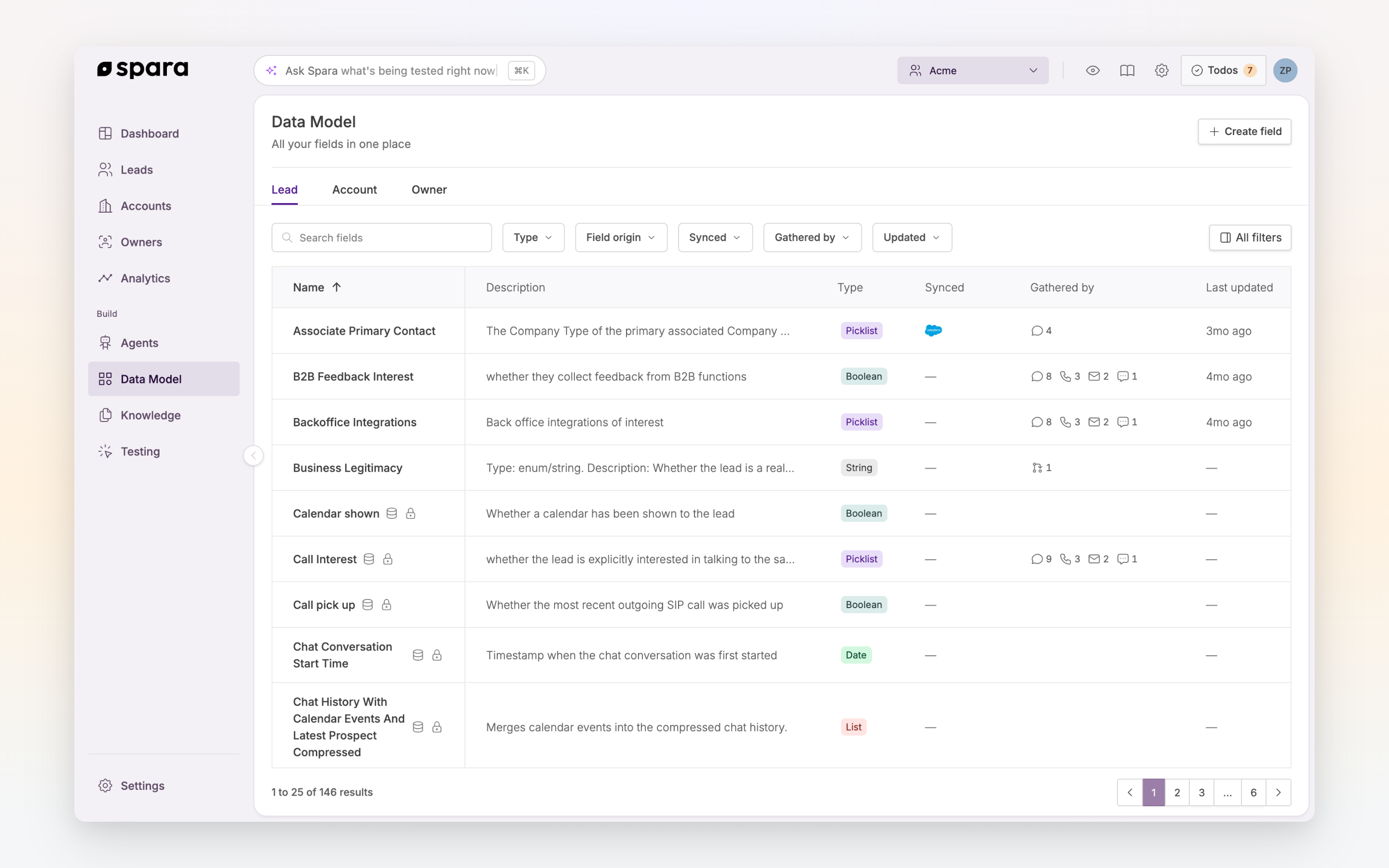
Every field describes one CRM object, and the Data Model page has a tab for each:
Lead — fields about the individual person interacting with your agents.
Account — fields about the lead's company.
Owner — fields about the lead's assigned owner.
Account and Owner fields are pulled from your CRM rather than gathered by agents, so new ones cannot be created manually. The Create field button applies to Lead fields.
For a tour of how these objects fit together and map to your CRM, see Developer: Spara Objects & Fields.
Custom Fields
Any Spara agent can gather custom fields during a conversation. For example, you could configure a Chat agent to ask "What's your biggest challenge right now?" and save the response as a custom field called biggest_challenge. Custom fields appear alongside built-in fields everywhere in the platform — in workflows, personalization, analytics, and CRM syncs.
Data type is permanent. Once a field is saved, its data type (String, Integer, Boolean, etc.) cannot be changed. Choose the correct type when creating a field.
Creating and editing fields requires the Data Model Editor permission. Users without this permission can view field definitions but cannot create or modify fields.
Integration Field Mappings
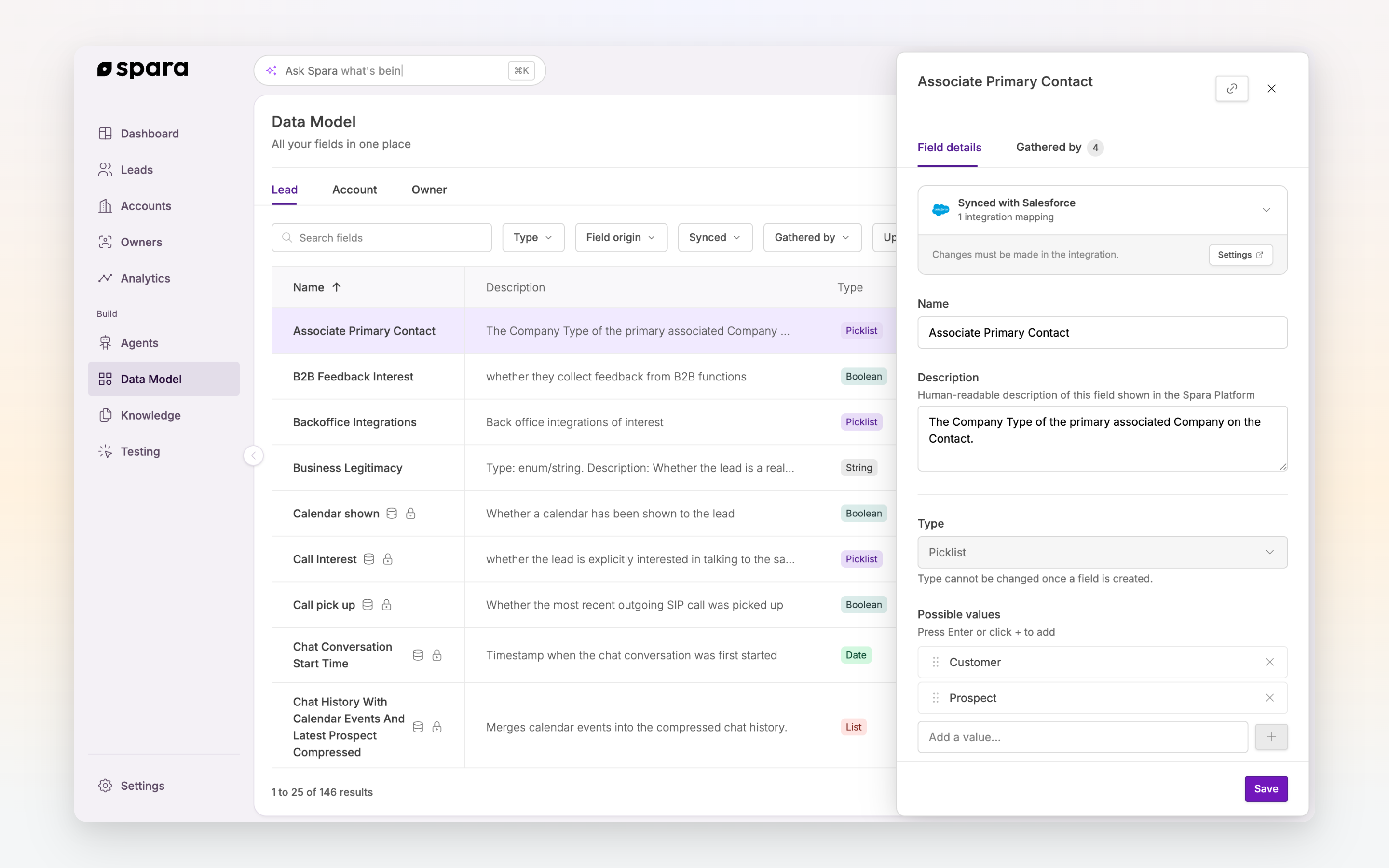
For fields synced from an integration (Salesforce, HubSpot, or Marketo), the field detail panel shows which integration the field syncs with and how many mappings it has. Open any field to see its details — synced fields display a Synced with banner, and changes to them must be made in the integration settings.

Trust Hierarchy
The same field can receive values from several sources: a lead types a phone number into chat, your CRM syncs a different one, and an enrichment vendor suggests a third. Spara resolves these conflicts with a trust hierarchy. Every field value is tagged with the source it came from, and a new value only overwrites the existing one when it comes from a source that is at least as trusted.
From most to least trusted:
System-observed (highest)
Signals Spara's systems observe directly — for example, the caller ID on a phone call, or the visitor's network-derived location (IP country, region, city).
User-confirmed
Values the lead explicitly confirmed — for example, an email address read back and confirmed during a voice call.
Self-reported & CRM
What leads tell your agents in conversation, values passed in from your website (URL parameters, webforms, the JavaScript API), values extracted by workflows, and fields synced from your CRM. Self-reported and CRM values are equally trusted.
Third-party enrichment (lowest)
Values from Lead Enrichment and Deanonymization data vendors.
How conflicts resolve:
Equal or higher trust overwrites. Within the same level, the most recent update wins — so your CRM sync and your agents can both keep a field current.
Lower trust never overwrites. Enrichment fills in fields that are empty, but it never replaces what a lead told your agent or what your CRM synced. The existing value stays in place.
Deanonymization stays in its own lane. Identity guesses from visitor deanonymization are stored in separate, read-only Deanonymized fields rather than the primary identity fields, so a vendor's best guess is never confused with data the lead actually provided.
For example: a lead types a phone number into chat (self-reported). If they later call one of your phone numbers, the caller ID (system-observed) replaces the typed value. From then on, neither a conversation nor an enrichment vendor can overwrite it — only another system-observed or more trusted source can.
The same hierarchy is documented alongside the object and field reference in Developer: Spara Objects & Fields.
Field Reference
The full list of built-in fields lives in the developer documentation, organized by category with the API name, type, and description for each field: Developer: Spara Objects & Fields.
To see the fields on your own instance — including your custom fields and CRM-synced fields — open Data Model in the app. You can search, filter by type, origin, sync status, or gathering agent, and click any field to view or edit its details.
FAQ
Where can I use these fields?
Everywhere in Spara. Fields are available in workflow triggers and conditions, email and text message personalization, agent instructions, API request bodies, and analytics filters. See Guide: How to Use Spara's Text Editor for how to insert fields into text.
How do I create custom fields?
There are two ways to create a custom field:
Gathered by an agent — Configure any Spara agent to ask for specific information and map the response to a named field. For example, add "Ask the lead about their timeline" to your Chat agent's instructions and map the response to a field called
timeline.Fixed value — Create a field with a constant that is stamped on every Spara-engaged lead automatically, without any agent conversation. Go to Data Model, create a new field, and set the source to Fixed value.
Custom fields created either way are immediately available across the platform — in workflows, personalization, analytics, and CRM syncs.
What is a Fixed value field?
A Fixed value field holds a constant that is automatically stamped on every lead Spara engages with, with no agent conversation required. For example, you could create a field called lead_source_campaign with a fixed value of "spring-webinar-2026" to tag every lead from a specific campaign. Fixed value fields are useful for tracking source attribution, campaign codes, or tier tags that apply uniformly to all leads your agents interact with.
Why didn't my CRM sync (or enrichment) change a field?
Most likely the existing value came from an equally or more trusted source — see Trust Hierarchy. For example, enrichment data never overwrites a value the lead provided directly, and nothing short of another system-observed source can replace a phone number captured from caller ID.
What happens when a field has no value?
It depends on the field:
Name fields (
{{ first_name }},{{ last_name }},{{ full_name }}) — Spara falls back to the best identity available for the lead (for example, an email address or company name) rather than rendering blank.All other fields — render as empty when the value hasn't been captured (e.g.,
{{ company_name }}becomes blank).
Use Condition Step steps in workflows to check whether a field has a value before acting on it.
Last updated