> For the complete documentation index, see [llms.txt](https://docs.spara.com/llms.txt). Markdown versions of documentation pages are available by appending `.md` to page URLs; this page is available as [Markdown](https://docs.spara.com/build/workflows.md).
# Workflows
How to deploy agents to run a proactive GTM playbook.
Workflows define a proactive GTM playbook for your agents to execute. Instead of waiting for leads to reach out, workflows let Spara take action: sending emails, making calls, and routing leads through multi-step sequences based on their data and behavior. Workflows live inside an Agent, alongside its capabilities.
For example, a [Phone](/build/channels/phone.md) capability deployed to a phone number picks up incoming calls. Add a **Call Phone** step to a workflow and that same capability dials leads proactively, turning an incoming tool into an outgoing engine.
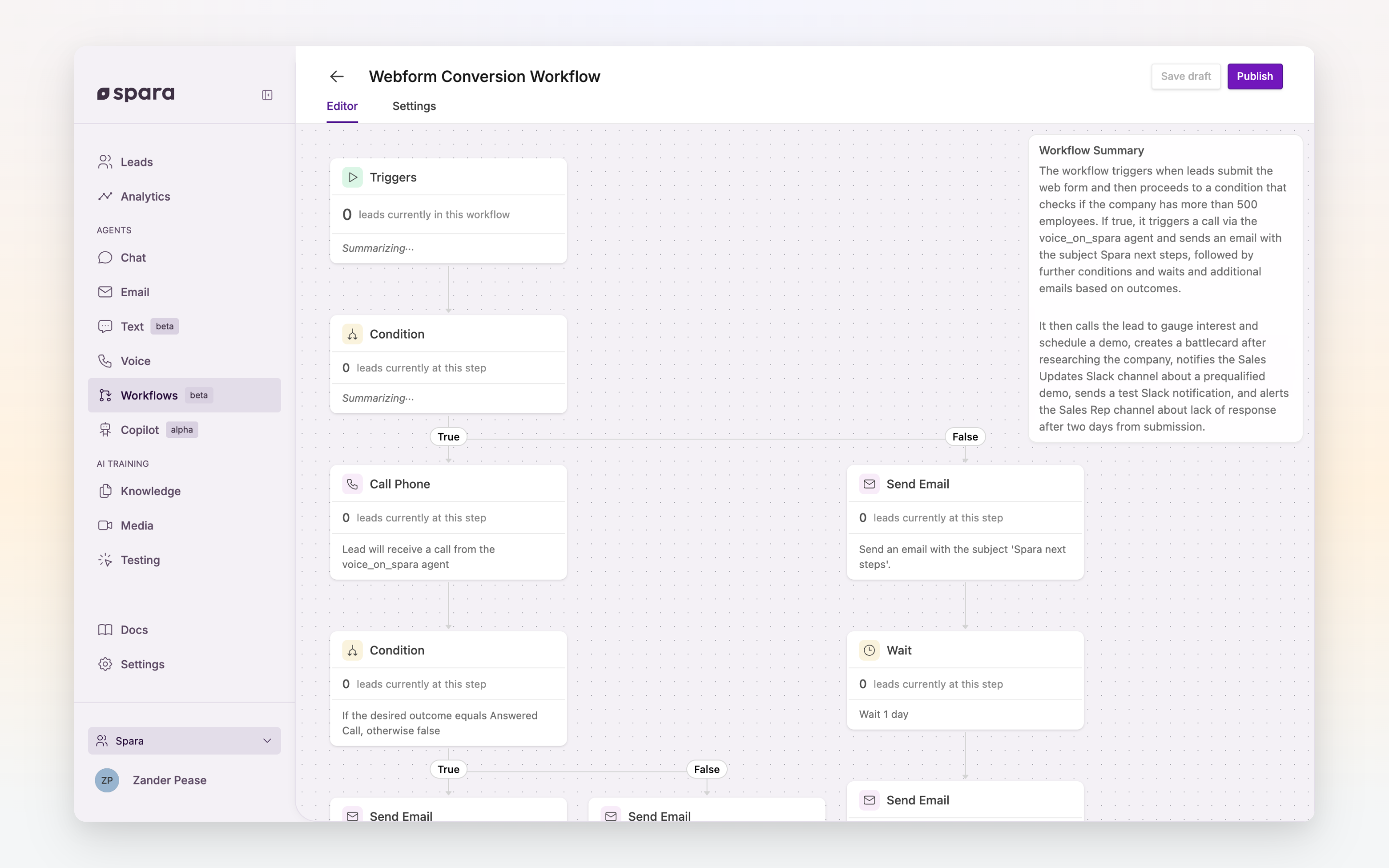
A workflow with triggers, conditions, branching logic, calls, emails, and waits.
## How workflows are built
A workflow is a **Trigger** (the criteria that decides which leads enter) followed by a sequence of **Steps** that run in order, all assembled on a canvas in the Workflow editor:
* [Configuring Workflows](/build/workflows/configuring.md): the editor, triggers, settings, and how a published workflow runs.
* [Workflow Steps](/build/workflows/steps.md): the individual actions a workflow can run, from sending an email to branching on a condition.
### Outgoing time windows
Outgoing time windows let you control when each channel is allowed to send. You can configure separate windows for email, SMS, and outgoing calls in **Settings**. When a Send Email, Send Text, or Call Phone step fires outside its configured window, the lead is **held** at that step — not dropped — and the step retries automatically once the window reopens.
This means a lead can progress through earlier steps (like a Wait or Condition) and only pause when it reaches a channel step that falls outside its window.
Calls and texts always run inside a window; email windows are optional.
#### Whose timezone the window uses
Each window is read in one of two clocks:
* **The lead's local time** (the default for calls and texts): 9:00 AM–8:00 PM means 9:00 AM–8:00 PM *where the lead is*. For calls and texts, Spara places the lead from their phone number's country and area code, even when the lead has a timezone of their own; for email, from the lead's own timezone. If neither is known, the window falls back to the **Fallback timezone** shown beneath the options — so set that to wherever most of your unplaceable leads are. When a phone number's prefix covers several timezones — an Australian mobile, for instance — the step only sends when the time is acceptable in **all** of them.
* **A specific timezone**: every lead is evaluated against the one timezone you choose, wherever they are.
#### Per-step overrides
A Send Email, Send Text, or Call Phone step can define its own window instead of following your organization's. Open the step and choose **Send during custom times for this step** under Outgoing times — useful when one workflow targets a single region while the rest of your account keeps the account-wide window.
Send Email and Send Text steps offer a third choice, **Send immediately**, which ignores the window for that step alone — for time-sensitive messages that should go out the moment the lead reaches the step. On email it also skips [Send Email Step](/build/workflows/steps/send-email.md).
## FAQ
### Why did my workflow step not fire at the expected time?
If you have outgoing time windows configured (Settings > Email or Settings > Phone Numbers > Outgoing Times), a Send Email, Send Text, or Call Phone step will not fire outside the allowed window. Remember the window may be read in the lead's local time rather than yours, and that a step can carry its own window that overrides the account-wide one. Leads are held at that step and retried automatically when the window reopens — so the step will still fire, just later than immediately scheduled. A held lead's step activity shows which timezone Spara placed that lead in and why, for example *in America/Chicago (CDT), from this lead's phone area code*. A Send Email or Send Text step that must not wait can be set to **Send immediately** instead.
Check the lead's timeline in the Leads table to see where it is in the workflow and whether it's waiting on a time window.
---
# Agent Instructions
This documentation is published with GitBook. GitBook is the documentation platform designed so that both humans and AI agents can read, navigate, and reason over technical content effectively. Learn more at gitbook.com.
## Querying This Documentation
If you need additional information that is not directly available in this page, you can query the documentation by asking a question.
Perform an HTTP GET request on the following URL with the `ask` and `goal` query parameters:
```
GET https://docs.spara.com/build/workflows.md?ask=&goal=
```
`ask` is the immediate question: it should be specific, self-contained, and written in natural language.
`goal` is what the user is ultimately trying to achieve, the reason they need the answer. Sharing it helps GitBook give you a better, more relevant answer. A goal is most helpful when it describes the outcome the user wants rather than restating the question. For example, with `ask=how do I create an API token`, a goal like `automate deployments from our CI pipeline` lets GitBook tailor the answer to that use case.
The response will contain a direct answer to the question and relevant excerpts and sources from the documentation.
Use this mechanism when the answer is not explicitly present in the current page, you need clarification or additional context, or you want to retrieve related documentation sections.