> For the complete documentation index, see [llms.txt](https://docs.spara.com/llms.txt). Markdown versions of documentation pages are available by appending `.md` to page URLs; this page is available as [Markdown](https://docs.spara.com/build/workflows/configuring.md).
# Configuring Workflows
How to use the Workflow editor, covering triggers, steps, settings, and the publish lifecycle.
Every [Workflows](/build/workflows.md) is built in the **Workflow editor**, a canvas where you define a **Trigger** (which leads enter the workflow) and a sequence of **Steps** (what happens to them once they do). This page covers the editor, its settings, and how a published workflow runs.
## Triggers
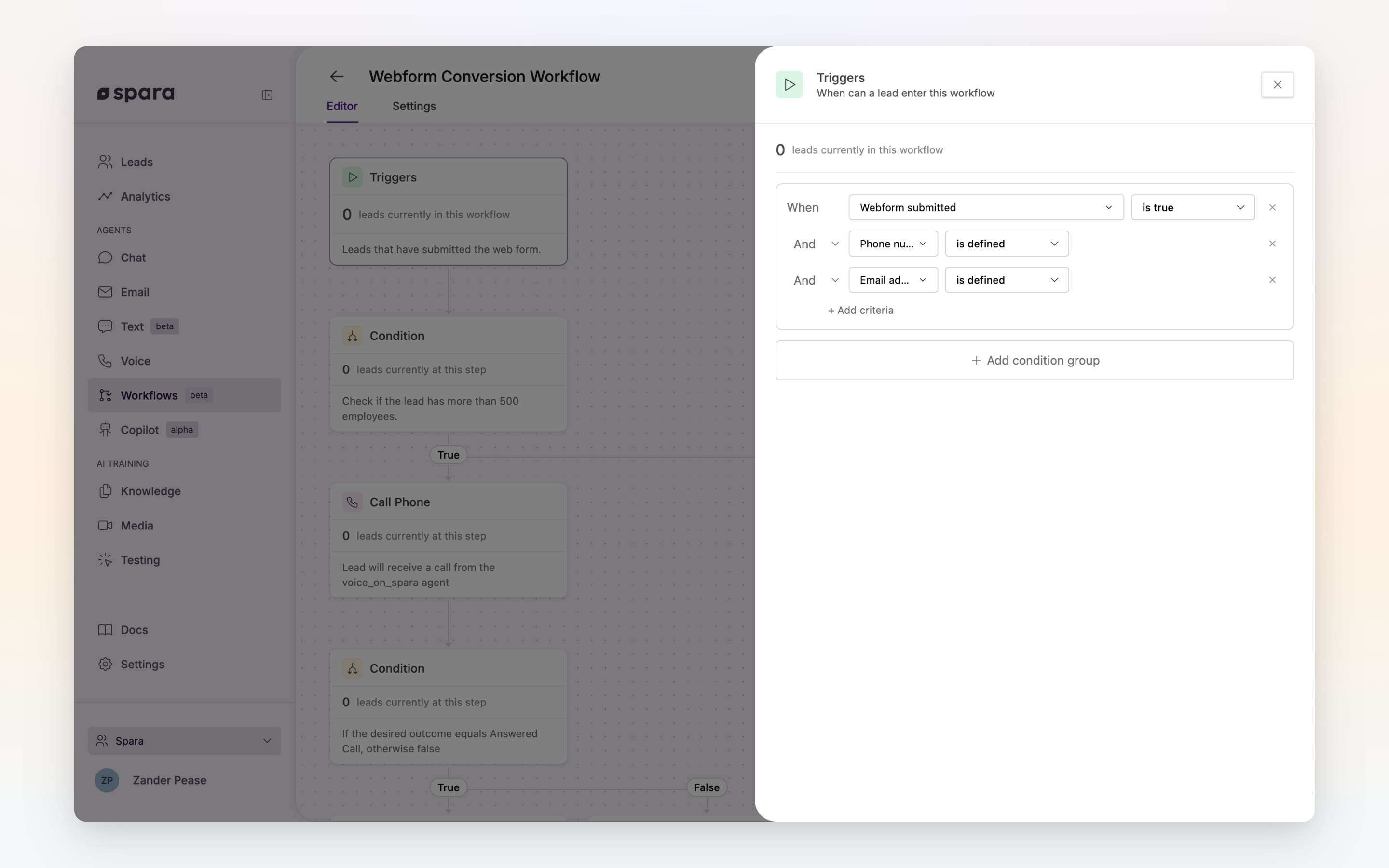
Every workflow starts with a **Trigger**, the criteria that defines which leads enter the workflow. Triggers can include multiple condition groups combined with AND/OR logic, giving you precise control over which leads are enrolled.
Any field in Spara's [Data Model](/build/data-model.md) is available as trigger criteria, including fields captured by your agents, synced from your CRM, or tracked from website activity.
Trigger criteria with multiple conditions combined using AND logic.
{% hint style="info" %}
A workflow continues to operate on a lead even if that lead no longer matches the trigger criteria after entering. Triggers only control entry.
{% endhint %}
{% hint style="info" %}
Spara evaluates leads who have been active within the **past 2 years** for new-lead workflows. A lead active in the last year but not the last month will still be eligible to enter.
{% endhint %}
### Phone call event triggers
In addition to field-based criteria, workflows can trigger on phone call events. Use the **On navigator call ended** event to fire a workflow after a web-based (Navigator) voice call ends — for example, to send a follow-up email or enroll the lead in a next-step sequence. This is separate from the SIP-based incoming and outgoing call triggers used with standard phone numbers.
### Product demo event triggers
The **On product demo ended** event fires after a lead completes an AI product demo, so you can follow up while the demo is still fresh.
## Adding steps
After the trigger, add [Workflow Steps](/build/workflows/steps.md) to the canvas. Each step executes in sequence: when one finishes, the next begins. Use **Wait** steps to control timing, and **Condition** steps to branch the logic. See [Workflow Steps](/build/workflows/steps.md) for the full list of step types and how each is configured.
{% hint style="warning" %}
If a step cannot execute (e.g., a **Call Phone** step for a lead with no phone number), the workflow skips it and continues to the next step.
{% endhint %}
## Workflow settings
Workflow settings control when a lead should automatically exit a workflow based on engagement. These are configurable per workflow:
* **End on email reply**: Lead exits when they reply to an email from a Send Email step
* **End on text reply**: Lead exits when they respond to a text from a Send Text step
* **End on call answer**: Lead exits when they pick up a call from a Call Phone step
All three are enabled by default. Disable them if you want leads to continue through the workflow even after engaging.
## Testing and publishing
Save the workflow as a draft to test it before going live. When you open the **Test** panel from the editor, Spara automatically generates a test lead pre-filled with values that satisfy your trigger criteria and any condition branches on the happy path, so you can start a test immediately without filling in fields manually. You can adjust individual field values before running the test. When you're ready, **Publish** to start enrolling leads.
### Send real messages during a test
By default, test runs simulate all outbound messages — emails, texts, calls, and notifications (Slack, Teams) are not actually sent. Workflow editors can enable **Send real messages** in the Test panel to verify that messages truly land: pick which channels should really deliver, provide a destination email address and/or phone number, and Spara sends live messages to those addresses instead of the test lead's contact info. Channels you don't pick stay simulated. The test lead itself stays in Test Mode; nothing is written to your CRM and analytics are excluded.
{% hint style="warning" %}
**Send real messages** is available to anyone who can edit the workflow. Each test run is capped at 10 real sends; additional steps beyond the cap fall back to simulation automatically. Notifications (Slack, Teams) only really send if you pick them as one of the channels, and they go to your configured channels rather than a test destination — confirm where notifications will post in the confirmation step before running.
{% endhint %}
{% hint style="info" %}
For a step-by-step walkthrough of building a workflow, see [Guide: Building Your First Workflow](https://docs.spara.com/guides/building-your-first-workflow).
{% endhint %}
## How a published workflow runs
**A lead only enters a workflow once.** Updating trigger criteria does not cause leads who already entered to re-enter.
**Unpublishing pauses execution.** Leads already in the workflow will not continue until you republish. Republishing resumes from where each lead left off; it does not restart the workflow.
**Misconfigured steps don't stop the whole workflow.** If a published step becomes misconfigured (e.g., a disconnected Twilio account), leads that reach that step are paused there. Other steps continue to execute normally. Fix the configuration and paused leads will resume.
**Engagement-based exits.** When workflow settings are enabled, leads automatically exit the workflow when they reply to an email, respond to a text, or answer a call from a workflow step.
## FAQ
### Can a lead be in multiple workflows at the same time?
Yes. A lead can be enrolled in multiple workflows simultaneously. Each workflow operates independently.
### What happens if I change a workflow that already has leads in it?
Unpublished changes do not affect leads currently in the workflow. When you publish, new leads will follow the updated workflow. Leads already in progress continue from their current step.
### Can workflows send messages to the assigned sales rep?
Yes. The **Send Email** and **Notify** steps can target the lead's assigned sales rep. Use **Send Email** to CC or send directly to the rep, and **Notify** to alert them via Slack or Teams.
---
# Agent Instructions
This documentation is published with GitBook. GitBook is the documentation platform designed so that both humans and AI agents can read, navigate, and reason over technical content effectively. Learn more at gitbook.com.
## Querying This Documentation
If you need additional information that is not directly available in this page, you can query the documentation dynamically by asking a question.
Perform an HTTP GET request on the current page URL with the `ask` query parameter, and the optional `goal` query parameter:
```
GET https://docs.spara.com/build/workflows/configuring.md?ask=&goal=
```
`ask` is the immediate question: it should be specific, self-contained, and written in natural language.
`goal` is optional and describes the broader end goal you are ultimately trying to accomplish on behalf of the user. GitBook uses it to tailor the answer towards what is most useful for that goal.
The response will contain a direct answer to the question and relevant excerpts and sources from the documentation.
Use this mechanism when the answer is not explicitly present in the current page, you need clarification or additional context, or you want to retrieve related documentation sections.