> For the complete documentation index, see [llms.txt](https://docs.spara.com/llms.txt). Markdown versions of documentation pages are available by appending `.md` to page URLs; this page is available as [Markdown](https://docs.spara.com/build/workflows/steps/condition.md).
# Condition Step
Branch your workflow based on lead data.
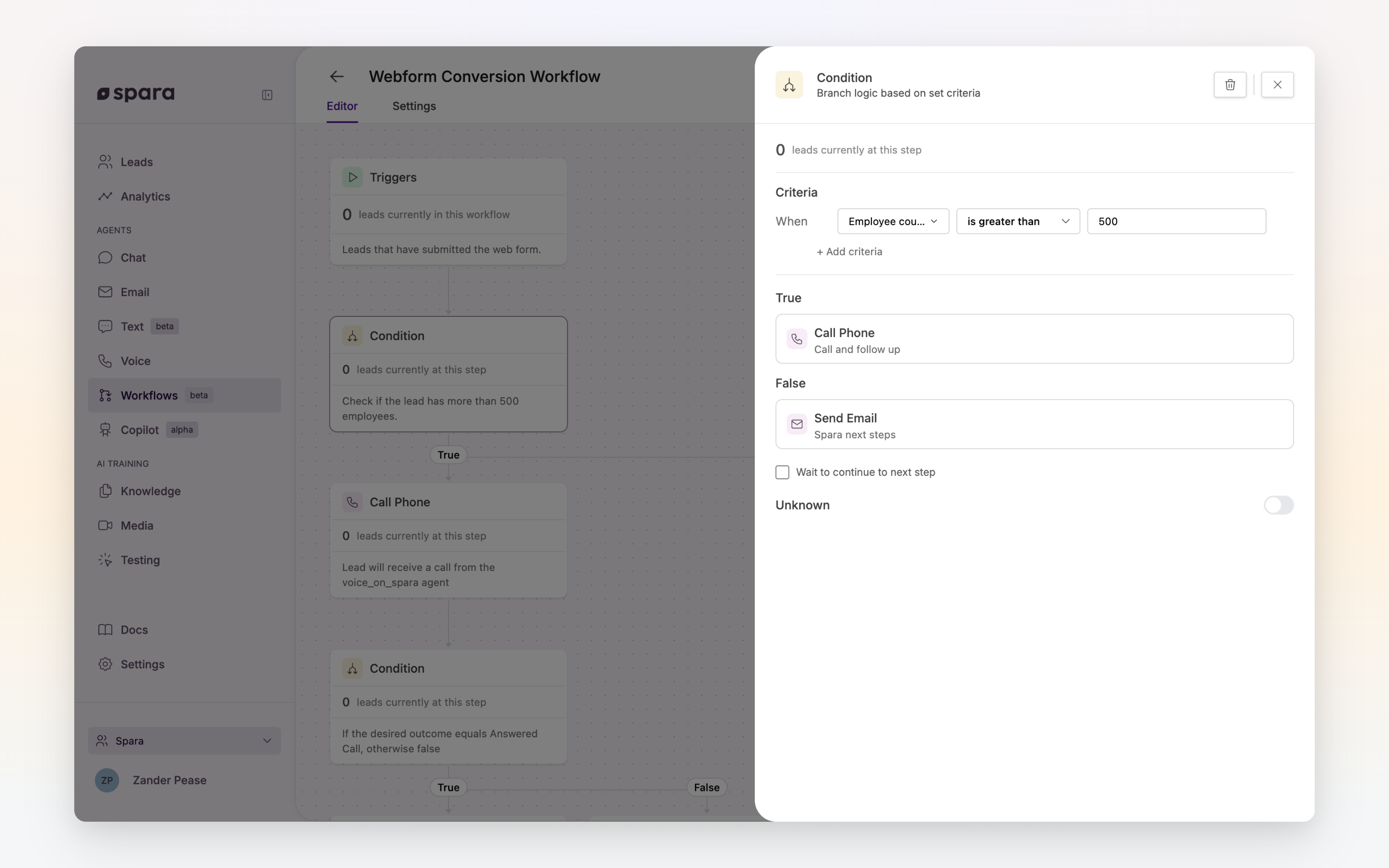
The **Condition** step splits workflow execution into multiple branches based on criteria you define. Each lead follows the first branch whose criteria they match.
The Condition step configuration panel with criteria and branch routing.
## How It Works
A Condition step has one or more **branches**. Each branch has its own set of criteria. When a lead reaches a Condition step:
1. Spara evaluates each branch's criteria in order, top to bottom.
2. The lead follows the **first branch** whose criteria they satisfy.
3. If no branch matches, the lead exits the workflow at this point.
## Configuration
### Adding Branches
Click **Add branch** to create a new branch. Each branch can be named and has its own independent criteria and downstream steps.
### Criteria
Each branch supports one or more criteria rows. Multiple criteria within a branch are evaluated with **AND** logic: the lead must satisfy all of them to match that branch.
| Data Type | Available Operators |
| -------------- | ------------------------------------------------------------------------------------------------------------ |
| **Text** | equals, is not, is defined, is not defined |
| **Picklist** | equals, is not, is any of, is defined, is not defined |
| **Number** | equals, greater than, less than, is defined, is not defined |
| **True/False** | is true, is false |
| **List** | contains, does not contain, is defined, is not defined, length equals, length greater than, length less than |
| **Date/Time** | relative and absolute comparisons |
{% hint style="info" %}
**"is not" includes leads with no value.** `Industry is not Finance` matches leads whose industry is anything other than Finance, *and* leads with no industry recorded at all. To require a value, add `Industry is defined` to the same branch.
{% endhint %}
{% hint style="info" %}
**Matching several values of one field.** Pick **is any of** on a picklist field to select as many of its options as you need in a single criteria row — the lead matches if their value is any one of them. Use it instead of duplicating a branch per value: `Parent Industry is any of Services, Other` is one row, where `equals` would need two branches.
{% endhint %}
{% hint style="info" %}
**Fields from earlier workflow steps.** Fields defined in earlier Prompt or API steps in this workflow are available as criteria here. This lets you branch based on data your workflow just extracted — for example, routing leads by a `tier` field that a Research step populated.
{% endhint %}
### Engagement with this workflow's outreach
Some criteria are scoped to this workflow's own activity rather than the lead's overall record: **Lead replied to email**, **Lead replied to text**, **Lead answered call**, **Latest email open count** — the number of times the lead opened the most recent email a Send Email step in this workflow sent them — and **Latest email click count** — the number of times they clicked a link in that same email. Because they always reflect the latest step's email, a Condition placed after a Send Email step branches on that step's own email, and a workflow with several Send Email steps re-scopes at each one. Use them after a Send Email step (typically following a Wait), e.g. `Latest email open count greater than 2` to follow up only with leads who keep coming back to the email, or `Latest email click count greater than 0` to route leads who visited a link. Both stay unset until a Send Email step has emailed the lead, and they require **Email Tracking** (on by default) under **Settings → Email Configuration**.
Three companion criteria total the workflow's email activity instead of tracking just the latest email: **Count of emails sent** — how many emails this workflow's Send Email steps have sent the lead — **Count of email opens** — the lead's opens across all of those emails — and **Count of email clicks** — their link clicks across all of those emails. Use them to branch on overall engagement across a sequence, e.g. `Count of emails sent greater than 2` to cap follow-ups, or `Count of email opens equals 0` to switch channels after several unopened emails. Like the latest-email criteria, all three stay unset until a Send Email step has emailed the lead; from then on the open and click totals start at 0. Note that with **Email Tracking** turned off, opens and clicks are never recorded, so those two totals stay at 0 regardless of what the lead does — avoid branching on them in that case.
### Connecting Steps
Each branch connects to its own downstream step (or sequence of steps). Click the **+** on any branch output to add the next step for that path. You can nest multiple steps under a single branch — for example, a branch that sends an email and then waits two days before sending a follow-up text. Branches without any steps skip directly to whatever follows the Condition step.
When building workflows with **Ask Spara**, you can describe the full sequence you want inside each branch and Ask Spara will build the nested steps automatically. Invented field names in branch criteria are flagged before publish so you can correct them.
## Example: Tiered Follow-up
```
Condition
├── Branch 1: employee_count > 500
│ └── Call Phone (high-touch outreach)
├── Branch 2: employee_count > 50
│ └── Send Email (mid-touch outreach)
└── Branch 3: (no criteria, catch-all)
└── Send Text (low-touch outreach)
```
{% hint style="info" %}
**Tip: use a catch-all branch.** Add a final branch with no criteria to handle leads that don't match any earlier branch. Without a catch-all, unmatched leads exit the workflow silently.
{% endhint %}
## Warnings
If a branch requires a field (e.g., `email`) but the workflow's Audience criteria don't guarantee that field is present, Spara will show a warning on the step. This doesn't prevent publishing, but it means some leads may skip that branch at runtime due to a missing value.
---
# Agent Instructions
This documentation is published with GitBook. GitBook is the documentation platform designed so that both humans and AI agents can read, navigate, and reason over technical content effectively. Learn more at gitbook.com.
## Querying This Documentation
If you need additional information that is not directly available in this page, you can query the documentation dynamically by asking a question.
Perform an HTTP GET request on the current page URL with the `ask` query parameter, and the optional `goal` query parameter:
```
GET https://docs.spara.com/build/workflows/steps/condition.md?ask=&goal=
```
`ask` is the immediate question: it should be specific, self-contained, and written in natural language.
`goal` is optional and describes the broader end goal you are ultimately trying to accomplish on behalf of the user. GitBook uses it to tailor the answer towards what is most useful for that goal.
The response will contain a direct answer to the question and relevant excerpts and sources from the documentation.
Use this mechanism when the answer is not explicitly present in the current page, you need clarification or additional context, or you want to retrieve related documentation sections.