> For the complete documentation index, see [llms.txt](https://docs.spara.com/llms.txt). Markdown versions of documentation pages are available by appending `.md` to page URLs; this page is available as [Markdown](https://docs.spara.com/build/workflows/steps/notify.md).
# Notify Step
Send an internal notification via email, Slack, Teams, or Webex.
The **Notify** step sends an internal notification via email, Slack, Microsoft Teams, or Webex — to a channel or room, to specific email addresses, or directly to the lead's assigned sales rep. Use it to alert your sales team when a lead takes a specific action — for example, when an assigned lead schedules a meeting, a high-value lead completes a form, or a lead replies to a workflow email.
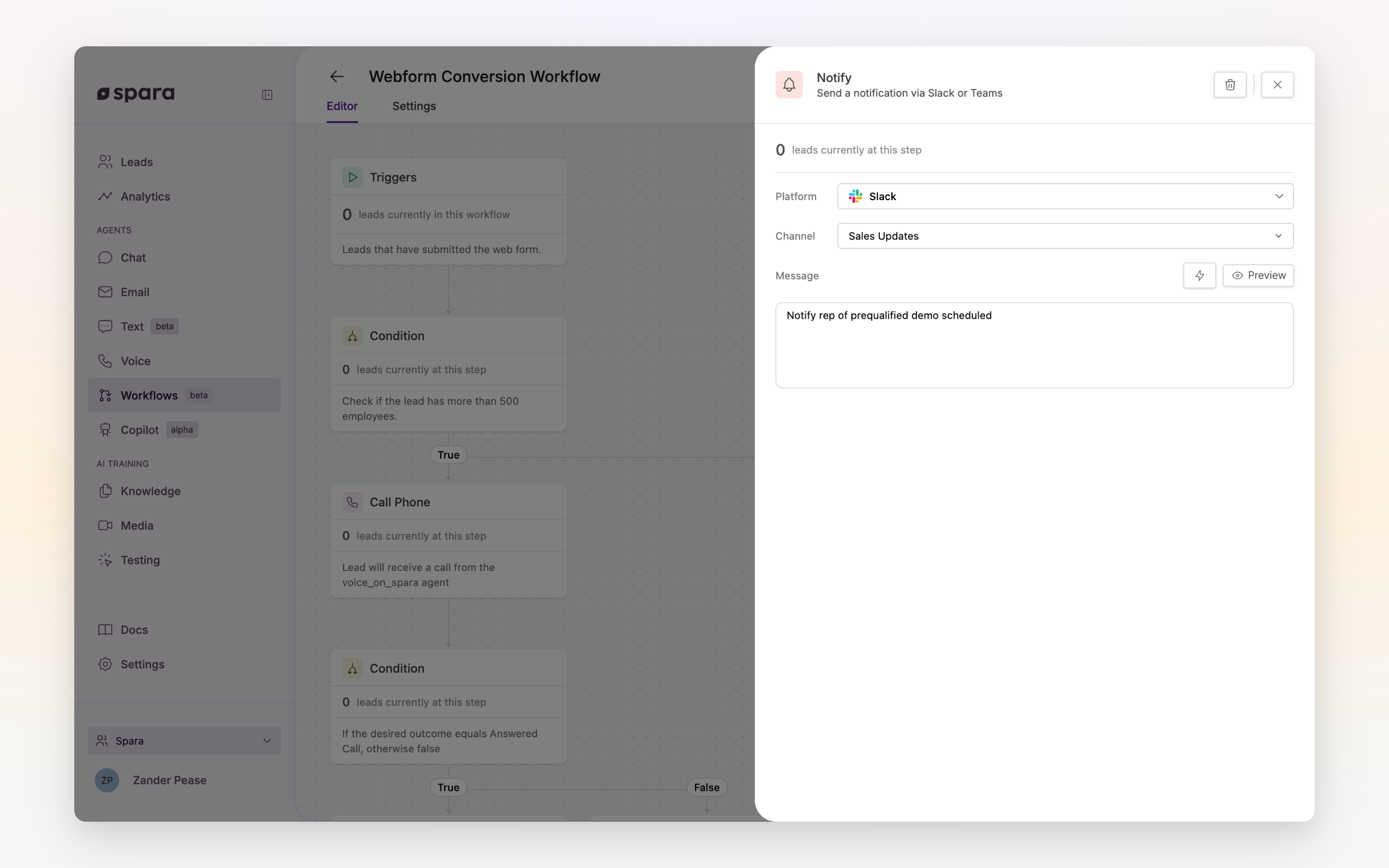
The Notify step configuration panel with Slack channel and message.
## Configuration
### Platform
Choose **Slack**, **Microsoft Teams**, **Webex**, or **Email**. Slack, Teams, and Webex require the corresponding integration enabled under [**Settings > Integrations**](https://app.spara.co/settings/integrations); email notifications need no integration and are sent from Spara.
### Channel / Room (Slack, Teams, and Webex)
Select the channel, team, or Webex room to post the notification to. The available options are loaded from your connected workspace. Optional when **Direct Message** is enabled.
### To and Subject (Email)
Enter one or more recipient email addresses, separated by commas. The subject line is optional and supports variables (see [Guide: How to Use Spara's Text Editor](https://docs.spara.com/guides/how-to-use-sparas-text-editor)), just like the message.
### Direct Message / Assigned sales rep
Check **Assigned sales rep** to notify the lead's assigned sales rep directly — a direct message on Slack or Teams, or an additional recipient on email. Webex supports room notifications only, not direct messages. The assigned rep comes from your connected CRM (Salesforce or HubSpot); for direct messages, the rep must have a matching account in your workspace. You can combine this with a channel or other recipients — the notification is sent to all of them.
At least one destination — a channel or room, an email recipient, or the assigned sales rep — must be selected.
### Message
Write the notification message. Supports variables: use the **Insert menu** (⚡) to insert lead data.
Use the **Preview** button to see how the message renders with sample data.
## Global notification settings
The Notify step is best for targeted, conditional alerts: notifications that should only fire when leads match specific workflow criteria. For account-wide alerts that fire every time a lead event occurs (such as deanonymization, enrichment, or emails sent), use the global [Notifications](/platform/settings/notifications.md) settings instead.
---
# Agent Instructions
This documentation is published with GitBook. GitBook is the documentation platform designed so that both humans and AI agents can read, navigate, and reason over technical content effectively. Learn more at gitbook.com.
## Querying This Documentation
If you need additional information that is not directly available in this page, you can query the documentation dynamically by asking a question.
Perform an HTTP GET request on the current page URL with the `ask` query parameter, and the optional `goal` query parameter:
```
GET https://docs.spara.com/build/workflows/steps/notify.md?ask=&goal=
```
`ask` is the immediate question: it should be specific, self-contained, and written in natural language.
`goal` is optional and describes the broader end goal you are ultimately trying to accomplish on behalf of the user. GitBook uses it to tailor the answer towards what is most useful for that goal.
The response will contain a direct answer to the question and relevant excerpts and sources from the documentation.
Use this mechanism when the answer is not explicitly present in the current page, you need clarification or additional context, or you want to retrieve related documentation sections.