> For the complete documentation index, see [llms.txt](https://docs.spara.com/llms.txt). Markdown versions of documentation pages are available by appending `.md` to page URLs; this page is available as [Markdown](https://docs.spara.com/build/workflows/steps/send-email.md).
# Send Email Step
Send a personalized email from your AI agent.
The **Send Email** step sends an email on behalf of your AI agent to a lead or their assigned sales rep.
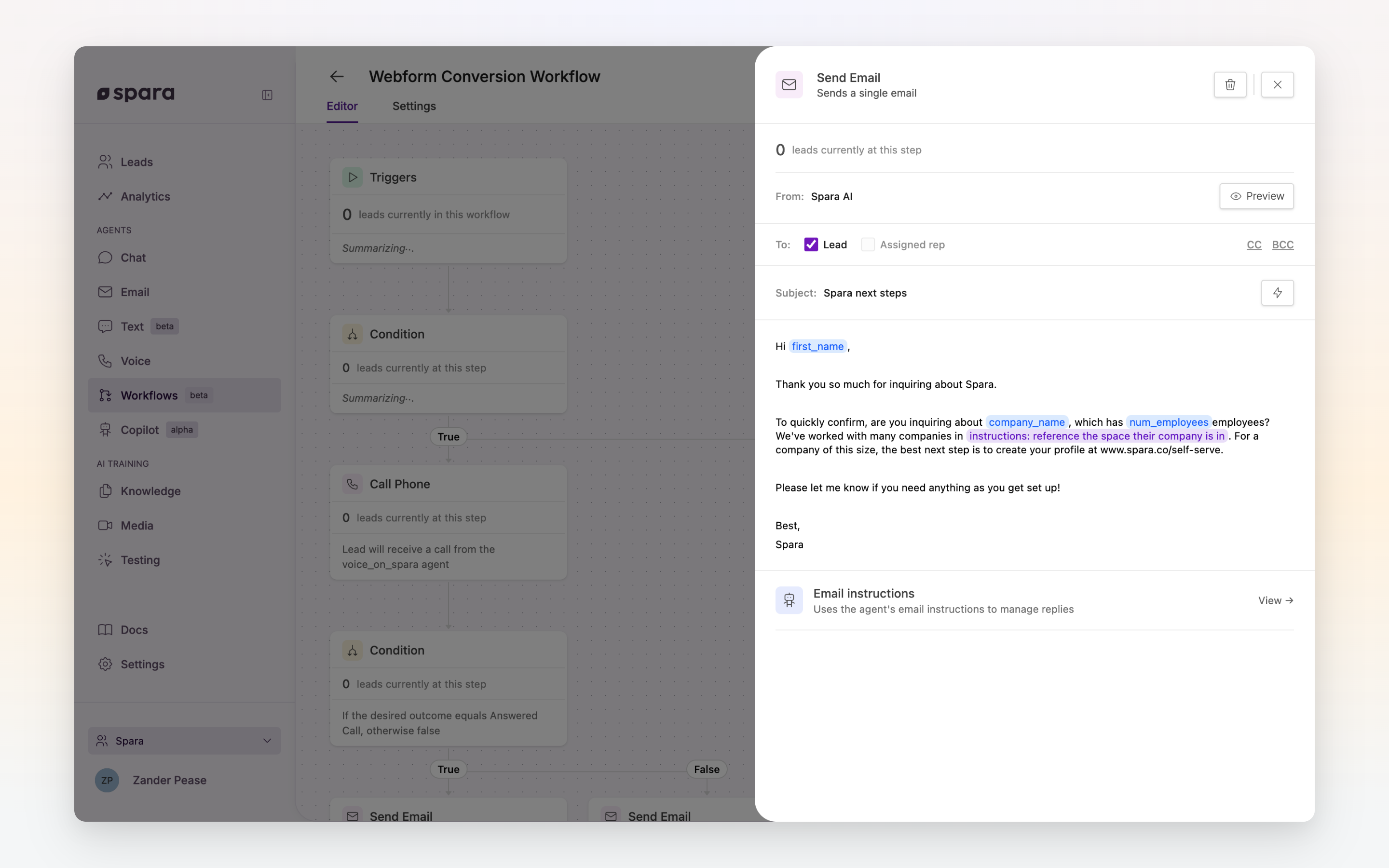
The Send Email step configuration panel.
## Configuration
### Recipients
| Field | Description |
| ------------------------ | --------------------------------------------------------------------------------------- |
| **Send to lead** | Sends to the lead's email address. |
| **Send to assigned rep** | Sends to the rep assigned to the lead in Salesforce. Requires a Salesforce integration. |
| **CC** | Additional email addresses to CC. Accepts static addresses, variables, or both. |
| **BCC** | Additional email addresses to BCC. Accepts static addresses, variables, or both. |
At least one of **Send to lead** or **Send to assigned rep** must be enabled.
### Variables in CC and BCC
CC and BCC take a comma-separated list, and each entry can be either a static address or a variable holding one — so a step can copy in an address that differs per lead, like the account owner or an account manager stored on the lead record. Insert a variable the same way you would in the subject: click the insert button (``) at the end of the field, or type `{{`.
A variable can also hold several comma-separated addresses; each becomes its own recipient.
If a variable is empty for a given lead, or holds something that isn't an email address, that recipient is skipped and the email still goes to its main recipients. Nothing is sent to a malformed address.
### Send immediately
By default, Spara paces workflow emails: each connected mailbox sends at most one email every few minutes, so a large batch goes out gradually instead of all at once. This protects your mailbox's sending reputation. Under **Outgoing times** in the step panel, choose **Send immediately** to skip pacing — and any configured outgoing window — for that step only. Use it for time-sensitive emails, like a follow-up right after a call or a booking confirmation. It is one of three choices there, so a step either follows a send window or ignores it, never both.
### Subject and Body
Both the subject line and body support variables. In the subject, click the insert button (``) at the end of the field or type `{{`; in the body, use the **Insert menu** (⚡) to browse and insert available lead data fields.
The body editor supports standard markdown formatting: bold, italics, lists, links, and code blocks.
Use the **Preview** button to see how the email will render with sample lead data before publishing.
## Tips
{% hint style="info" %}
**Personalization drives results.** At minimum, include `{{ first_name }}` in the subject or opening line. Referencing account-specific data (e.g., `{{ company_name }}`, `{{ last_page_visited }}`) significantly improves reply rates.
{% endhint %}
{% hint style="warning" %}
**Missing email address.** If a lead has no email address on record, this step is skipped and the workflow continues to the next step.
{% endhint %}
{% hint style="info" %}
**Missing variable values.** Name variables such as `{{ first_name }}` fall back to the best available identity for the lead rather than rendering blank. All other variables render empty when a value hasn't been captured. Use a [Condition Step](/build/workflows/steps/condition.md) before this step if you want to branch on whether a field is populated.
{% endhint %}
{% hint style="info" %}
**Outgoing time windows.** If your organization has an email outgoing window configured (Settings > Email), this step only fires during that window — either in the lead's own timezone or in a specific one you choose. Leads that reach this step outside the window are held — not dropped — and the step retries automatically once the window reopens. To use a different window for this step alone, choose **Send during custom times for this step** under Outgoing times in the step panel. Steps with **Send immediately** enabled ignore the window entirely.
{% endhint %}
{% hint style="info" %}
**Send pacing.** Emails that reach this step around the same time are queued and sent a few minutes apart per mailbox. In the workflow's activity view, a queued email shows as "Queued — sending at a safe pace" until it goes out. The mailbox's **Max daily sends** (Settings > Email > Manage) sets the pace: up to 500 a day sends every few minutes, and the higher limits send faster so the day's allowance is reachable. Only raise it above 500 on a warmed-up domain with an established sending history.
{% endhint %}
{% hint style="warning" %}
**Template syntax errors are caught at publish time.** If a subject line or body contains a Jinja syntax error (for example, a mistyped tag like `{ % if ... %}`), publishing the workflow will show a validation error. Fix the template before publishing to avoid delivery failures.
{% endhint %}
---
# Agent Instructions
This documentation is published with GitBook. GitBook is the documentation platform designed so that both humans and AI agents can read, navigate, and reason over technical content effectively. Learn more at gitbook.com.
## Querying This Documentation
If you need additional information that is not directly available in this page, you can query the documentation dynamically by asking a question.
Perform an HTTP GET request on the current page URL with the `ask` query parameter, and the optional `goal` query parameter:
```
GET https://docs.spara.com/build/workflows/steps/send-email.md?ask=&goal=
```
`ask` is the immediate question: it should be specific, self-contained, and written in natural language.
`goal` is optional and describes the broader end goal you are ultimately trying to accomplish on behalf of the user. GitBook uses it to tailor the answer towards what is most useful for that goal.
The response will contain a direct answer to the question and relevant excerpts and sources from the documentation.
Use this mechanism when the answer is not explicitly present in the current page, you need clarification or additional context, or you want to retrieve related documentation sections.