> For the complete documentation index, see [llms.txt](https://docs.spara.com/llms.txt). Markdown versions of documentation pages are available by appending `.md` to page URLs; this page is available as [Markdown](https://docs.spara.com/build/workflows/steps/send-text.md).
# Send Text Step
Send a personalized SMS to a lead's phone number.
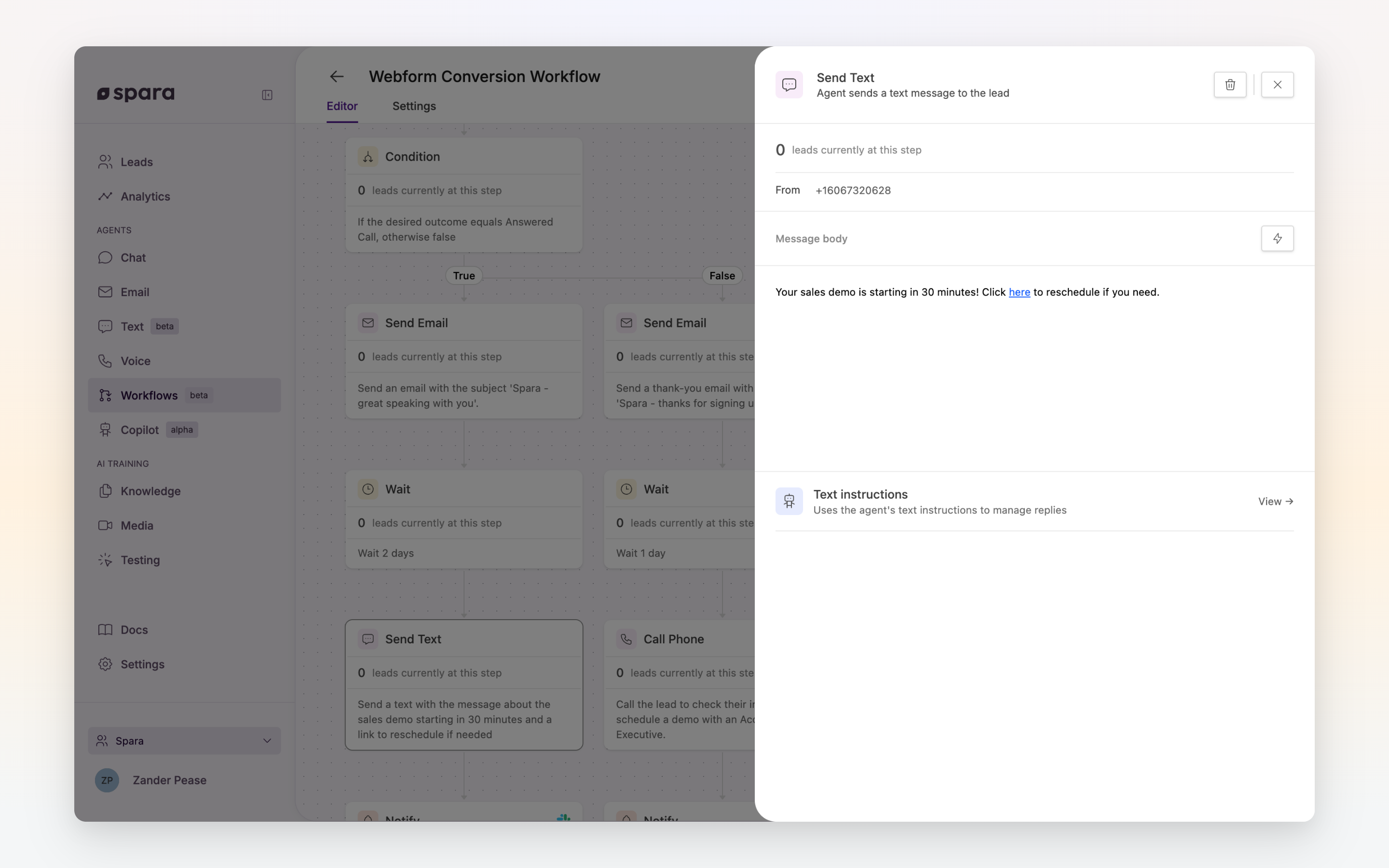
The **Send Text** step sends an SMS message to a lead's phone number.
The Send Text step configuration panel.
## Configuration
### Message Body
Write the SMS content in the message body field. Use the **Insert menu** (⚡) to add:
* **Variables** — lead data fields like `{{ first_name }}`, which resolve when the text is sent.
* **AI instructions** — a short instruction the agent replaces with wording of its own, for the part of the message you want personalized.
* **Booking links** — a calendar link the agent invites the lead to book with.
A body with an AI instruction or a booking link is written by the agent when the step runs, so the exact wording varies per lead. **Preview** shows you one example of that wording for a sample lead; the real message is written per lead at send time. A body with neither is sent exactly as you wrote it, and previews exactly as you wrote it.
Keep messages concise. SMS best practices recommend staying under 160 characters to avoid message splitting — tell the agent so in your AI instruction (for example, "one short sentence") if you use one.
### Send immediately
Under **Outgoing times** in the step panel, choose **Send immediately** to skip your outgoing text window for this step only. Use it for time-sensitive texts, like a follow-up right after a lead is scanned at an event or checks in at your front desk. It is one of three choices there, so a step either follows a send window or ignores it, never both.
### From Number
The outgoing phone number is configured on the text agent's **Configuration** tab. It is shown read-only in this step. To change it, open the text agent settings; a link is shown at the bottom of this step's configuration panel.
## Tips
{% hint style="info" %}
**Opt-out compliance.** Ensure your SMS program complies with applicable regulations (TCPA, GDPR, etc.). Leads should have opted in to receive SMS messages from your account.
{% endhint %}
{% hint style="warning" %}
**Missing phone number.** If a lead has no phone number on record, this step is skipped and the workflow continues to the next step.
{% endhint %}
{% hint style="info" %}
**Outgoing time windows.** Texts only fire inside your outgoing text window (Settings > Phone Numbers > Outgoing Times), which by default is read in the lead's own local time. Leads that reach this step outside the window are held — not dropped — and the step retries automatically once the window reopens. To use a different window for this step alone, choose **Send during custom times for this step** under Outgoing times in the step panel. Steps set to **Send immediately** ignore the window entirely.
{% endhint %}
---
# Agent Instructions
This documentation is published with GitBook. GitBook is the documentation platform designed so that both humans and AI agents can read, navigate, and reason over technical content effectively. Learn more at gitbook.com.
## Querying This Documentation
If you need additional information that is not directly available in this page, you can query the documentation dynamically by asking a question.
Perform an HTTP GET request on the current page URL with the `ask` query parameter, and the optional `goal` query parameter:
```
GET https://docs.spara.com/build/workflows/steps/send-text.md?ask=&goal=
```
`ask` is the immediate question: it should be specific, self-contained, and written in natural language.
`goal` is optional and describes the broader end goal you are ultimately trying to accomplish on behalf of the user. GitBook uses it to tailor the answer towards what is most useful for that goal.
The response will contain a direct answer to the question and relevant excerpts and sources from the documentation.
Use this mechanism when the answer is not explicitly present in the current page, you need clarification or additional context, or you want to retrieve related documentation sections.