> For the complete documentation index, see [llms.txt](https://docs.spara.com/llms.txt). Markdown versions of documentation pages are available by appending `.md` to page URLs; this page is available as [Markdown](https://docs.spara.com/guides/platform-guides/downloading-chat-transcripts.md).
# Downloading Chat Transcripts
How to download full chat transcripts using Spara's API.
You can download full chat transcripts for all leads in two ways:
1. **From the Spara platform** — use the **Export CSV** button on the Leads or Analytics page. This is the easiest option and does not require any technical setup.
2. **Via the Web API** — run a `curl` command against Spara's API. Use this when you need to script exports or pull data on a recurring basis.
## Option 1: Export from the platform
The Export CSV flow is available anywhere you can see a filtered list of leads — including the [**Leads**](https://app.spara.co/leads) page and the [**Analytics**](https://app.spara.co/analytics) page. Filters applied on the page (date range, agent, lead stage, etc.) carry through into the export.
{% stepper %}
{% step %}
#### Open the export modal
Apply any filters you want (date range, agent, lead stage, etc.), then click the **Export** button in the top-right of the page.
{% endstep %}
{% step %}
#### Choose what to include and your timeframe
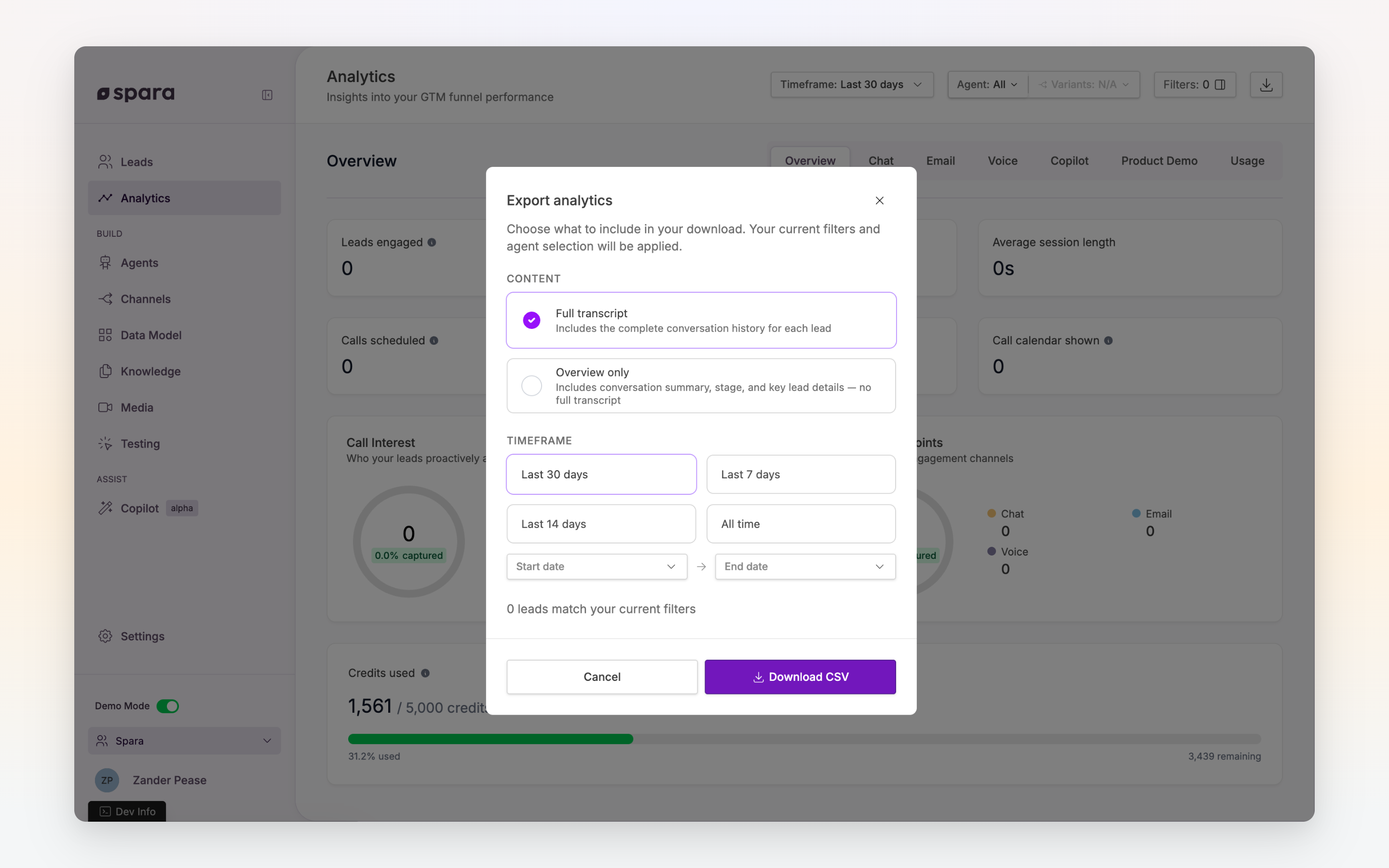
Pick **Full transcript** to include the complete conversation history for each lead, or **Overview only** for a lighter export with conversation summary, stage, and key lead details. Then choose a timeframe preset (Last 7 / 14 / 30 days, All time) or set a custom date range. The modal shows how many leads will be included so you can verify before exporting.
The Export modal lets you choose between Full transcript and Overview only, and pick a timeframe before downloading.
{% endstep %}
{% step %}
#### Download the CSV
Click **Download CSV**. The file contains one row per lead with their fields, conversation transcript (if Full transcript is selected), and activity history.
{% endstep %}
{% endstepper %}
## Option 2: Export via the Web API
Use the Web API when you want to script exports, schedule recurring pulls, or integrate transcript data into your own systems.
{% stepper %}
{% step %}
#### Create an API key
Navigate to [**Settings > API & Webhooks**](https://app.spara.co/settings/api-webhooks) in the Spara platform and click **Create API key**. Copy the key - you will paste this key into the curl command shown below.
{% endstep %}
{% step %}
#### Choose your date range
Decide the time range you want to export. You'll need the start and end times as [Unix timestamps](https://www.unixtimestamp.com/) (seconds since January 1, 1970).
For example:
* April 1, 2026 at midnight UTC = `1743465600`
* April 7, 2026 at midnight UTC = `1743984000`
**Note:** Responses are limited to a maximum of **1,000 leads per request**. In order to get more than 1,000 leads, you will need to make multiple requests and split up the start and end times.
{% endstep %}
{% step %}
#### Run the export command
Open your terminal and run the following command. Replace `YOUR_API_KEY` with the key you created, and update the `start` and `end` values with your Unix timestamps:
```bash
curl -H "Authorization: Bearer YOUR_API_KEY" \
"https://api.spara.co/v1/leads/search?start=1743465600&end=1743984000" \
-o ~/Desktop/leads-export.json
```
This saves a JSON file to your Desktop containing all leads and their conversation history within the specified date range.
{% endstep %}
{% step %}
#### Review the output
Open `leads-export.json` in any text editor or JSON viewer to browse the exported data. Each lead includes their fields, conversation messages, and activity history.
{% endstep %}
{% endstepper %}
{% hint style="warning" %}
Keep your API key secure. Anyone with the key can access your organization's lead data. If a key is compromised, delete it in Settings and create a new one.
{% endhint %}
For more details on the Web API, see [Developer: Web API](https://docs.spara.com/developers/spara-api/web-api).
---
# Agent Instructions
This documentation is published with GitBook. GitBook is the documentation platform designed so that both humans and AI agents can read, navigate, and reason over technical content effectively. Learn more at gitbook.com.
## Querying This Documentation
If you need additional information that is not directly available in this page, you can query the documentation dynamically by asking a question.
Perform an HTTP GET request on the current page URL with the `ask` query parameter, and the optional `goal` query parameter:
```
GET https://docs.spara.com/guides/platform-guides/downloading-chat-transcripts.md?ask=&goal=
```
`ask` is the immediate question: it should be specific, self-contained, and written in natural language.
`goal` is optional and describes the broader end goal you are ultimately trying to accomplish on behalf of the user. GitBook uses it to tailor the answer towards what is most useful for that goal.
The response will contain a direct answer to the question and relevant excerpts and sources from the documentation.
Use this mechanism when the answer is not explicitly present in the current page, you need clarification or additional context, or you want to retrieve related documentation sections.