Hubspot (CRM)
How Spara syncs lead data with HubSpot CRM using Push and Pull Rules.
Spara integrates with HubSpot to keep your CRM in sync with lead activity. Once connected, Spara can write conversation data and field values to HubSpot Contacts (Push), and import existing HubSpot Contacts into Spara as Leads (Pull).
For step-by-step setup instructions, see Connecting HubSpot.

Push Rules
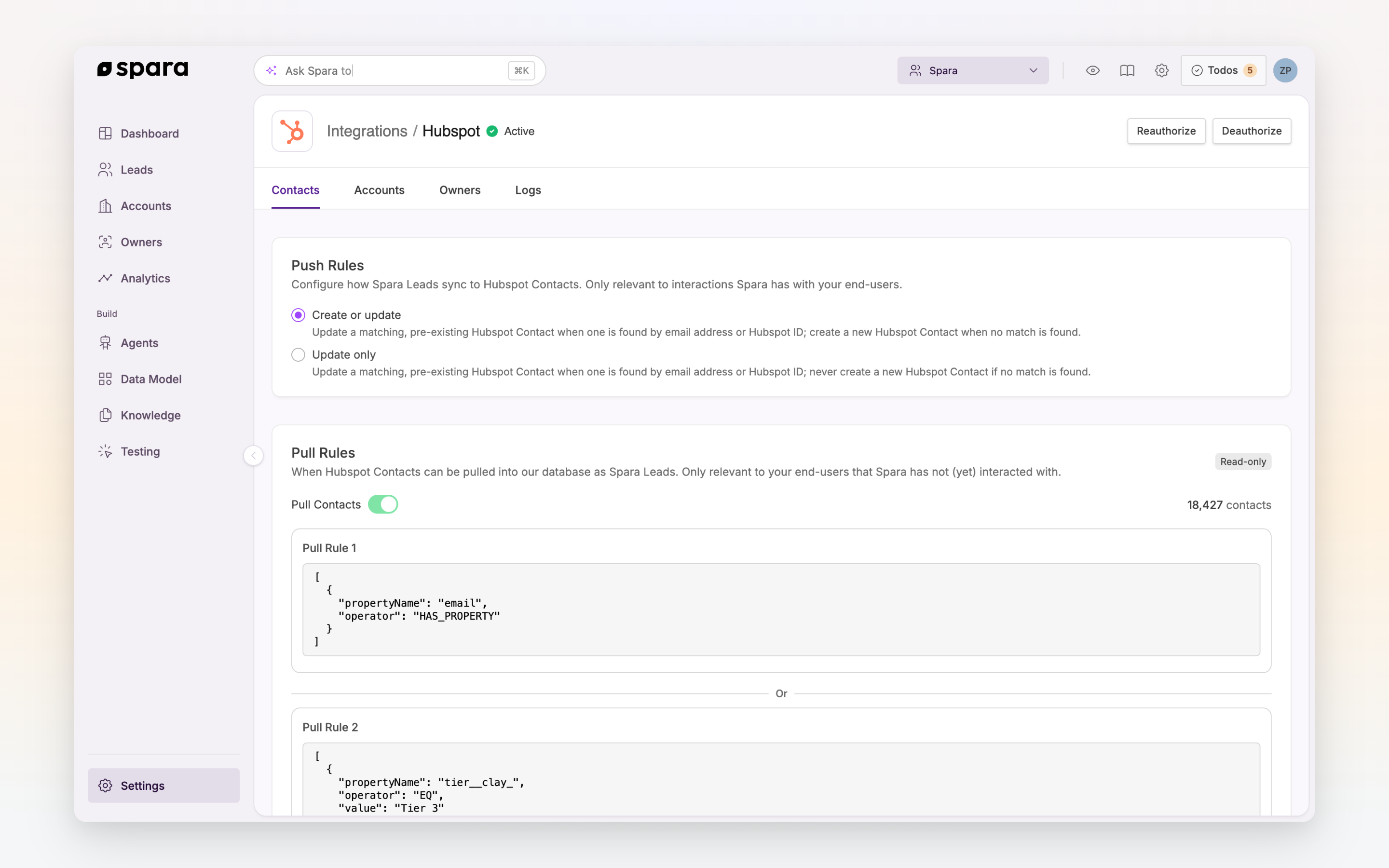
Push Rules control how Spara writes data to HubSpot when a Spara Lead interacts with your agents. This is the primary sync direction — Spara pushes conversation insights and field values into matching HubSpot Contact objects.
Two options control what happens during a push:
Update matching, pre-existing HubSpot Contact — When a Spara Lead matches an existing HubSpot Contact by email address or HubSpot ID, Spara writes data to that Contact.
Create HubSpot Contact when no match is found — If no matching Contact exists, Spara creates a new one. This option is only available when the update option is enabled.
Spara matches Contacts by email address or HubSpot ID. Matching happens as soon as an email is captured in the Spara conversation, and data continues to sync throughout the interaction.
Pull Rules
Pull Rules control which existing HubSpot Contacts are imported into Spara as Leads. This is useful for leads that exist in HubSpot but have not yet interacted with a Spara agent — Spara can pull them in so your agents and workflows can proactively reach out.
Pull Rules are configured by your Spara customer success representative.
Data Model Sync
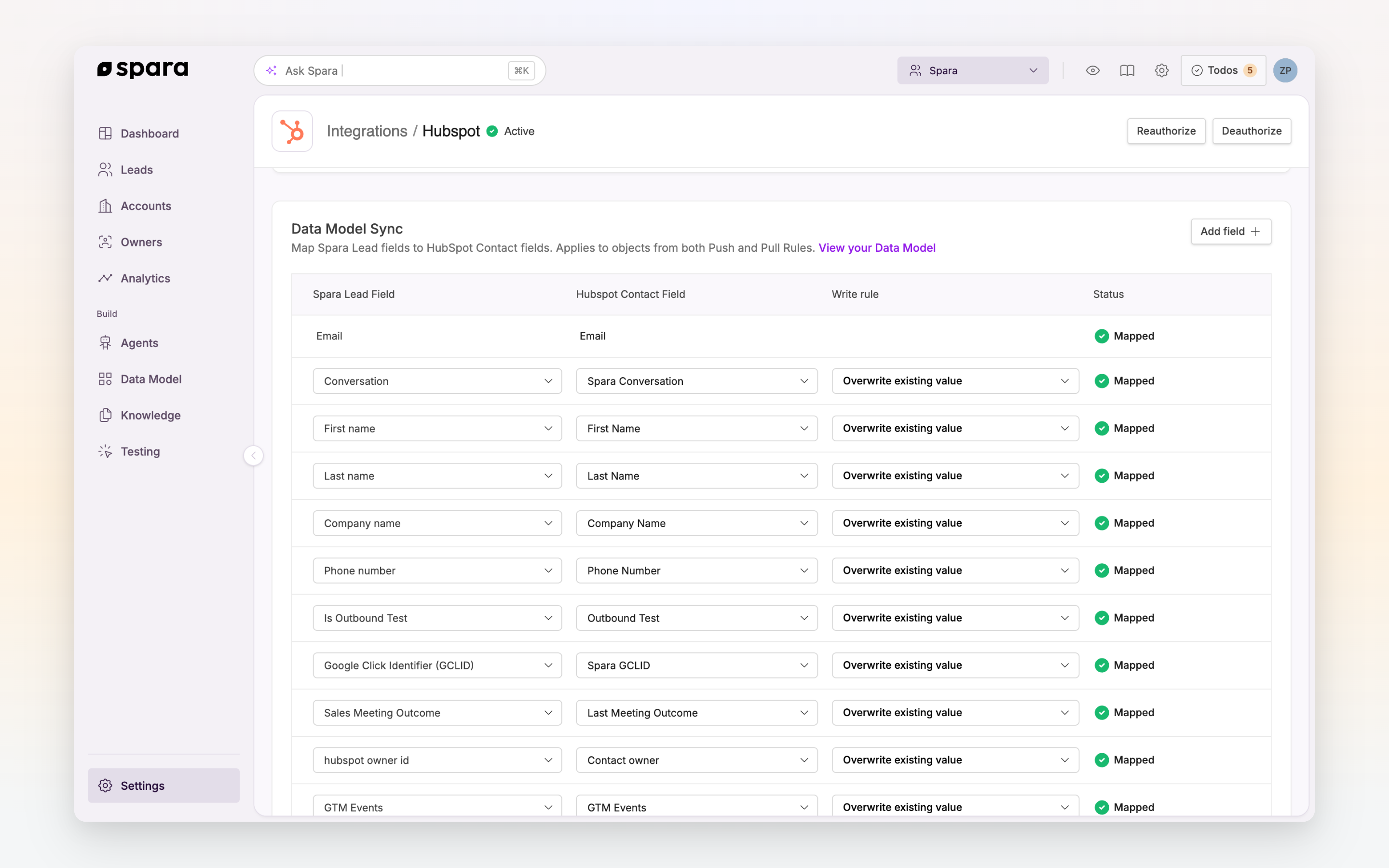
The Data Model Sync section maps individual Spara Lead fields to HubSpot Contact fields. Each row in the mapping table defines:
Spara Lead Field — the field Spara gathers during conversations (e.g., First name, Company size, or any custom field)
HubSpot Contact Field — the corresponding HubSpot Contact property to write to
Write rule — whether Spara should overwrite any existing value, or only write when the HubSpot field is empty
The Email field is always mapped automatically and cannot be removed. You can add as many additional field mappings as needed.
Field mappings apply to both Push and Pull syncs. For a full list of available Spara fields, visit your Data Model or click View your Data Model within the HubSpot settings page.
Owner Data
When owner syncing is enabled, Spara reads the assigned owner from matching HubSpot Contact records. If an owner is found and active, their details are available in Spara — including name and email — and appear in the lead's detail view.
Owner data is available as fields in workflow conditions and agent personalization, so you can reference a lead's assigned rep by name in emails, chat messages, or routing logic.
FAQ
How does Spara match a Lead to a HubSpot Contact?
Spara matches by email address first, then by HubSpot Contact ID. As soon as a lead provides their email in a conversation, Spara attempts to find a matching Contact and begin syncing.
Will Spara overwrite existing data in HubSpot?
By default, yes — Spara uses the "Overwrite existing value" write rule for new field mappings. You can change individual mappings to "Update if field is empty" to protect existing HubSpot data.
What happens if HubSpot is disconnected?
Syncing stops immediately. Your field mappings are preserved so you can resume with the same configuration after reconnecting. To reconnect, go to Settings > Integrations and click Authorize on the HubSpot card.
Last updated