# Salesforce

Spara integrates with Salesforce to keep your CRM in sync with lead activity. Once connected, Spara can write conversation data and field values to Salesforce Lead and Contact objects (Push), and import existing Salesforce records into Spara as Leads (Pull).

For step-by-step setup instructions, see [Connecting Salesforce](/guides/integration-guides/connecting-salesforce.md).

| Salesforce Object | Spara writes to Salesforce | Spara reads from Salesforce              |
| ----------------- | -------------------------- | ---------------------------------------- |
| Lead              | Any field                  | Any field                                |
| Contact           | Any field                  | Any field                                |
| Account           | n/a                        | Specific fields — see Account Data below |
| Owner             | n/a                        | Specific fields — see Owner Data below   |

## Push Rules

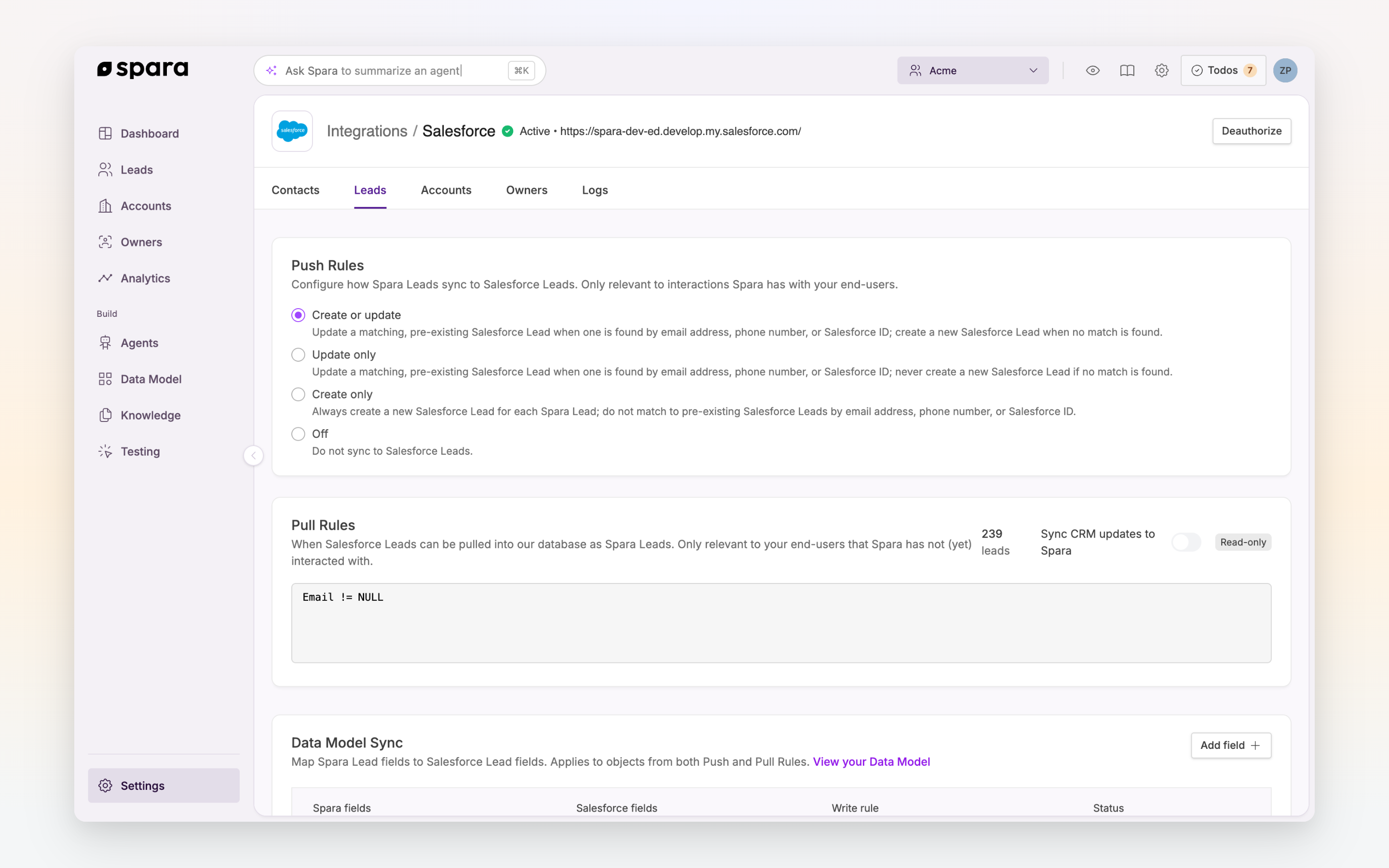
Push Rules control how Spara writes data to Salesforce when a Spara Lead interacts with your agents. Spara supports independent Push Rules for both Lead and Contact objects — you configure them separately under the Contacts and Leads tabs in [**Settings > Integrations > Salesforce**](https://app.spara.co/organization/integrations/salesforce/manage).

For each record type, two options control push behavior:

* **Update existing Salesforce Contacts/Leads** — When a Spara Lead matches an existing Salesforce record by email address or Salesforce ID, Spara writes data to that record.
* **Create contacts/leads when no match is found** — If no matching record exists, Spara creates a new one. This option is only available when the update option is enabled.

Spara matches records by email address, Salesforce Lead ID (`salesforce_lead_id`), or Salesforce Contact ID (`salesforce_contact_id`). Matching is automatic — you do not need to set up explicit ID syncing.

## Pull Rules

Pull Rules control which existing Salesforce records are imported into Spara as Leads. This is useful for leads that exist in Salesforce but have not yet interacted with a Spara agent — Spara can pull them in so your agents and workflows can proactively reach out.

{% hint style="info" %}
Pull Rules are configured by your Spara customer success representative.
{% endhint %}

## Data Model Sync

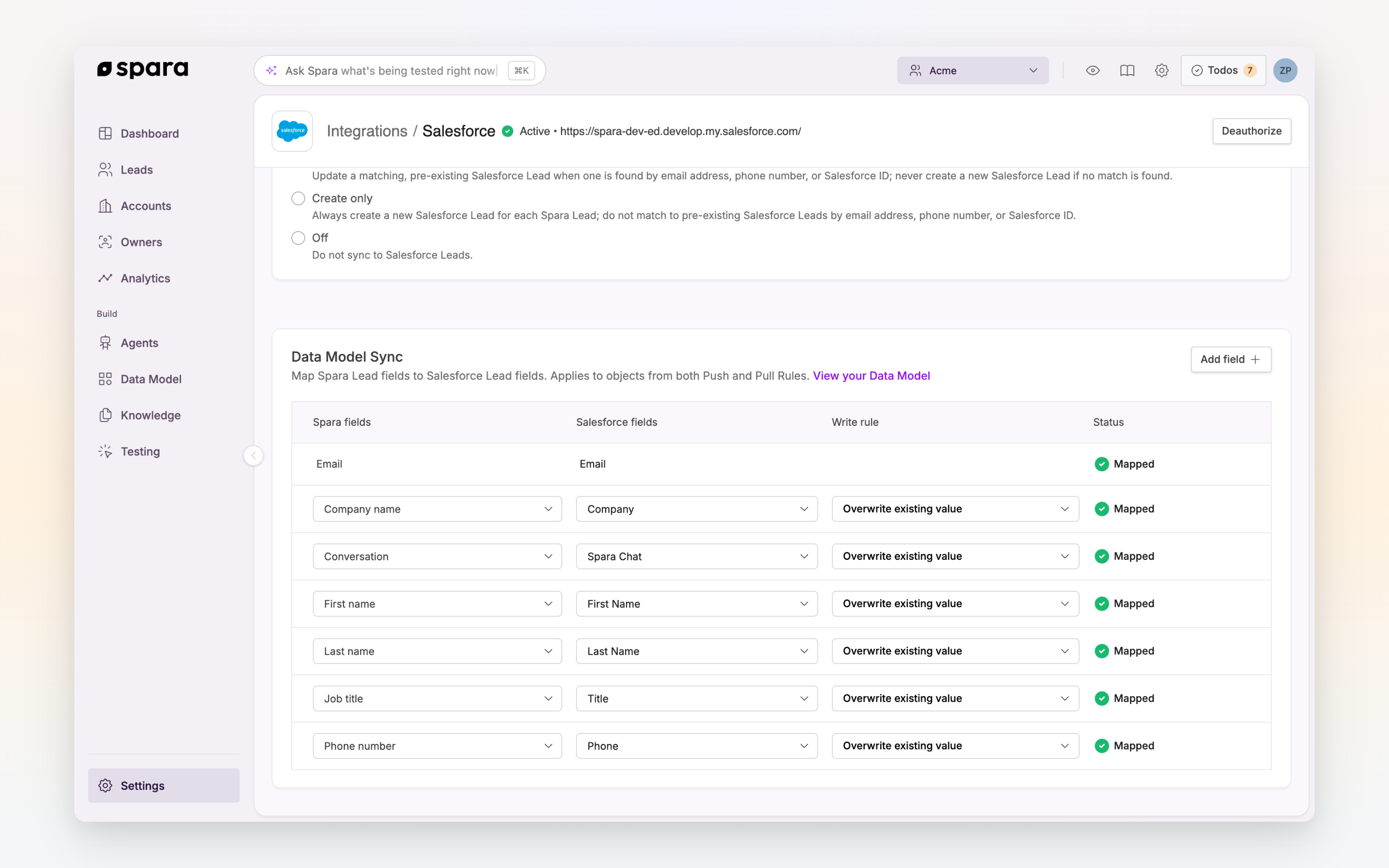
The Data Model Sync section maps individual Spara Lead fields to Salesforce fields. Mappings are configured independently for Contacts and Leads using the tabs in the Salesforce settings page.

Each row in the mapping table defines:

* **Spara fields** — the field Spara gathers during conversations (e.g., First name, Company, or any custom field)
* **Salesforce fields** — the corresponding Salesforce field to write to
* **Write rule** — whether Spara should overwrite any existing value, or only write when the Salesforce field is empty

The Email field is always mapped automatically. You can add as many additional field mappings as needed, including the full conversation history via the **Conversation** Spara field.

For a full list of available Spara fields, visit your [**Data Model**](https://app.spara.co/data-model).

## Account Data

When a matching Salesforce Account is found, Spara reads and stores the following fields automatically:

* `salesforce_account_id` — the unique identifier of the Salesforce Account
* `salesforce_account_name` — the Account name (usually the company name)
* `salesforce_account_owner_email` — the email of the Account's assigned owner

Accounts are matched using this priority order:

1. Converted Lead — if the Lead was previously converted, the associated Account is returned
2. Matching Contact — the Account linked to the most recently created Contact with the same email
3. Matching Company Name — if the user provides a company name that matches an Account name

## Owner Data

When a matching Salesforce Owner (assigned sales rep) is found and active, Spara reads and stores:

* `salesforce_assigned_sales_rep_id`
* `salesforce_assigned_sales_rep_name`
* `salesforce_assigned_sales_rep_email`

If a matching Account also has an assigned owner:

* `salesforce_account_owner_id`
* `salesforce_account_owner_name`
* `salesforce_account_website`

Owner data is available in workflow conditions and agent personalization, so you can reference a lead's assigned rep by name in emails, chat, or routing logic.

## FAQ

### How does Spara match a Lead to a Salesforce record?

Spara matches by Salesforce Lead ID, Salesforce Contact ID, or email address — in that order. Matching is automatic; you do not need to configure ID syncing in the field mapping table.

### Can I sync to both Lead and Contact objects?

Yes. Push Rules are configured independently for each object type. You can enable create/update for Contacts, Leads, or both.

### Can Spara sync the full conversation history to Salesforce?

Yes. Select the **Conversation** Spara field in the Data Model Sync table and map it to any text field in Salesforce. The full conversation thread for that lead will be written to that field.

### Will Spara overwrite existing data in Salesforce?

By default, yes. New field mappings use "Overwrite existing value." Change individual mappings to "Update if field is empty" to protect existing Salesforce data.

## Troubleshooting

### OAuth Error on connect

If you see an OAuth Error during authorization, two options:

**Option 1:** Have your Salesforce admin log into Spara and connect directly.

**Option 2:** Your Salesforce admin creates an external connected app and grants API permissions. The connected app should enable read/create/edit access on Leads and Contacts.

### Reconnection required

If the Salesforce card shows "Reconnection required," Spara's access token has expired. Go to [**Settings > Integrations > Salesforce**](https://app.spara.co/organization/integrations/salesforce/manage), click **Deauthorize**, then authorize again.

### Disconnecting

To disconnect Salesforce, go to [**Settings > Integrations > Salesforce**](https://app.spara.co/organization/integrations/salesforce/manage) and click **Deauthorize**. Your field mappings and sync configuration are preserved if you reconnect later.


---

# Agent Instructions: Querying This Documentation

If you need additional information that is not directly available in this page, you can query the documentation dynamically by asking a question.

Perform an HTTP GET request on the current page URL with the `ask` query parameter:

```
GET https://docs.spara.com/integrations/crm-integrations/salesforce.md?ask=<question>
```

The question should be specific, self-contained, and written in natural language.
The response will contain a direct answer to the question and relevant excerpts and sources from the documentation.

Use this mechanism when the answer is not explicitly present in the current page, you need clarification or additional context, or you want to retrieve related documentation sections.