> For the complete documentation index, see [llms.txt](https://docs.spara.com/llms.txt). Markdown versions of documentation pages are available by appending `.md` to page URLs; this page is available as [Markdown](https://docs.spara.com/integrations/crm-integrations/salesforce.md).

# Salesforce

How Spara syncs lead data with Salesforce, creates records, and imports records with Import Rules.

Spara integrates with Salesforce to keep your CRM in sync with lead activity. Once connected, Spara can write conversation data and field values to Salesforce Lead and Contact objects (Push), and import existing Salesforce records into Spara as Leads (Import).

For step-by-step setup instructions, see [Guide: Connecting Salesforce](https://docs.spara.com/guides/integration-guides/connecting-salesforce).

<figure><img src="https://4072969777-files.gitbook.io/~/files/v0/b/gitbook-x-prod.appspot.com/o/spaces%2FreCGkFdsmuPJzGP9ZgGA%2Fuploads%2Fgit-blob-e12b102ee61939d7dc3b758fdb7a5c43a0924c83%2FSalesforce%20Integration%20Settings.png?alt=media" alt=""><figcaption><p>The Salesforce integration settings page (Leads tab), showing sync, writing, and import settings.</p></figcaption></figure>

| Salesforce Object | Spara writes to Salesforce | Spara reads from Salesforce             |
| ----------------- | -------------------------- | --------------------------------------- |
| Lead              | Any mapped field           | Any mapped field                        |
| Contact           | Any mapped field           | Any mapped field                        |
| Account           | *None* (read-only)         | Specific fields; see Account Data below |
| Owner (User)      | *None* (read-only)         | Specific fields; see Owner Data below   |
| Opportunity       | *None* (read-only)         | Deal fields; see Opportunity Data below |

## Sync Leads and Contacts

Lead and Contact sync are configured separately under the Contacts and Leads tabs in [**Settings > Integrations > Salesforce**](https://app.spara.co/settings/integrations/salesforce/manage). The **Sync Leads** / **Sync Contacts** toggle at the top of each tab turns sync on or off for that record type:

* **On**: Salesforce records linked to a Spara Lead sync both ways according to each field's write rule (see [#fields-synced-to-from-crm](#fields-synced-to-from-crm "mention")).
* **Off**: Nothing syncs between Spara and that record type in either direction, and the settings below it don't apply.

A record type the connected Salesforce user can't see stays off, and its tab is read-only until that user is granted access to it.

## Writing to Salesforce Leads and Contacts

While sync is on, the **Writing to Salesforce Leads** and **Writing to Salesforce Contacts** panels set which Salesforce records Spara can update or create:

* **Create & update**: Spara updates the Salesforce record linked to a Spara Lead, or one that matches by email address or phone number, and creates a new record when none matches.
* **Update only**: Spara updates linked and matching records, but never creates new ones. Use this when you want Salesforce record creation to stay under your team's control.
* **Create only**: Spara creates a new Salesforce record for every Spara Lead not yet linked, without matching existing records. Records Spara created stay in sync.

#### Only write to Salesforce Leads if no matching Contact exists

Many Salesforce teams use Leads for people who aren't in Salesforce yet and Contacts for people who are. On the Leads tab, turn on **Only write to Salesforce Leads if no matching Contact exists** to keep it that way. When a Spara Lead is already linked to a Salesforce Contact, or a Contact matches its email address, Spara leaves the Lead alone: it neither creates nor updates one, and logs the skip in the sync log. The Contact itself syncs according to the Contacts tab, so with Contacts on **Update only** an existing Contact is updated and no duplicate Lead appears. With Contacts on **Create & update**, a brand-new person becomes a Contact rather than a Lead, and someone who already has a Lead gets a Contact too, after which the Lead is left alone.

Spara reads Contacts for this check even when Contact sync is off, so the connected Salesforce user needs read access to Contacts. If Spara can't read Contacts, Leads are written as if the option were off until access is restored. The option has no effect while Lead sync is off.

#### Create condition

When **Create & update** or **Create only** is selected, you can add a **Create condition** to control when Spara creates a new record. For example, you might create a Salesforce Lead only once Spara knows the lead's last name and company. The condition uses the same filters as Workflows. Combine Spara fields with **and** or **or**, using operators such as **is defined**.

* Only admins can edit the create condition. Other users see it read-only.
* An email address is always required. It is shown as a locked first row.
* **Use Salesforce required fields** adds the fields Salesforce needs to create a record: **Last name** and **Company** for Leads, and **Last name** for Contacts. Without them, Spara fills those fields with `UNKNOWN`.
* If a lead doesn't meet the condition yet, Spara doesn't create the record and logs the skip in the sync log. As soon as the missing information is captured, Spara tries again.
* The condition only applies to creating records. Matching and updating existing Salesforce records work as before.

These settings are limited by the permissions of the Salesforce user that authorized the connection. If that user cannot edit Leads in Salesforce, Lead sync is turned off. If the user can edit Leads but not create them, Lead sync is set to **Update only**.

### How the sync operates

Spara's sync is event-driven, not scheduled. Understanding the timing helps you predict exactly what appears in Salesforce and when:

* **A record is created or matched as soon as Spara knows an email address.** The first time an email is captured, whether in chat, on a call, or via a webform, Spara looks for a matching Salesforce record and, depending on your settings, updates it or creates a new one. Unless you set a [create condition](#create-condition), Spara does not wait for other fields like name or company to be gathered first.
* **Field updates push immediately.** Every time a mapped Spara field changes (a new answer in conversation, a booked meeting, an enrichment result), Spara writes it to Salesforce right away.
* **Conversation transcripts push shortly after the conversation goes quiet.** Transcript syncs are batched, so Salesforce receives one consolidated update a few minutes after the last message rather than one write per message.
* **Import Rules run every few minutes.** New Salesforce records matching your Import Rules are imported as Spara Leads continuously.
* **Linked records stay in sync.** While sync is on for a record type, Salesforce Leads and Contacts already linked to a Spara Lead have their changes pulled every few minutes according to your write rules, whether or not they match your Import Rules.
* **Opportunity data syncs nightly.**

### How matching works

When looking for an existing record, Spara matches in this order:

1. **Salesforce ID**: a stored Salesforce Lead ID (`salesforce_lead_id`) or Contact ID (`salesforce_contact_id`), captured from a previous sync or passed in via [Developer: Query Parameters](https://docs.spara.com/developers/installation/query-parameters)
2. **Email address**
3. **Phone number**

Matching is automatic. You do not need to set up explicit ID syncing. If multiple Salesforce records share the same email or phone number, Spara syncs to the most recently created one.

{% hint style="info" %}
**Common CRM integration concerns**

The behaviors above are the defaults. Each has a control or workaround, covered in full in [Guide: Working Around CRM Sync Limitations](https://docs.spara.com/guides/integration-guides/crm-sync-workarounds):

* [**Use data from Salesforce objects Spara doesn't support**](https://docs.spara.com/guides/integration-guides/crm-sync-workarounds#use-data-from-crm-objects-spara-doesnt-support): map fields from custom objects or Opportunities onto Spara's core objects (Enterprise). For Campaigns, use campaign sync instead (see [Developer: Salesforce Campaigns & Campaign Members](https://docs.spara.com/developers/data-model/data-model/campaign)).
* [**Require fields before a record is created**](https://docs.spara.com/guides/integration-guides/crm-sync-workarounds#require-fields-before-a-crm-record-is-created): add a **Create condition** so Spara holds record creation until more than an email is known.
* [**Keep Spara from overwriting Salesforce data**](https://docs.spara.com/guides/integration-guides/crm-sync-workarounds#keep-spara-from-overwriting-crm-data): set the Spara → CRM write rule to **Set if empty** or **Read-only**, or turn off **Sync Leads** / **Sync Contacts**.
* [**Write to Accounts, Opportunities, or other objects**](https://docs.spara.com/guides/integration-guides/crm-sync-workarounds#write-to-accounts-opportunities-or-other-objects): route data through Webhooks, the API workflow step, or the Web API.
* [**Log Spara activity in Salesforce**](https://docs.spara.com/guides/integration-guides/crm-sync-workarounds#log-spara-activity-in-your-crm): sync transcripts to a text field, enable Task logging, or build activity records from Webhooks.
* [**Control which Salesforce records enter Spara**](https://docs.spara.com/guides/integration-guides/crm-sync-workarounds#control-which-crm-records-enter-spara): Import Rules filter on any Lead or Contact field; configured with your Spara team.
  {% endhint %}

## Import Rules

Import Rules control which existing Salesforce records are imported into Spara as new Leads. This is useful for leads that exist in Salesforce but have not yet interacted with a Spara agent. Spara can import them so your agents and workflows can proactively reach out.

Import Rules are defined as a filter on any Salesforce Lead or Contact field, for example only records from a specific lead source, region, or campaign. By default, Spara only imports records that have an email address. The **Import Leads** / **Import Contacts** toggle turns importing on or off.

Import Rules only decide which records become new Spara Leads. They don't affect how records already linked to a Spara Lead sync; that is controlled by the **Sync Leads** / **Sync Contacts** toggle in [#sync-leads-and-contacts](#sync-leads-and-contacts "mention").

{% hint style="info" %}
Import Rules are configured by your Spara customer success representative. Contact your Spara team to set up or change them.
{% endhint %}

## Fields synced to/from CRM

Field mappings are edited on each field in the [**Data Model**](https://app.spara.co/data-model). Open a field and use its **Salesforce sync** section, which has a slot for each Salesforce object the field can map to: **Contact** and **Lead** for Lead fields, **Account** for Account fields, and **Owner** for Owner fields. Leads and Contacts are mapped independently. Save your edits with the page's **Save changes** prompt.

Each slot defines:

* **Salesforce field**: the Salesforce field the Spara field maps to
* **Salesforce → Spara**: how Spara writes the Salesforce value into the Spara field
* **Spara → Salesforce**: how Spara writes the Spara value into the Salesforce field

Each direction has its own write rule:

* **Overwrite**: replace any existing value
* **Set if empty**: write only when the receiving field is empty
* **Read-only**: never write in this direction

Account and Owner mappings are pull-only (**Pulled from Salesforce**). When Salesforce doesn't let Spara write a field (formula, auto-number, and system fields, or fields the integration user can't edit), or the Spara field is [Data Model](/build/data-model.md#what-is-a-read-only-field), **Spara → Salesforce** is locked to **Read-only**. Likewise, **Salesforce → Spara** is locked to **Read-only** for fields Spara sets itself, such as GCLID, UTM parameters, and conversation summaries and transcripts.

The field page flags mapping problems in plain language, such as a mapping that syncs nothing because both directions are **Read-only**, mismatched types, or picklist values Salesforce would reject. See [Data Model](/build/data-model.md#crm-field-mappings) for the full list, and for **Suggest fields**, which suggests Salesforce Lead and Contact mappings from the Data Model page.

The Email field is always mapped automatically. You can map as many additional fields as needed, including the full conversation history via the **Conversation transcript (all channels)** Spara field.

Field mappings work in both directions: the same mapping that pushes a Spara field to Salesforce also pulls that Salesforce field into Spara, each according to its own write rule. For example, to bring a Salesforce field into Spara without Spara ever changing it in Salesforce, set **Salesforce → Spara** to **Overwrite** and **Spara → Salesforce** to **Read-only**.

### Reviewing mappings in Salesforce settings

Each tab in the Salesforce settings page (Contacts, Leads, Accounts, Owners) shows a read-only **Fields synced to/from CRM** list (**Fields synced from CRM** for Accounts and Owners). Fields with mapping problems are listed first, each row opens its field in the Data Model, and **Manage in Data Model** takes you to the Data Model page. If that object's sync is off, the list says so, since those mappings don't run.

## Account Data

When a matching Salesforce Account is found, Spara links the lead to it. The Account's details (name, website, industry, employee count, annual revenue, billing city, and any custom Account fields you map) appear on the [Accounts](/pipeline/accounts.md) page and on the lead as `lead_account_*` fields, listed in [https://github.com/spara-ai/spara-app/tree/main/gitbook/developers/data-model/account.md](https://github.com/spara-ai/spara-app/tree/main/gitbook/developers/data-model/account.md "mention").

Accounts are matched using this priority order:

1. Converted Lead: if the Lead was previously converted, the associated Account is returned
2. Matching Contact: the Account linked to the most recently created Contact with the same email
3. Matching Company Name: if the user provides a company name that exactly matches an Account name

Account data is read-only: Spara never creates or updates Salesforce Accounts.

## Owner Data

When the matching Lead or Contact has an active owner (assigned sales rep), Spara links the lead to that owner. The owner's name, email, and any custom User fields you map appear on the [Owners](/pipeline/owners.md) page and on the lead as `lead_owner_*` fields, listed in [https://github.com/spara-ai/spara-app/tree/main/gitbook/developers/data-model/owner.md](https://github.com/spara-ai/spara-app/tree/main/gitbook/developers/data-model/owner.md "mention"). An Account's own owner is available as `lead_account_owner_*`.

Owner data is available in workflow conditions and agent personalization, so you can reference a lead's assigned rep by name in emails, chat, or routing logic.

Reading Accounts and Owners needs Read access on the Account and User objects for the connected Salesforce user, which Spara asks for during onboarding. Without it, leads sync but no Accounts or Owners are pulled, so assigned-rep notifications and owner-based routing don't apply.

## Opportunity Data

Spara reads Salesforce Opportunity data nightly to power pipeline and revenue reporting in [Analytics](/pipeline/analytics.md), including which deals Spara-engaged leads influenced. Spara reads each Opportunity's name, amount, stage, close date, currency, and open/closed/won status.

Two things to know:

* Opportunities are linked to leads through Salesforce **Contact Roles**, so deal reporting requires Contact sync to be enabled.
* Opportunity data is read-only. Spara never creates or updates Salesforce Opportunities.

## Conversation and Email Sync

Spara can write conversation activity to Salesforce in three ways:

* **Conversation transcript to a text field.** Map the **Conversation transcript (all channels)** Spara field to any Salesforce long-text field in that field's **Salesforce sync** section in the Data Model. Spara writes the full transcript across chat, email, SMS, phone calls and product demos, updated as the conversation progresses. A transcript longer than the field keeps its most recent messages, with a note at the top saying so.
* **Conversation transcript as a Salesforce Task.** Spara can additionally log each conversation as a Task attached to the Lead or Contact, assigned to the lead's Salesforce owner. Contact your Spara team to enable this; it requires the lead to have an assigned owner in Salesforce.
* **Emails as Salesforce email records.** Emails exchanged between Spara and a lead are logged to the matched Lead or Contact as native Salesforce email activity.

Email logging is on by default and is set separately for Contacts and Leads with the **Log emails** toggle on each tab of the [**Salesforce settings page**](https://app.spara.co/settings/integrations/salesforce/manage). An email goes to the matched Contact when there is one, otherwise to the Lead, and is skipped when that record type has logging or sync turned off. An admin can turn it off for both, for example when Salesforce is connected only to read Accounts and Owners alongside another CRM. Emails sent while it is off are not logged later if it is turned back on.

## Limitations

The native Salesforce integration is intentionally opinionated. Current limitations to plan around:

* **Writes are Lead and Contact only.** Accounts, Owners, Opportunities, and Campaigns are read-only. Spara cannot update them when it learns something new about a company or deal.
* **Campaign sync is set up by Spara.** When your Spara account team turns on campaign sync, Campaigns and Campaign Members sync into Spara for use in workflow criteria. See [Developer: Salesforce Campaigns & Campaign Members](https://docs.spara.com/developers/data-model/data-model/campaign).
* **Unsupported objects require custom mapping.** Fields from Salesforce objects Spara doesn't model (custom objects, Opportunities beyond analytics, etc.) can be mapped onto Spara's Lead, Account, and Owner objects by Spara's engineering team, available for Enterprise customers.
* **Records are created as soon as an email is known.** Salesforce requires a last name (and company, for Leads) on every record, so when Spara creates a record before those fields are captured, it fills them with the placeholder `UNKNOWN` and updates them as the real values arrive. To wait for those fields instead, add a [create condition](#create-condition) and turn on **Use Salesforce required fields**.
* **Spara Events are not synced as structured activity.** Individual events (page visits, calls, meetings booked) are recorded in Spara and power Analytics and workflows, but are not written to Salesforce as Task or Event records. Conversation activity reaches Salesforce through the mechanisms in [#conversation-and-email-sync](#conversation-and-email-sync "mention").

For practical workarounds to each of these, see [Guide: Working Around CRM Sync Limitations](https://docs.spara.com/guides/integration-guides/crm-sync-workarounds).

## Sync Logs

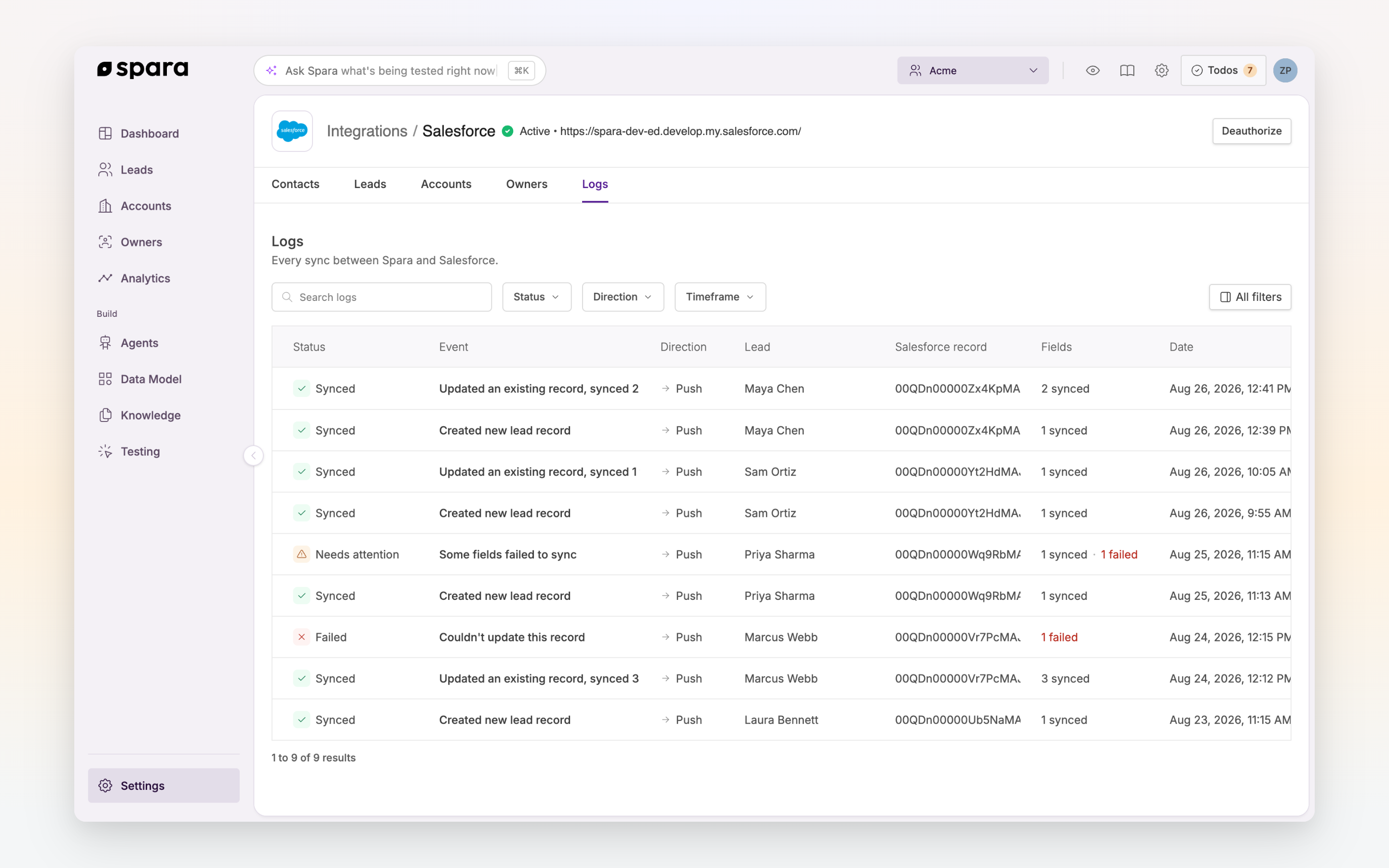
The **Logs** tab on the [**Salesforce settings page**](https://app.spara.co/settings/integrations/salesforce/manage) shows every sync between Spara and Salesforce, newest first. Each entry records what happened (a record created or updated, fields that didn't sync, a sync skipped because of your settings, or a connection problem like an expired token) along with the Lead it affected, the Salesforce record, and how many fields synced.

<figure><img src="https://4072969777-files.gitbook.io/~/files/v0/b/gitbook-x-prod.appspot.com/o/spaces%2FreCGkFdsmuPJzGP9ZgGA%2Fuploads%2Fgit-blob-05b5698d2f215a6e1ac2418ad5126a7da85cb234%2FSalesforce%20Sync%20Logs.png?alt=media" alt=""><figcaption><p>The Sync Logs tab, showing each sync's status, direction, Lead, Salesforce record, and field counts.</p></figcaption></figure>

Filter the list by status (**Synced**, **Needs attention**, or **Failed**), direction, or timeframe. Search covers the technical detail behind each entry as well as its summary, so you can look up a Salesforce error code or a field name and find every record hitting the same problem.

Select an entry to see its details:

* A plain-language explanation of what happened, and what to do about it, with a link to the setting that fixes it
* The Lead and the Salesforce record involved
* Every field the sync moved, shown as the Spara field, the Salesforce field it maps to, and the value
* For any field Salesforce rejected, the reason Salesforce gave. For example, a field that no longer exists, or a value that isn't one of its picklist options

Each Lead also has a **CRM sync** row in its details showing that Lead's most recent sync outcome, which opens the same view. That answers "did this Lead reach Salesforce?" without leaving the Lead.

## FAQ

### How does Spara match a Lead to a Salesforce record?

Spara matches by stored Salesforce ID first, then email address, then phone number. Matching is automatic; you do not need to configure ID syncing in your field mappings.

### Can I sync to both Lead and Contact objects?

Yes. Leads and Contacts are configured independently, and a Spara Lead can sync to both a Salesforce Lead and a Contact simultaneously. If you'd rather Spara never touch a Lead for someone who is already a Contact, turn on **Only write to Salesforce Leads if no matching Contact exists** on the Leads tab (see [#only-write-to-salesforce-leads-if-no-matching-contact-exists](#only-write-to-salesforce-leads-if-no-matching-contact-exists "mention")).

### Can Spara sync the full conversation history to Salesforce?

Yes. Open the **Conversation transcript (all channels)** field in the [**Data Model**](https://app.spara.co/data-model) and map it to any text field in Salesforce in its **Salesforce sync** section, or ask your Spara team to enable Task logging. See [#conversation-and-email-sync](#conversation-and-email-sync "mention").

### Will Spara overwrite existing data in Salesforce?

By default, yes. New field mappings use **Overwrite** in both directions. Set **Spara → Salesforce** to **Set if empty** to protect existing Salesforce data, or to **Read-only** so Spara never writes that field.

### Can Spara update Salesforce Accounts or Opportunities?

No. Spara only writes to Lead and Contact records. Account, Owner, and Opportunity data is read-only. If you need Spara data written to other objects, use [Developer: Webhooks](https://docs.spara.com/developers/spara-api/webhooks) with your own automation. See [Guide: Working Around CRM Sync Limitations](https://docs.spara.com/guides/integration-guides/crm-sync-workarounds).

### Why do some Spara-created records show "UNKNOWN" as the name or company?

Salesforce requires those fields on every record, and Spara creates the record as soon as it captures an email, sometimes before a name or company is known. Spara fills the gaps with `UNKNOWN` and replaces them automatically as the real values are gathered.

### Can I stop Spara from creating new Salesforce records?

Yes. Choose **Update only** for Leads or Contacts, and Spara will sync matching records but never create new ones.

## Troubleshooting

### Integration user setup and permissions

The most common cause of sync problems is an integration user that isn't set up correctly or doesn't have the permissions Spara needs. Sync settings and field access are limited by the permissions of the Salesforce user that authorized the connection, so a misconfigured user can silently block record creation or updates. Read on the Account and User objects is what lets Spara pull Accounts and Owners; it is requested during onboarding. This walkthrough covers how to check and fix the integration user:

{% embed url="<https://www.loom.com/share/9e2672867b9e4975a9404605b94806d8>" %}

### OAuth Error on connect

If you see an OAuth Error during authorization, two options:

**Option 1:** Have your Salesforce admin log into Spara and connect directly.

**Option 2:** Your Salesforce admin creates an external connected app and grants API permissions. The connected app should enable read/create/edit access on Leads and Contacts.

### Reconnection required

If the Salesforce card shows "Reconnection required," Spara's access token has expired. Go to [**Settings > Integrations > Salesforce**](https://app.spara.co/settings/integrations/salesforce/manage), click **Deauthorize**, then authorize again.

### Disconnecting

To disconnect Salesforce, go to [**Settings > Integrations > Salesforce**](https://app.spara.co/settings/integrations/salesforce/manage) and click **Deauthorize**. Your field mappings and sync configuration are preserved if you reconnect later.


---

# Agent Instructions
This documentation is published with GitBook. GitBook is the documentation platform designed so that both humans and AI agents can read, navigate, and reason over technical content effectively. Learn more at gitbook.com.

## Querying This Documentation
If you need additional information that is not directly available in this page, you can query the documentation by asking a question.

Perform an HTTP GET request on the following URL with the `ask` and `goal` query parameters:

```
GET https://docs.spara.com/integrations/crm-integrations/salesforce.md?ask=<question>&goal=<user_goal>
```

`ask` is the immediate question: it should be specific, self-contained, and written in natural language.
`goal` is what the user is ultimately trying to achieve, the reason they need the answer. Sharing it helps GitBook give you a better, more relevant answer. A goal is most helpful when it describes the outcome the user wants rather than restating the question. For example, with `ask=how do I create an API token`, a goal like `automate deployments from our CI pipeline` lets GitBook tailor the answer to that use case.

The response will contain a direct answer to the question and relevant excerpts and sources from the documentation.

Use this mechanism when the answer is not explicitly present in the current page, you need clarification or additional context, or you want to retrieve related documentation sections.