> For the complete documentation index, see [llms.txt](https://docs.spara.com/llms.txt). Markdown versions of documentation pages are available by appending `.md` to page URLs; this page is available as [Markdown](https://docs.spara.com/pipeline/analytics.md).
# Analytics
How Spara tracks conversion metrics and lead engagement across all agents.
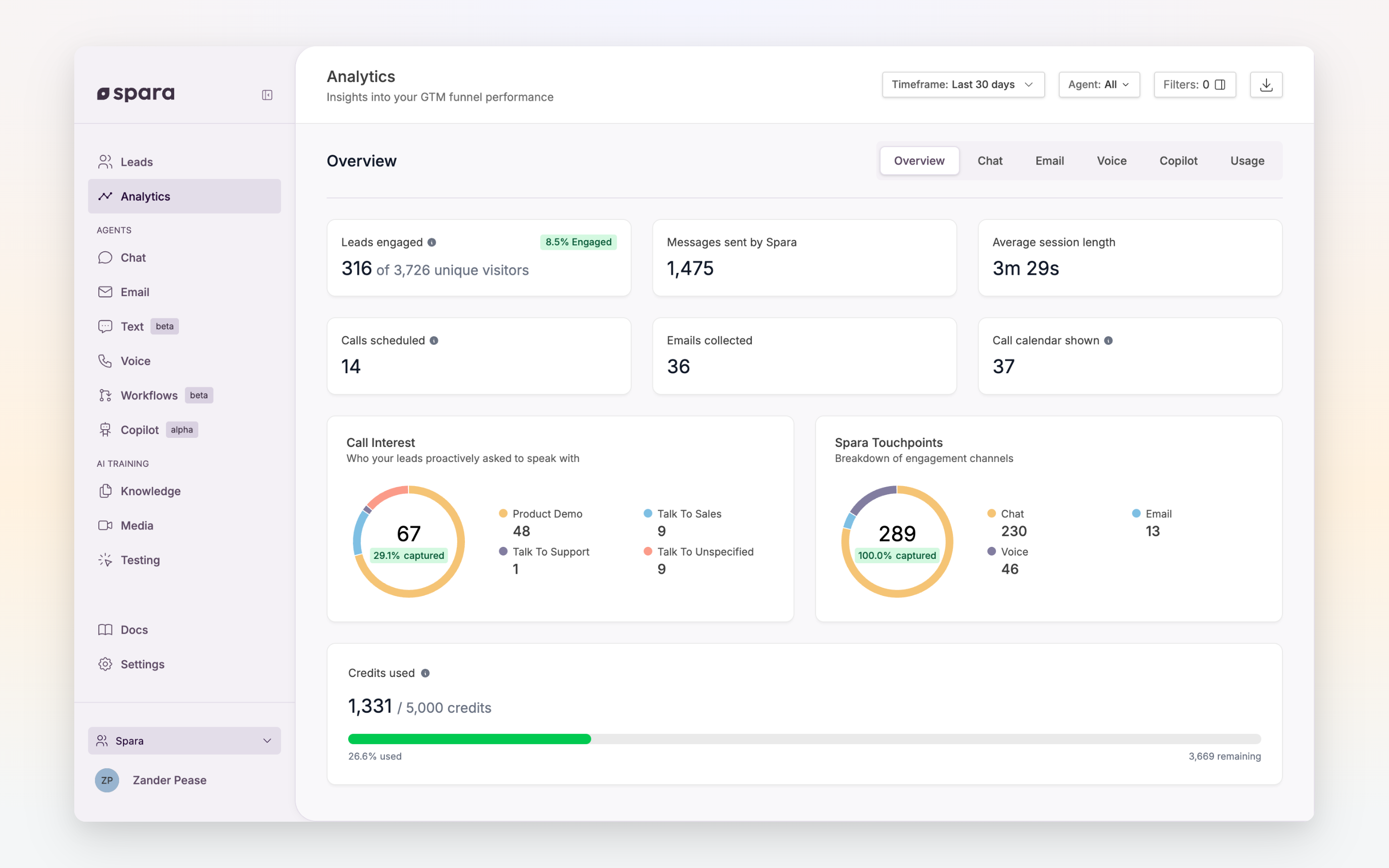
The [Analytics page](https://app.spara.co/analytics) gives you a real-time view of how your Spara agents are performing — from high-level conversion metrics to drill-downs into individual lead conversations.
The Analytics dashboard with conversion metrics and engagement charts.
## Overview
The Overview section shows key metrics across all agents at a glance:
* **Leads engaged** — Total leads who sent a message or scheduled a meeting
* **Messages sent by Spara** — Total agent messages across all channels
* **Average session length** — How long leads typically engage
* **Meetings booked** — Meetings booked with Spara across every channel, counted when the booking happened
* **Emails collected** — Email addresses captured
* **Call calendar shown** — Leads offered a calendar to book a meeting on any channel: a calendar shown in chat or a product demo, times offered on a call, or a booking link opened from an email
Two summary charts show **Call Interest** (who asked to speak with sales) and **Spara Touchpoints** (engagement by channel).
## Channel Sections
Analytics are organized by agent type, each with channel-specific metrics:
### Chat
* **Conversion funnel** — Website visitors to conversations started
* **Recent questions** — Searchable, categorized list of questions leads asked. Click any question to view the original conversation.
* **Conversation volume** — Bar chart showing conversations over time, broken down by chat interface (Navigator, Smartbar, Fullscreen)
* **Conversation length** — Distribution of how many messages leads send
* **Country of origin** — Geographic breakdown of your leads
* **Initial page URLs** — Which pages leads were on when they started chatting
* **Custom field charts** — Metrics based on data your agents gather (e.g., company size, interest level)
### Email
* **Meetings scheduled** — Meetings scheduled by leads who clicked a booking link in a Spara email, counted when the booking happened
* **Email funnel** — Unique leads through the email pipeline, including a reply stage showing how many leads replied to at least one email
* **Email messages funnel** — Message-level conversion metrics, including a reply stage showing reply volume
* **Bounce rate** — Percentage of emails that could not be delivered (invalid addresses), with a drill-down link to the affected leads
* **Reply rates** — Breakdown of replies vs. no-replies
* **Unsubscribes** — Opt-out tracking
### Phone
* **Conversion funnel** — Calls to qualified conversations to meetings scheduled
* **Lead messages per call** — How much leads talked: total messages sent by leads across all calls, and the average per call
* **Transfers** — Total successful cold and warm transfers to a human. The rate's denominator is calls handled by agents that have a transfer tool configured ("eligible calls")
* **Meetings scheduled** — Total meetings scheduled during phone calls, including rescheduled appointments. The rate's denominator is calls handled by agents that have the booking (calendar) tool configured ("eligible calls")
* **Recent questions** — Questions asked during phone calls, searchable and categorized. Click any question to view the call transcript.
* **Comparison mode** — When a phone A/B test is active, toggle to comparison view to see per-variant metrics side by side
## Filters
The filter bar sticks to the top of the page as you scroll, so your selections stay visible and editable while you review charts across all sections.
All sections share a common filter bar:
| Filter | Options |
| ------------------ | ------------------------------------------------------------------------------------------------------------------------------------------------------------------------------------------- |
| **Date range** | Last 7 days, Last 14 days, Last 30 days, All time, or custom |
| **Agent** | Filter by a specific agent. Selecting a Chat agent narrows the Unique Visitors count to traffic attributed to that agent. Selecting a Phone or Email agent does not filter page visit data. |
| **Chat interface** | Navigator, Smartbar, Fullscreen (multi-select) |
| **Email status** | Known email, Unknown email |
| **Country** | Searchable country list (multi-select) |
Click **Export as CSV** to download the current view's data.
## Drilling Down to Leads
Most charts support drill-down. Hover over a chart segment and click **View conversations** to open the Leads page pre-filtered to the leads in that segment. This makes it easy to go from a metric to the actual conversations behind it.
## Unique visitors
The conversion funnel in the Chat section starts with **unique visitors** — the count of distinct people who visited pages where Spara is active during the selected date range.
### How uniqueness is determined
Spara assigns each visitor a randomly generated **prelead UUID** the first time they visit a page with the Spara widget. This UUID is stored in the visitor's browser (via localStorage) and persists across page loads and return visits. Each distinct prelead UUID counts as one unique visitor.
A visitor is counted once per date range regardless of how many pages they visit or how many times they return. If a visitor clears their browser data or uses a different browser/device, they are counted as a new unique visitor.
### Caveats
* **Bot traffic is excluded** where possible, but some automated visitors may still be counted
* **Incognito/private browsing** generates a new UUID each session, so the same person may be counted multiple times
* **Country filter** — Unique visitors can be filtered by country when the data source supports it
For technical details on how Spara tracks visitors and what data is stored in the browser, see [Developer: iFrame & Cookies](https://docs.spara.com/developers/iframe-and-cookies).
## FAQ
### How are "leads engaged" counted?
A lead counts as engaged if they sent at least one message or scheduled a meeting. Browsing-only visitors are not included.
### Can I see which questions my leads ask most?
Yes. The Recent Questions panels in the Chat and Phone sections show all questions asked, organized by category (Value Prop, Product, Sales & Process, Competitive, Sensitive, Misc). Use the search bar to find specific topics.
### How do custom field charts work?
When your agents are configured to gather specific data (e.g., "What's your budget?"), Spara automatically creates analytics charts for those fields. The charts appear in the Chat section alongside the standard metrics.
### What does "lead messages per call" measure?
It counts messages sent by the lead during phone calls — not Spara's messages. The total gives you raw volume; the per-call average tells you how engaged leads are during a typical call. A higher average generally indicates leads are asking more questions and exploring the conversation rather than dropping off quickly.
### How does phone comparison mode work?
When a Phone A/B test is running, a **Comparison** toggle appears in the Phone section header. Switch it on to split every phone metric by variant so you can see how each version performs side by side. The toggle only appears when an active A/B test exists for a phone agent.
---
# Agent Instructions
This documentation is published with GitBook. GitBook is the documentation platform designed so that both humans and AI agents can read, navigate, and reason over technical content effectively. Learn more at gitbook.com.
## Querying This Documentation
If you need additional information that is not directly available in this page, you can query the documentation by asking a question.
Perform an HTTP GET request on the following URL with the `ask` and `goal` query parameters:
```
GET https://docs.spara.com/pipeline/analytics.md?ask=&goal=
```
`ask` is the immediate question: it should be specific, self-contained, and written in natural language.
`goal` is what the user is ultimately trying to achieve, the reason they need the answer. Sharing it helps GitBook give you a better, more relevant answer. A goal is most helpful when it describes the outcome the user wants rather than restating the question. For example, with `ask=how do I create an API token`, a goal like `automate deployments from our CI pipeline` lets GitBook tailor the answer to that use case.
The response will contain a direct answer to the question and relevant excerpts and sources from the documentation.
Use this mechanism when the answer is not explicitly present in the current page, you need clarification or additional context, or you want to retrieve related documentation sections.