> For the complete documentation index, see [llms.txt](https://docs.spara.com/llms.txt). Markdown versions of documentation pages are available by appending `.md` to page URLs; this page is available as [Markdown](https://docs.spara.com/pipeline/leads.md).

# Leads

How to view and interact with leads in Spara.

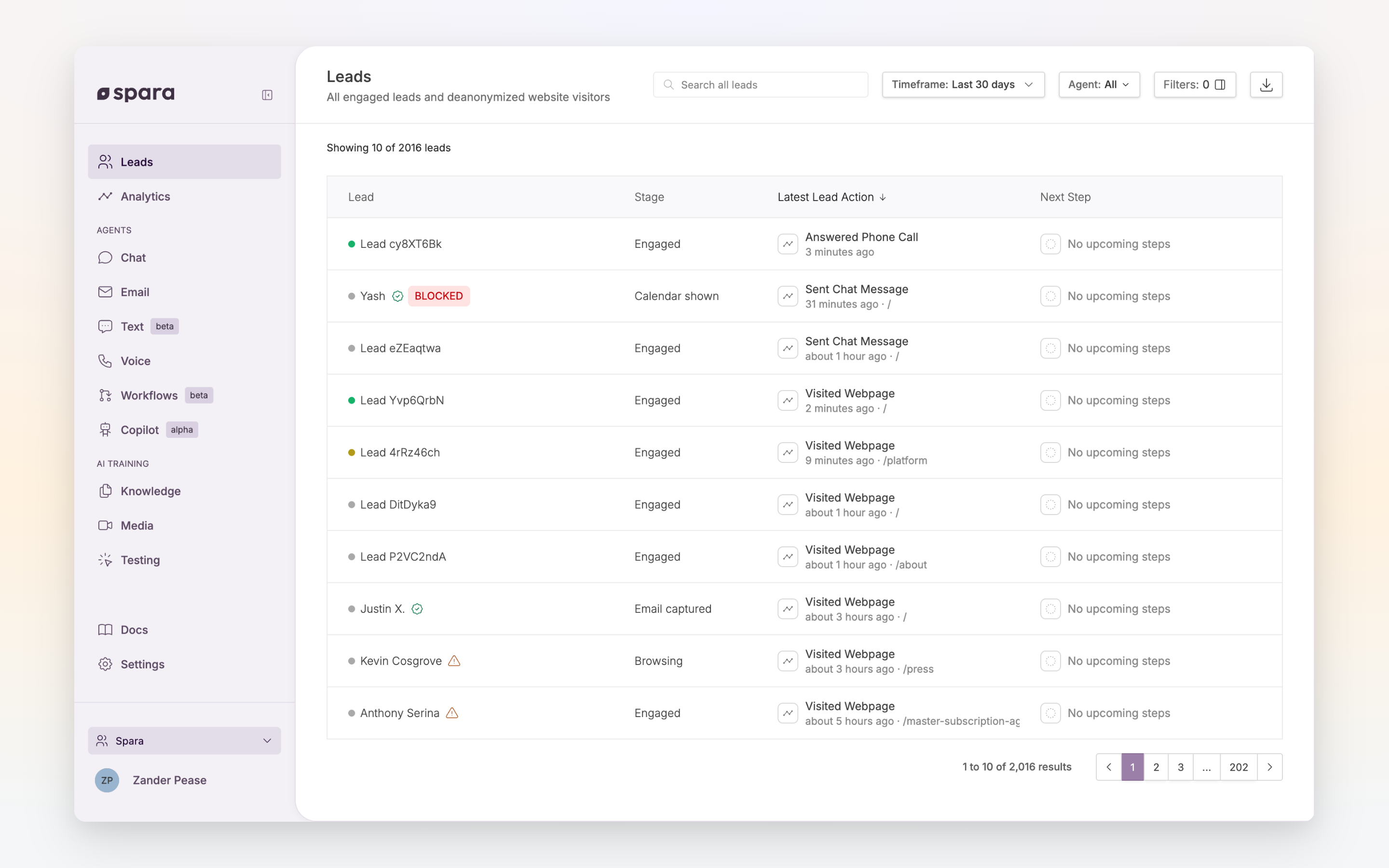
The [Leads page](https://app.spara.co/leads) is where you manage every lead that has interacted with your Spara agents. Each row represents a single lead with their latest webpage visit, latest engagement, and next workflow step.

<figure><img src="https://4072969777-files.gitbook.io/~/files/v0/b/gitbook-x-prod.appspot.com/o/spaces%2FreCGkFdsmuPJzGP9ZgGA%2Fuploads%2Fgit-blob-46dbb012b2331ec5ebb1b5bf86063608530674e0%2FLeads%20Page.png?alt=media" alt=""><figcaption><p>The Leads page showing lead stage, latest actions, and next workflow steps.</p></figcaption></figure>

Each lead row shows:

* **Lead** — Name, email, and status indicators. A green checkmark means the lead self-identified; a yellow warning icon means they were identified through deanonymization or enrichment.
* **Latest Webpage Visit** — The most recent page the lead viewed on your website, with the visit time.
* **Latest Spara Engagement** — The most recent meaningful engagement with a Spara agent (e.g., Sent Chat Message, Sent Email Reply, Answered Phone Call, Completed Product Demo). Webpage visits are tracked separately so they don't drown out real engagements.
* **Next Spara Workflow Step** — The upcoming workflow touchpoint, or "No upcoming steps" if the lead isn't in an active workflow.

### Filtering and Search

Use filters to narrow your leads list:

| Filter             | Options                                                                                                                                                                                                                                                         |
| ------------------ | --------------------------------------------------------------------------------------------------------------------------------------------------------------------------------------------------------------------------------------------------------------- |
| **Timeframe**      | Last 7 / 14 / 30 days, All time, or a custom range. Shows leads with any recorded activity in the window, whether the lead reached out or Spara did: a website visit, a chat, an email or text, a call, a demo, or a booked meeting. All time shows every lead. |
| **Agent**          | Filter by a specific Chat, Email, or Phone agent                                                                                                                                                                                                                |
| **Channel**        | Chat, Email, Phone, Text                                                                                                                                                                                                                                        |
| **Meeting Source** | Which channel the lead's meeting was scheduled through: Chat, Email, Phone, or Product Demo                                                                                                                                                                     |
| **Engagement**     | High (5+ messages), Medium (<5 messages), Browsing (no messages)                                                                                                                                                                                                |
| **Stage**          | Any lead stage                                                                                                                                                                                                                                                  |
| **Lead Source**    | Spara, Salesforce, HubSpot, Marketo, Leads API                                                                                                                                                                                                                  |
| **Country**        | Searchable country list based on IP location                                                                                                                                                                                                                    |
| **Known**          | Verified vs. enriched leads                                                                                                                                                                                                                                     |

Use the search bar to find leads by name, email, or company. Click **Export as CSV** to download the filtered list.

#### Custom filters

Click **All filters** and scroll to **More fields** to filter by any field in your [Data Model](/build/data-model.md), not just the filters listed above. Pick a field, pick a condition, and (if the condition needs one) a value, then click **Apply filter**:

* **is true** / **is false**: for yes/no fields
* **equals**: for fields with a fixed set of values
* **is defined** / **is not defined**: for whether the field has a value at all
* **is in range**: for select number fields (e.g. company headcount)

Each custom filter appears as a removable pill next to your other filters. Add as many as you need; leads must match every filter to appear in the list. Adding the same field twice matches either value, so you can filter to more than one option on that field at once. To change a custom filter, remove its pill and add it again with the new value.

Custom filters combine with the standard filters and search above, are included in the page URL so you can share a filtered view, and are honored by **Export as CSV**.

#### Filter with Ask Spara

Describe the leads you want to see, and [Ask Spara](/platform/ask-spara.md) sets the filters for you. Click **All filters**, then **Filter with Ask Spara**, and type a request such as "Show me leads from HubSpot in the last week." You can also ask from the Ask Spara bar at the top of any page, and Ask Spara takes you to the Leads page first.

Ask Spara builds each request from the filters above and your data model fields. The filters it sets appear next to your other filters, where you can remove them, and it tells you about any part of the request it could not apply. To change the view, ask again in the same conversation.

## Lead Details

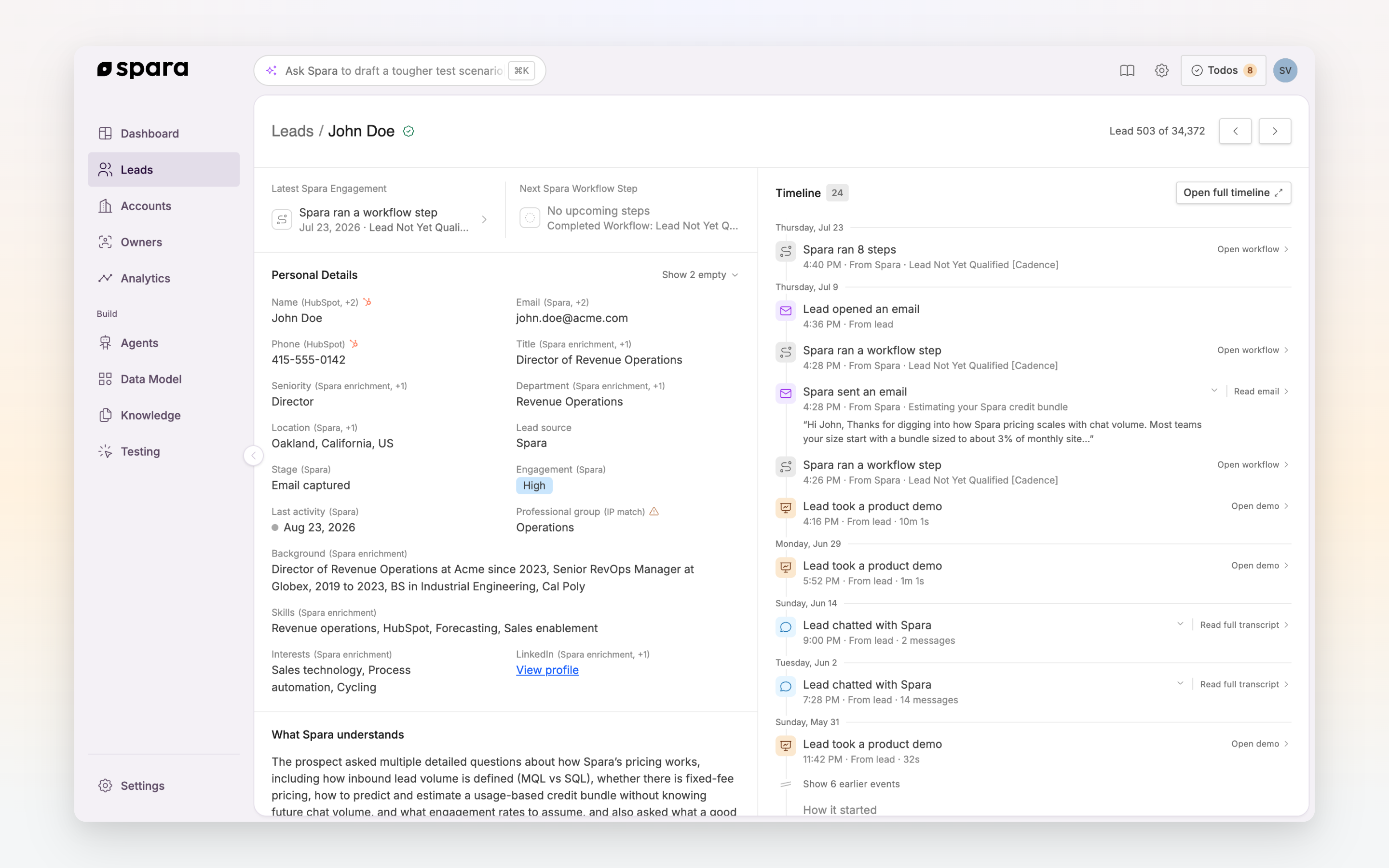
Click any lead to open its page. Everything Spara knows about the lead sits on the left, and the full history of the relationship runs down the right.

<figure><img src="https://4072969777-files.gitbook.io/~/files/v0/b/gitbook-x-prod.appspot.com/o/spaces%2FreCGkFdsmuPJzGP9ZgGA%2Fuploads%2Fgit-blob-dcc2e005fa17ba32c4fd1e2063a5b28d93459228%2FLead%20Details.png?alt=media" alt=""><figcaption><p>The lead page: personal details and enrichment on the left, the timeline of every touchpoint on the right.</p></figcaption></figure>

The record on the left is organized into sections:

* **Personal Details**: Name, email (with validation status), phone, job title, seniority, department, location, LinkedIn profile, background, skills, and interests. Each field shows where its value came from, such as HubSpot, Spara enrichment, or a conversation. Click a field to see every source that reported it.
* **What Spara understands**: An AI-generated summary of the relationship and the questions the lead has asked.
* **What Spara gathered**: Fields captured during conversations and workflows.
* **Account**: The company record synced from your CRM, merged with enrichment data such as products, objectives, competitors, and recent news.
* **Owner**: The team member who owns the lead in your CRM.

### Timeline

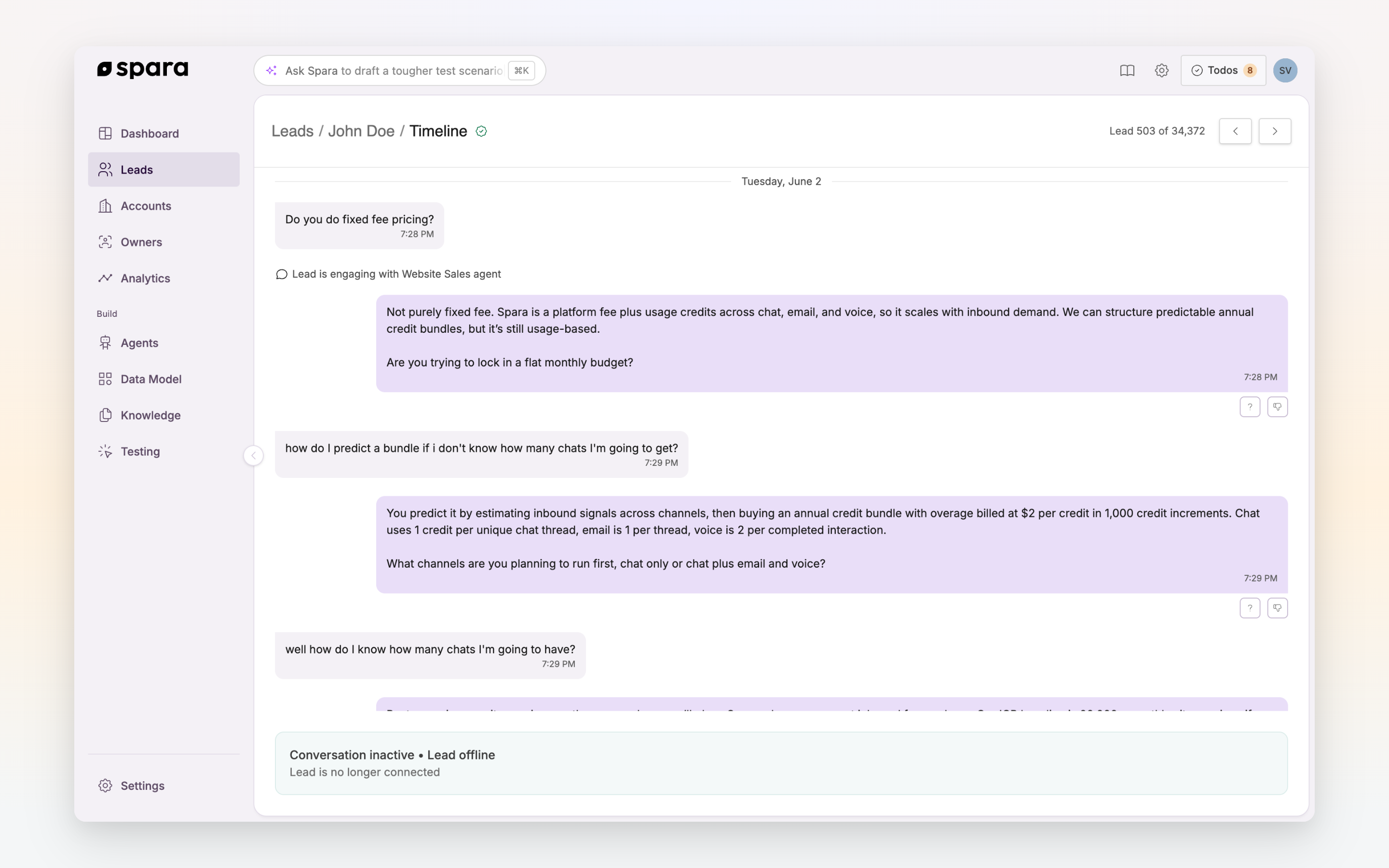
The timeline lists every touchpoint in one chronological feed: chat conversations, phone calls, emails, product demos, workflow steps, and events such as an email being opened. Click a row to expand it, or use its action to read the email, listen to the call, or open the transcript. **Open full timeline** shows the message-level conversation history across all channels. Expand a website visit to see the pages the lead viewed that day; **Open full timeline** lists each page view, with the full URL on hover.

<figure><img src="https://4072969777-files.gitbook.io/~/files/v0/b/gitbook-x-prod.appspot.com/o/spaces%2FreCGkFdsmuPJzGP9ZgGA%2Fuploads%2Fgit-blob-81bac1c49c19607b500a88490ea6cbe744d1f0e7%2FLead%20Timeline.png?alt=media" alt=""><figcaption><p>The full timeline showing a chat conversation between a lead and a Spara agent.</p></figcaption></figure>

This is where you can:

* **Take over a conversation**: Click "Take over chat" at the bottom to enter manual mode. Spara agents will stop sending automatic messages. Click "Return to Automated" when you're done.
* **Control what Spara does next**: The **What Spara will do** section below the timeline holds the **Workflows enabled** and **AI Responses enabled** toggles. See [Blocking](/pipeline/leads/blocking.md) for what each one controls.

When a team member takes over via **Take over chat**, the timeline shows a **"\[Name] has taken over the chat"** marker at that point in the history. When they click **Return to Automated**, a **"Returned to automated"** marker appears. These markers make it easy to see at a glance exactly when human and AI control switched during a conversation.

{% hint style="info" %}
Spara can send Slack, Webex, or Microsoft Teams notifications when specific events happen, so your team knows when to take over. Configure these in [Notifications](/platform/settings/notifications.md).
{% endhint %}

All fields come from Spara's [Data Model](/build/data-model.md) — a combination of data gathered by agents, CRM syncs, and lead enrichment.

## FAQ

### How do I improve a response the agent gave?

Lead conversations are connected to Ask Spara. If you see a response you want to improve, use the feedback tools in the conversation to suggest better behavior. This helps refine your agent's prompt over time.

### Can I export lead data?

Yes. Apply any filters on the Leads page and click **Export as CSV** to download the filtered results.

### How does deanonymization work?

When a visitor hasn't self-identified, Spara can match them to known contacts using IP and behavioral signals. Deanonymized leads are marked with a yellow warning icon to indicate the data came from external sources rather than direct identification. See [Deanonymization](/pipeline/leads/deanonymization.md) for details.

### What happens when a lead is blocked?

Spara automatically blocks leads who send harmful or malicious content. Blocked leads can no longer receive responses from Spara. See [Blocking](/pipeline/leads/blocking.md) for details on how moderation works and how to manually block or unblock leads.


---

# Agent Instructions
This documentation is published with GitBook. GitBook is the documentation platform designed so that both humans and AI agents can read, navigate, and reason over technical content effectively. Learn more at gitbook.com.

## Querying This Documentation
If you need additional information that is not directly available in this page, you can query the documentation dynamically by asking a question.

Perform an HTTP GET request on the current page URL with the `ask` query parameter, and the optional `goal` query parameter:

```
GET https://docs.spara.com/pipeline/leads.md?ask=<question>&goal=<endgoal>
```

`ask` is the immediate question: it should be specific, self-contained, and written in natural language.
`goal` is optional and describes the broader end goal you are ultimately trying to accomplish on behalf of the user. GitBook uses it to tailor the answer towards what is most useful for that goal.

The response will contain a direct answer to the question and relevant excerpts and sources from the documentation.

Use this mechanism when the answer is not explicitly present in the current page, you need clarification or additional context, or you want to retrieve related documentation sections.