> For the complete documentation index, see [llms.txt](https://docs.spara.com/llms.txt). Markdown versions of documentation pages are available by appending `.md` to page URLs; this page is available as [Markdown](https://docs.spara.com/pipeline/owners.md).
# Owners
How Spara tracks the people responsible for your accounts and leads.
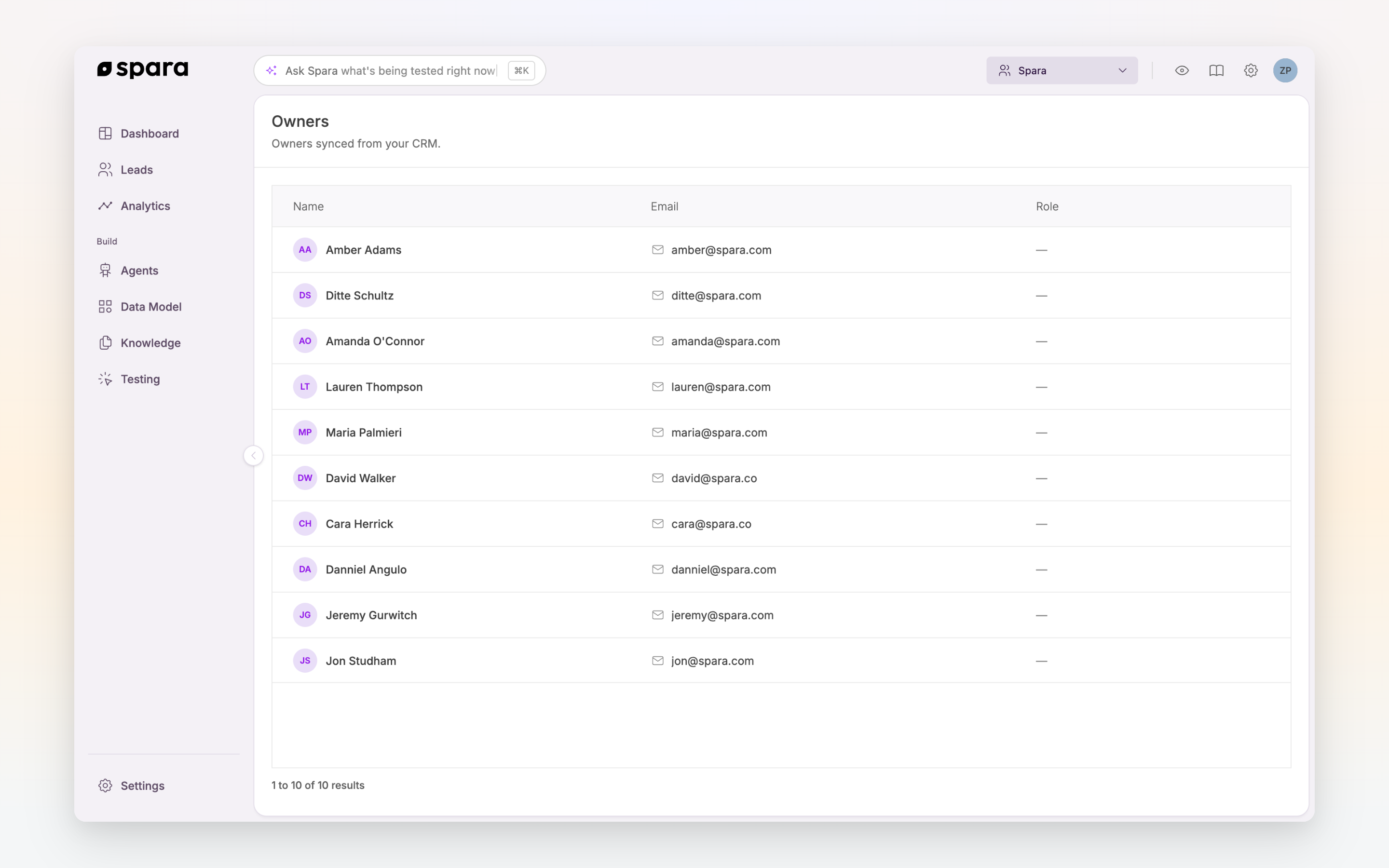
The [Owners page](https://app.spara.co/owners) shows the people in your CRM responsible for your accounts and leads — your sales reps and account owners — synced directly from your CRM. Owners connect every account and lead to the person who owns the relationship, so Spara can route, personalize, and report by rep.
The Owners page, showing account owners and sales reps synced from your CRM.
## Owner details
Click any owner to open their detail view, which summarizes who they are and what they're responsible for. The detail view includes:
* **Email** and **Role** — The owner's contact details and title.
* **Accounts** — How many [Accounts](/pipeline/accounts.md) this owner is responsible for. Click the count to see them on the Accounts page.
* **Leads** — How many leads this owner is responsible for. Click the count to open those leads on the [Leads page](https://app.spara.co/leads).
* **CRM Source** — Which CRM the owner synced from. Click **View in HubSpot** or **View in Salesforce** to open the record in your CRM.
* **Spara User** — Whether this owner also has a Spara login, linking them to their platform account.
* **Custom fields** — Any owner-level [Data Model](/build/data-model.md) fields your team has configured appear at the bottom of the card.
## How owners connect accounts and leads
Owners tie your pipeline together. Each [Accounts](/pipeline/accounts.md) and lead carries the owner responsible for it, which lets you:
* **Filter by owner** — Narrow the [Accounts](/pipeline/accounts.md) and [Leads](https://app.spara.co/leads) pages to a single rep's book of business.
* **Personalize with owner data** — Reference a lead's assigned rep by name in agent messages and workflow logic. See the CRM integration pages for how owner data flows into Spara — for example, [Hubspot (CRM)](/integrations/crm-integrations/hubspot-crm.md).
## Syncing from your CRM
Owners are synced from your connected CRM — Salesforce, HubSpot, or Marketo — when owner syncing is enabled. Spara keeps them up to date as your CRM changes.
If your Owners page is empty, either no CRM is connected or owner syncing is turned off. See [CRM Integrations](/integrations/crm-integrations.md) to connect a CRM, and reach out to your Spara customer success representative to enable owner syncing.
{% hint style="info" %}
For a full picture of how Spara's data model operates and syncs with your CRM, see [Developer: Spara Objects & Fields](https://docs.spara.com/developers/data-model).
{% endhint %}
## FAQ
### Why is my Owners page empty?
Owners only populate from a connected CRM with owner syncing enabled. Connect Salesforce, HubSpot, or Marketo under [**Settings > Integrations**](https://app.spara.co/organization/integrations), then confirm owner syncing is on. If a CRM is already connected, contact your Spara customer success representative to turn it on.
### What's the difference between an owner and a Spara user?
An owner is a person synced from your CRM who is responsible for accounts and leads — they don't need a Spara login to appear here. A Spara user is someone with access to the Spara platform. When an owner also has a Spara login, the owner detail view links the two under **Spara User**.
### Can I reassign an account or lead to a different owner?
Ownership is synced from your CRM, so change the owner on the record in Salesforce, HubSpot, or Marketo and Spara will reflect it on the next sync.
---
# Agent Instructions
This documentation is published with GitBook. GitBook is the documentation platform designed so that both humans and AI agents can read, navigate, and reason over technical content effectively. Learn more at gitbook.com.
## Querying This Documentation
If you need additional information that is not directly available in this page, you can query the documentation by asking a question.
Perform an HTTP GET request on the following URL with the `ask` and `goal` query parameters:
```
GET https://docs.spara.com/pipeline/owners.md?ask=&goal=
```
`ask` is the immediate question: it should be specific, self-contained, and written in natural language.
`goal` is what the user is ultimately trying to achieve, the reason they need the answer. Sharing it helps GitBook give you a better, more relevant answer. A goal is most helpful when it describes the outcome the user wants rather than restating the question. For example, with `ask=how do I create an API token`, a goal like `automate deployments from our CI pipeline` lets GitBook tailor the answer to that use case.
The response will contain a direct answer to the question and relevant excerpts and sources from the documentation.
Use this mechanism when the answer is not explicitly present in the current page, you need clarification or additional context, or you want to retrieve related documentation sections.