> For the complete documentation index, see [llms.txt](https://docs.spara.com/llms.txt). Markdown versions of documentation pages are available by appending `.md` to page URLs; this page is available as [Markdown](https://docs.spara.com/platform/ask-spara.md).
# Ask Spara
Ask Spara is the AI assistant built into the platform — ask questions, build and change agents, edit your data model, and get analytics answers from one chat.
**Ask Spara** is the AI assistant built into the Spara platform. It's one chat that follows you across every page: ask it how something works, have it build or change an agent for you, edit the data you track, or get an answer straight from your analytics — without leaving the page you're on.
Instead of a separate helper on each page, Ask Spara is a single assistant that carries context from one task to the next. You can describe what you want in plain language, and it does the work or walks you through it.
Ask Spara open in the side rail, ready to answer a question or take on a task.
## Where to find it
Ask Spara is available from anywhere in the platform in two forms:
* **Side rail** — a compact panel that slides in alongside whatever page you're on, so you can ask a question without losing your place.
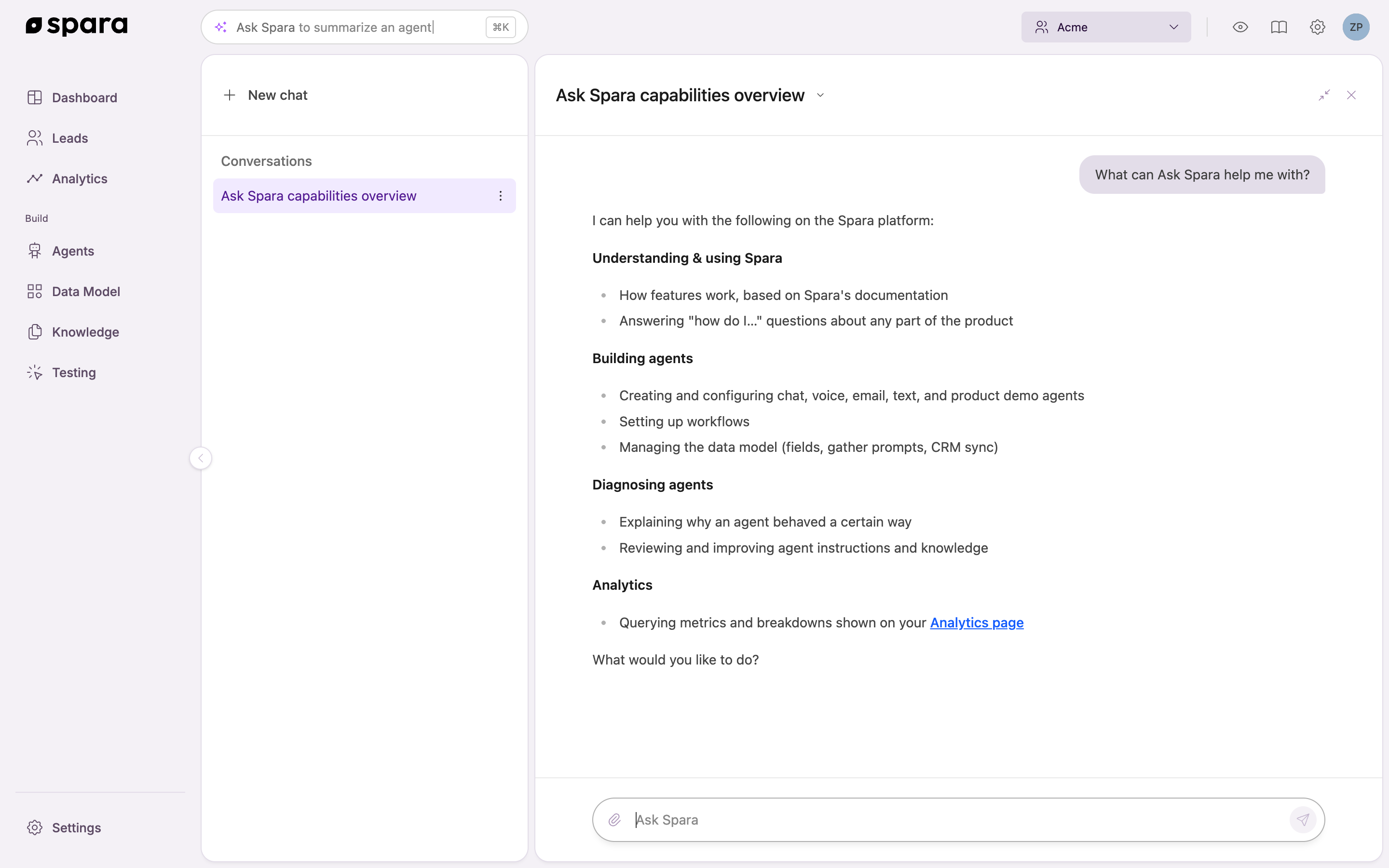
* **Fullscreen** — expand the rail to a full [**Ask Spara**](https://app.spara.co/ask-spara-ai) page when you want more room, a wider view of a change, or to review past conversations in the sidebar.
The suggestions in the composer are aware of the page you're on — open it from Analytics and it suggests analytics questions; open it from Workflows and it suggests workflow tasks.
The fullscreen view, with past conversations listed in the left sidebar.
## What you can do
### Answer product and how-to questions
Ask Spara answers questions about how to use the platform, grounded in Spara's documentation, right inside the chat. It's the fastest way to learn how a feature works or find the right setting without leaving what you're doing.
### Build a new agent
Describe the agent you want and Ask Spara builds it with you. It creates a new channel from the conversation, takes you to its configuration, and keeps refining as you give feedback. Ask Spara can build across every channel — [Chat](/build/channels/chat.md), [Email](/build/channels/email.md), [SMS](/build/channels/sms.md), [Phone](/build/channels/phone.md), and [Product Demo](/build/channels/product-demo.md) — as well as [Workflows](/build/workflows.md).
For a step-by-step walkthrough of the whole agent, see [Agents](/build/agents.md).
{% hint style="info" %}
Building agents requires the **Agent edit** permission. Admins have this by default; other roles can be granted it by an admin under [User Management](/platform/settings/user-management.md).
{% endhint %}
### Change an existing agent
Ask Spara edits agents you've already built. Tell it what to change on a channel's prompt or configuration, and it proposes the edit as an **edit card** — a diff-style preview of exactly what will change, with a conflict check against your current setup. Click **Apply** to accept it. Changes save to your draft; nothing goes live until you publish. This works across Chat, Email, SMS, Phone, and Product Demo channels, as well as Workflows.
{% hint style="info" %}
Ask Spara is also embedded directly in the channel editor as a right-hand panel. See [Configuring Channels](/build/channels/configuring.md) for how it works while you're editing a single channel.
{% endhint %}
### Edit your data model
Ask Spara can add, rename, or adjust the [Data Model](/build/data-model.md) Spara tracks, and change which agents set or see each one, straight from the chat. This changes what data Spara collects — not just the agents that use it — so you can evolve your data model without opening the editor yourself.
### Answer analytics questions
Ask questions about your performance and Ask Spara answers them from your [Analytics](/pipeline/analytics.md). Because these answers map to the same metrics shown on the Analytics page, what Ask Spara tells you always matches what you see there. Each account only ever sees its own data.
### Filter your leads
Describe the leads you want to see, such as "Show me leads who submitted a webform," and Ask Spara filters the [Leads](/pipeline/leads.md) table for you. It uses the same filters you can set by hand, including your data model fields, and tells you about any part of the request it could not apply. See [Leads](/pipeline/leads.md#filter-with-ask-spara).
### Brand your chat widget
Give Ask Spara your brand colors — hex codes, or just a description of your site — and it turns them into a full chat widget theme: the accent, message bubbles, links, launcher button, and more. It proposes the palette first and applies it only after you say yes, then links you to the [Chat Theme](/build/channels/chat/chat-theme.md) page to preview it beside your site. Because a theme change is live on your website as soon as it's saved, Ask Spara always checks with you before applying one. Visitors may see the previous colors for up to about five minutes while the cached copy of your widget settings expires; there is nothing to publish or purge. Background images and avatars are still uploaded on the Theme page.
{% hint style="info" %}
Changing the theme requires the **Agent edit** permission, the same as the Theme page itself.
{% endhint %}
### Navigate the platform
Ask Spara points you to the right page and can take you there directly, so you spend less time hunting through the platform for the setting or view you need.
## How it works
A few things make Ask Spara feel like one continuous assistant rather than a series of one-off prompts:
* **Context awareness** — it knows what page you're on and what you've built, and carries that context across tasks within the same conversation.
* **Conversation history** — your chats are saved, so you can leave and pick a conversation back up later from the sidebar.
* **Upload a file** — attach a document or image to build or edit from it. Supported formats include PDF, Word (.docx), images (PNG, JPG, etc.), and most other file types up to 5 MB. For example, paste in a sales playbook to turn it into an agent.
* **In-chat controls** — Ask Spara uses inline controls like single- and multi-select questions, quick replies, and instruction-edit cards, so you can steer it with a click instead of typing everything out.
* **Live progress** — while it works, Ask Spara shows what it's doing and condenses the intermediate steps, so you can follow along.
* **Feedback** — give a thumbs up or down to help improve answers over time.
* **Share a conversation** — click the link icon in the side rail to copy a share link. Anyone in your organization who opens it lands on the same conversation, read-only, with the thread open.
## FAQ
### Does Ask Spara change anything without my approval?
No. When Ask Spara proposes a change to an agent, it shows an edit card you have to **Apply**, and applied changes save to your draft. Nothing affects live behavior until you publish the channel or workflow yourself. The one setting without a draft is the chat widget theme: it goes live as soon as it's saved, so Ask Spara proposes the palette and applies it only after you confirm in the chat.
### Can other accounts see my data through Ask Spara?
No. Ask Spara only ever works with your own account's data. Analytics answers are scoped to your account and match what appears on your Analytics page.
### Is Ask Spara the same as the assistant in the channel editor?
They're the same assistant in different places. The in-editor panel is focused on the single channel you're editing; the platform-wide Ask Spara carries context across pages and can build and change agents, edit your data model, and answer analytics questions. See [Configuring Channels](/build/channels/configuring.md).
### Are my Ask Spara conversations saved?
Yes. Conversations in the rail and fullscreen views are saved to your history, so you can resume them later. You can also start a new chat at any time with **New chat**.
### Is there a limit on how much I can paste into one message?
A single message can be up to 50,000 characters, enough for a long transcript or document. A counter appears as you approach the limit, and **Send** is disabled until you trim the message below it.
### Can I share an Ask Spara conversation with a teammate?
Yes. Click the link icon in the side rail to copy a share link. Teammates in your organization who open it can read the conversation thread. Share links are read-only — the recipient cannot continue the conversation or make changes.
---
# Agent Instructions
This documentation is published with GitBook. GitBook is the documentation platform designed so that both humans and AI agents can read, navigate, and reason over technical content effectively. Learn more at gitbook.com.
## Querying This Documentation
If you need additional information that is not directly available in this page, you can query the documentation by asking a question.
Perform an HTTP GET request on the following URL with the `ask` and `goal` query parameters:
```
GET https://docs.spara.com/platform/ask-spara.md?ask=&goal=
```
`ask` is the immediate question: it should be specific, self-contained, and written in natural language.
`goal` is what the user is ultimately trying to achieve, the reason they need the answer. Sharing it helps GitBook give you a better, more relevant answer. A goal is most helpful when it describes the outcome the user wants rather than restating the question. For example, with `ask=how do I create an API token`, a goal like `automate deployments from our CI pipeline` lets GitBook tailor the answer to that use case.
The response will contain a direct answer to the question and relevant excerpts and sources from the documentation.
Use this mechanism when the answer is not explicitly present in the current page, you need clarification or additional context, or you want to retrieve related documentation sections.