# Notifications

Spara can notify your team in real time when key lead events occur — like a new visitor being identified, lead information being enriched, or an email being sent. Notifications help your sales team respond faster and stay on top of pipeline activity without constantly monitoring the platform.

There are two ways to set up notifications about lead activity:

* [**Settings > Notifications**](https://app.spara.co/organization/notifications) — automatically notify your team when specific lead events happen across all leads. Best for organization-wide alerts that should fire every time an event occurs.
* **Workflow Notify step** — send targeted notifications as part of a [Workflows](/agents/workflows.md), with custom messages and lead-specific data. Best for conditional alerts that should only fire when leads match specific criteria. See [Notify Step](/agents/workflows/notify.md) for setup instructions.

## Notification Settings

Navigate to [**Settings > Notifications**](https://app.spara.co/organization/notifications) to configure automatic notifications for your organization. Each notification event can be independently enabled and routed to one or more channels.

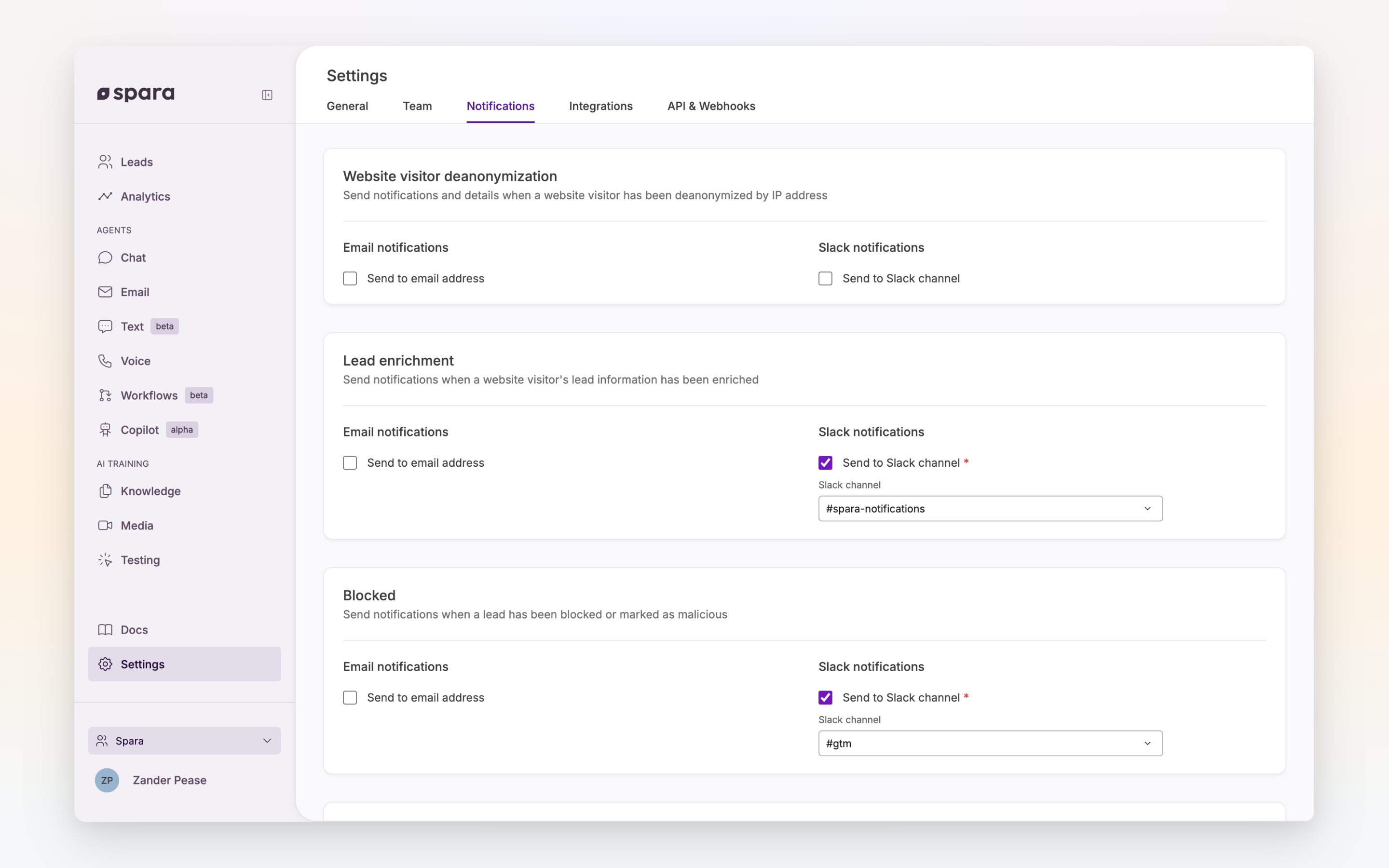
<figure><img src="/files/XkevlbAJcvbYeda0T3un" alt=""><figcaption><p>The Notifications tab in Settings, showing configurable events.</p></figcaption></figure>

### Notification events

Notification events are grouped into two categories:

**Lead activity events** fire based on lead identification and status changes:

| Event                               | What triggers it                                                   |
| ----------------------------------- | ------------------------------------------------------------------ |
| **Website visitor deanonymization** | A previously anonymous website visitor is identified by IP address |
| **Lead enrichment**                 | Spara learns new information about a lead through enrichment       |
| **Blocked**                         | A lead is blocked or marked as malicious                           |

**Email agent events** fire when emails are sent to or from leads:

| Event                           | What triggers it                                                  |
| ------------------------------- | ----------------------------------------------------------------- |
| **Workflow email sent to lead** | A [Workflows](/agents/workflows.md) step sends an email to a lead |
| **Reply email sent to lead**    | A reply email is sent to a lead                                   |
| **Lead sent an email**          | A lead sends your team an email                                   |

### Notification channels

Each event can be routed to one or more of these channels:

* **Email** — Send to a specific email address. When a sales rep is assigned to the lead, you can also enable **Notify sales rep** to send a copy to them automatically.
* **Slack** — Post to a specific Slack channel. Also supports **Notify sales rep** to DM the assigned rep.
* **Microsoft Teams** — Post to a specific Teams channel.
* **Webex** — Post to a specific Webex room.

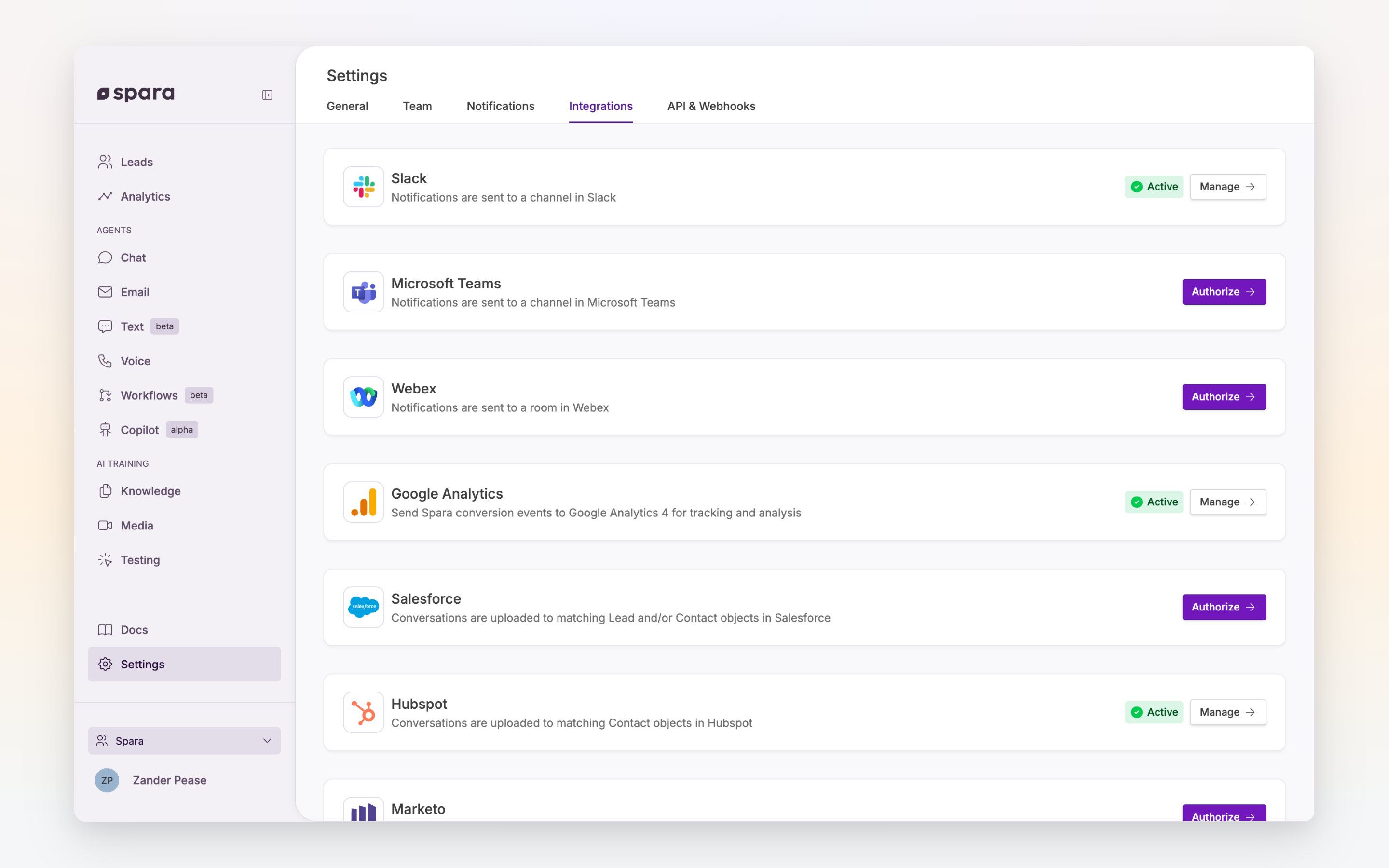
Slack, Teams, and Webex must be connected under [**Settings > Integrations**](https://app.spara.co/organization/integrations) before they appear as notification options. See [Communications Integrations](/integrations/communications-integrations.md) for setup instructions.

<figure><img src="/files/cIGpSEabOpk0jtpJjkep" alt=""><figcaption><p>Connect Slack, Microsoft Teams, or Webex under Settings > Integrations to unlock messaging channels.</p></figcaption></figure>

### Enabling a notification

To enable a notification for an event:

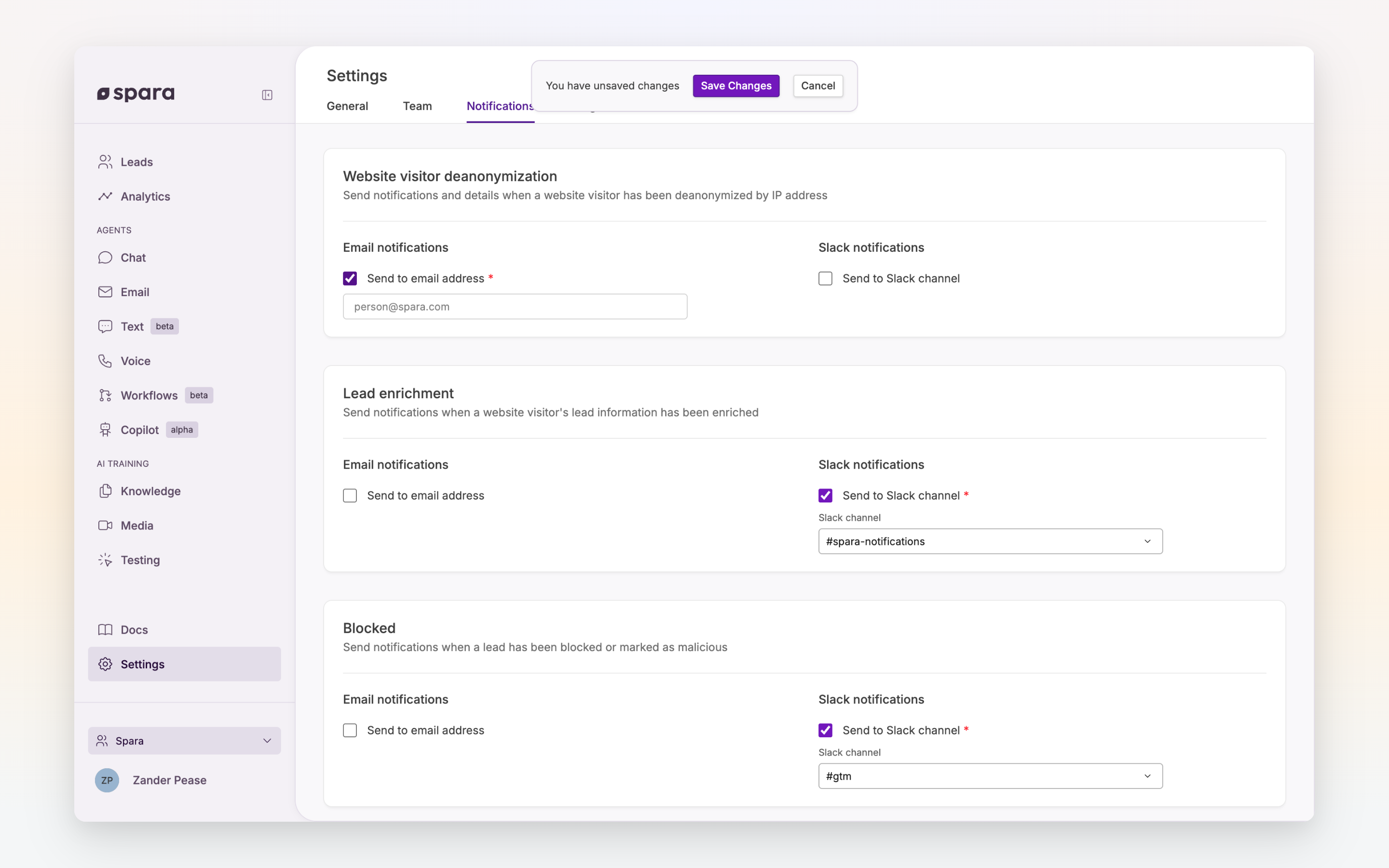
1. Check the **Send to email address** box next to the event
2. Enter the email address that should receive the notification
3. Click **Save Changes**

<figure><img src="/files/SO8ZOv2NPgd1moJk1cfj" alt=""><figcaption><p>Enabling an email notification reveals the email address field.</p></figcaption></figure>

{% hint style="info" %}
If your organization has connected [Slack](/integrations/communications-integrations/slack.md), [Microsoft Teams](/integrations/communications-integrations/microsoft-teams.md), or [Webex](/integrations/communications-integrations/webex.md), additional channel options appear for each event. You can route the same event to multiple channels simultaneously.
{% endhint %}

## FAQ

### Do notification settings and workflow Notify steps overlap?

They serve different purposes. Notification settings send automatic alerts for every lead that triggers an event. Workflow Notify steps send alerts only for leads that enter a specific workflow and reach the Notify step. You can use both together.

### Can I notify the assigned sales rep?

Yes, for Email and Slack notification channels. Enable the **Notify sales rep** toggle next to the event. Spara looks up the rep's email from your connected CRM (e.g., Salesforce) and sends them a notification when their assigned lead triggers the event.

### What if I don't see Slack or Teams options?

You need to connect the integration first. Go to [**Settings > Integrations**](https://app.spara.co/organization/integrations) and authorize Slack, Microsoft Teams, or Webex. Once connected, those channels appear as options in both notification settings and the workflow Notify step.


---

# Agent Instructions: Querying This Documentation

If you need additional information that is not directly available in this page, you can query the documentation dynamically by asking a question.

Perform an HTTP GET request on the current page URL with the `ask` query parameter:

```
GET https://docs.spara.com/platform/settings/notifications.md?ask=<question>
```

The question should be specific, self-contained, and written in natural language.
The response will contain a direct answer to the question and relevant excerpts and sources from the documentation.

Use this mechanism when the answer is not explicitly present in the current page, you need clarification or additional context, or you want to retrieve related documentation sections.