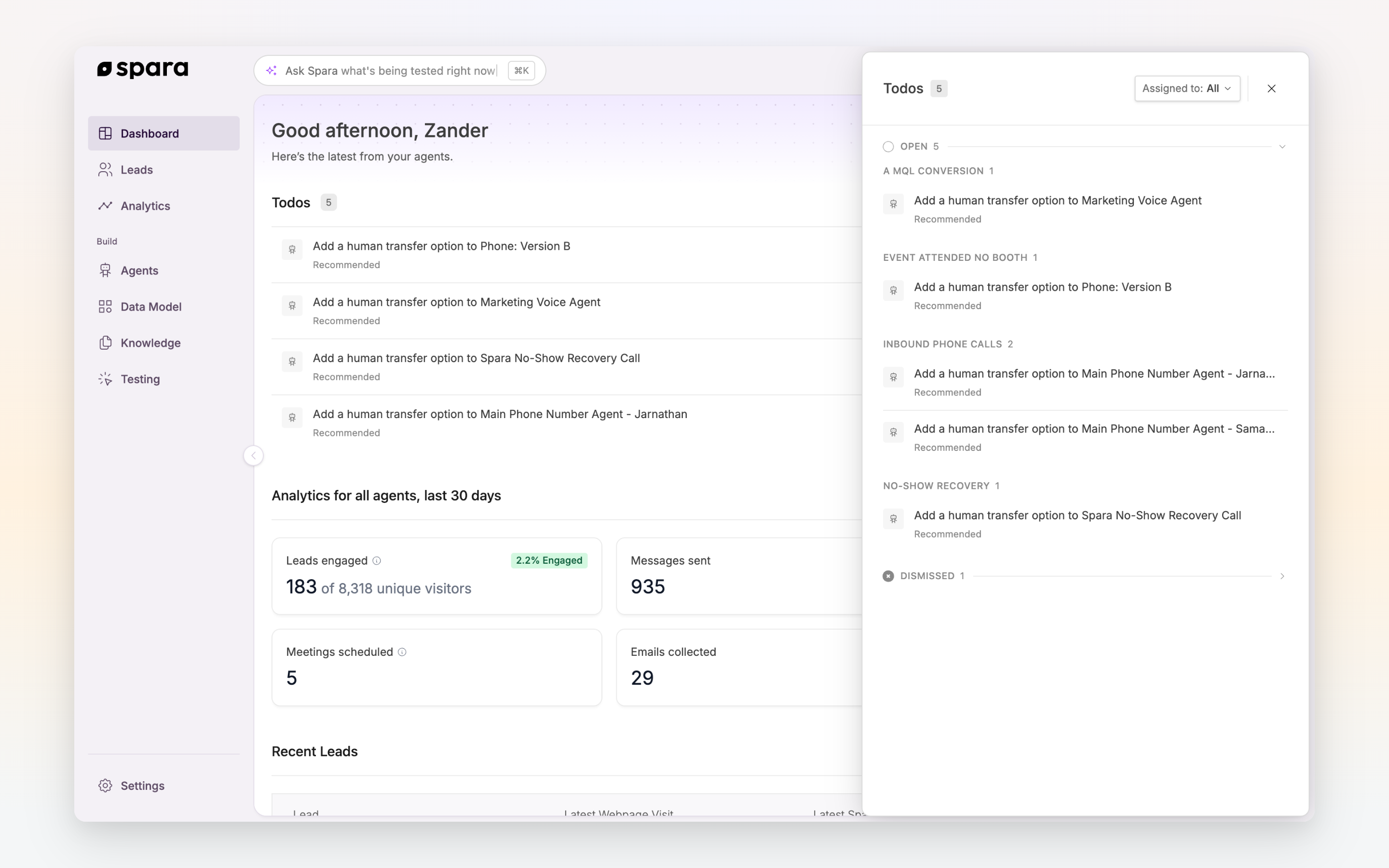
The Todos tray, grouped by area and sorted by priority
The Todos tray, grouped by area and sorted by priority
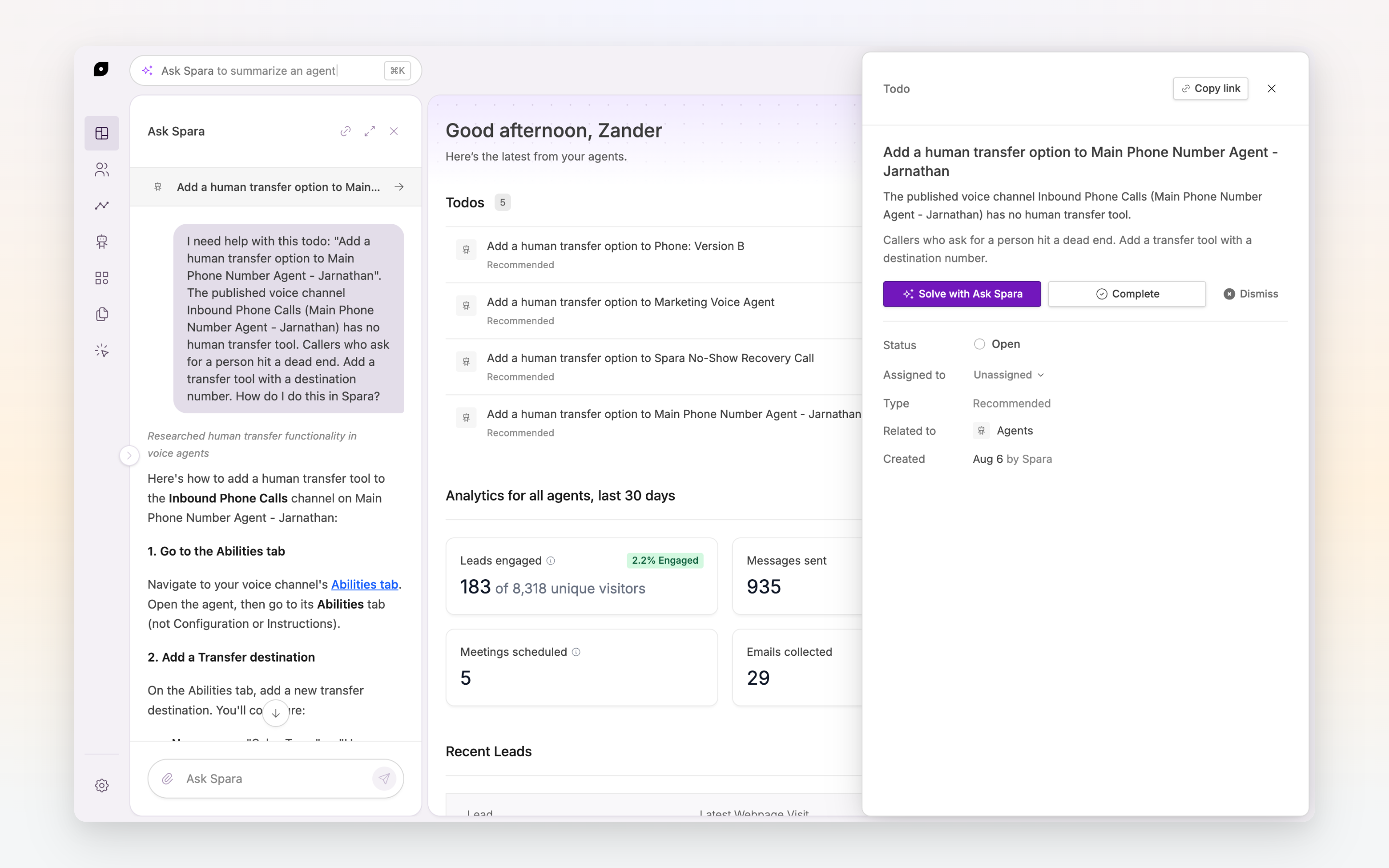
A todo open with Ask Spara helping to resolve it
| Todo | Description | Detection condition | Area | Priority |
|---|---|---|---|---|
| Add a human transfer option to voice calls (per channel) | Callers who ask for a person hit a dead end. Add a transfer tool with a destination number. | A published phone channel has no transfer tool. | Agents | Recommended |
| Add channel instructions (per channel) | A channel on defaults speaks in a generic voice and doesn't know how to qualify your prospects. Add your own instructions and opening message. | A published channel's instructions are empty or unchanged from the Spara defaults (for chat, the opening message is also unedited). | Agents | Required |
| Agent not gathering fields (per channel) | Conversations there won't capture any lead data. Turn the channel on for the fields it should collect on the Data Model page. | A published channel is not set to gather any fields in the Data Model. | Agents | Urgent |
| Assign an inbox to each email channel (per channel) | Without an assigned inbox a channel can't send anything, even if an inbox is connected at the account level. | A published email channel has no inbox assigned. | Agents | Required |
| Create a channel | Prospects have no way to reach an agent. Create a channel, like chat, voice, or email, to get started. | No channels exist. | Agents | Required |
| Create a workflow | Your agents work without them, but we recommend one so follow-up happens automatically, like notifying your team about a hot lead or syncing it to your CRM. | No workflows exist. | Agents | Recommended |
| Publish a channel | An unpublished channel isn't live. Publish it to put it in front of your prospects. | At least one channel has been set up AND no channel is published. | Agents | Required |
| Publish a workflow | An unpublished workflow isn't running. We recommend publishing it so the follow-up actions it automates actually happen. | At least one workflow exists AND no workflow is published. | Agents | Recommended |
| Configure CRM field mappings | Until fields are mapped, the data Spara captures won't sync into the right CRM fields. | A CRM is connected AND it has no field mappings. | Integrations | Recommended |
| Confirm rep routing on calendar | Meetings booked from a conversation have nowhere to land. Map at least one rep or booking link so prospects reach a real calendar. | Calendly or Cal.com is connected AND no rep or booking link is mapped on any calendar provider. | Integrations | Recommended |
| Connect a calendar | Your agents can't book meetings with prospects. Connect a provider, or add a booking link, so conversations can end in a scheduled meeting. | No calendar provider (Calendly, Cal.com, HubSpot Meetings, or ChiliPiper) is connected AND no booking-link calendar has been added AND no booking link appears in a chat agent's instructions. | Integrations | Recommended |
| Connect a CRM | The leads Spara captures aren't syncing anywhere. Connect one to keep your pipeline up to date automatically. | No CRM (Salesforce, HubSpot, or Marketo) is connected AND no webhook endpoint is configured AND at least one channel is published. | Integrations | Required |
| Connect a notification integration | Your team isn't getting real-time alerts when Spara captures new leads, emails, or scheduled calls. Connect one to get notified as they happen. | Slack has never been connected AND Microsoft Teams has never been connected AND Webex is not connected. | Integrations | Recommended |
| Connect an email inbox | The agent has nothing to send from. Connect at least one warmed inbox. One is required, two are recommended. | A published email channel exists AND the account has no active email inbox connection. | Integrations | Required |
| Connect Google Analytics | Spara engagement and conversion events aren't reaching your GA4 property. Connect it to see Spara activity in your analytics and attribution. | Google Analytics (GA4) is not connected. | Integrations | Recommended |
| Cal.com disconnected | Your agents can no longer book meetings on this calendar. Reconnect the integration to restore scheduling. | A connected Cal.com account has rejected Spara's access, so bookings fail until an admin reauthorizes it. Reauthorizing keeps your configured calendars. | Integrations | Urgent |
| CRM disconnected | The leads Spara captures are no longer syncing. Reconnect the integration to restore the flow of data. | A connected CRM can no longer refresh its credentials. When a single CRM is affected, the todo names it (e.g. "Salesforce disconnected"). | Integrations | Urgent |
| Email inbox disconnected (per inbox) | Spara can no longer receive or reply to email there. Reconnect the mailbox to restore email flow. | An inbox has been failing to sync for over an hour, or its provider revoked Spara's access. The todo names the inbox (e.g. "sales@yourco.com disconnected"). | Integrations | Urgent |
| Enable CRM sync | No data is flowing between Spara and your CRM. Turn syncing on to keep your pipeline up to date. | A CRM is connected AND sync is turned off for every record type. | Integrations | Required |
| Microsoft Teams disconnected | Lead notifications and alerts have stopped flowing to your workspace. Reconnect Teams to restore them. | Microsoft Teams was connected AND the connection is no longer authorized. | Integrations | Urgent |
| Webex disconnected | Lead notifications and alerts have stopped flowing to your Webex rooms. Reconnect Webex to restore them. | Webex was connected AND (the connection is no longer authorized OR Webex has stopped accepting Spara's access, so it needs to be reauthorized). | Integrations | Urgent |
| Slack disconnected | Lead notifications and alerts have stopped flowing to your workspace. Reconnect Slack to restore them. | Slack was connected AND the connection is no longer authorized. | Integrations | Urgent |
| Add websites | Your agents have no website to learn from. Add yours so Spara can scan it and answer prospect questions with accurate, up-to-date knowledge. | No homepage URL is set AND no website domains have been added. | Knowledge | Required |
| Sync documents | Your agents can't answer with your organization's own content. Upload files or sync a source like Google Drive, Notion, or Confluence. | No documents have been uploaded AND no document source (Google Drive, Notion, Confluence, etc.) has been synced. | Knowledge | Recommended |
| Website pages not scanned | Until a scan completes, your agents have nothing to learn from the site. Check the domain on the Knowledge page and re-run the scan. | Websites were added more than an hour ago AND no page has been successfully scanned. | Knowledge | Required |
| Add custom query parameters | Add mappings for any custom query parameters in your website URLs so Spara can ingest them. Standard UTM parameters are already mapped by default. | A chat or product demo channel has been set up AND no custom query-parameter mappings exist beyond the standard UTM defaults. | Settings | Recommended |
| Add team members | Invite teammates so they can manage agents, review conversations, and follow up on leads with you. | The account has a single user. | Settings | Recommended |
| Customize your theme | Customize the theme, colors, and avatar so the agent looks like part of your brand instead of a Spara default. | A chat channel has been set up AND no logo has been uploaded AND the theme is unchanged from the default. | Settings | Recommended |
| Install chat JavaScript | No visitors are reaching your agent. Add the embed snippet to your website to put your agent in front of prospects. | A published chat channel exists AND no website visitor has ever started a chat. | Settings | Required |
| Set Chat whitelist/blacklist | Navigator is showing on every page Spara's Javascript snippet loads. Set a whitelist or blacklist to control which pages Navigator is shown to your website visitors. | Website visitors have started chats AND no page whitelist or blacklist has been configured. | Settings | Recommended |
| Set up notifications | Nobody on your team is alerted when leads come in. Enable Slack, Teams, or email notifications to stay on top of new activity. | No notification is enabled AND no published workflow contains a Notify step. | Settings | Recommended |
| Submit Twilio registration | Carrier review takes weeks, and registration can't be started from the platform. Reach out to your Spara CSM now to avoid delaying your go-live. | A phone or SMS channel has been set up AND no A2P brand registration or toll-free verification has been submitted. | Settings | Urgent |